Telink Low Latency Soundbar SDK Developer Handbook
Quick Start Guide
Overview
Purpose of the Document
This document provides a comprehensive description of common configurations, usage, and debugging methods for the SDK. It aims to help users quickly get started and solve most of the problems encountered in the actual development process.
Glossary
TBD
Hardware
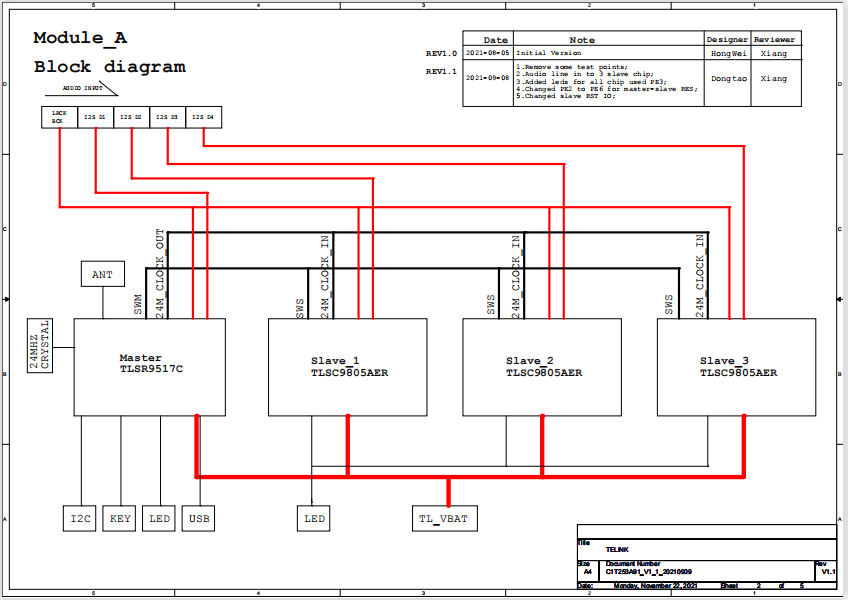
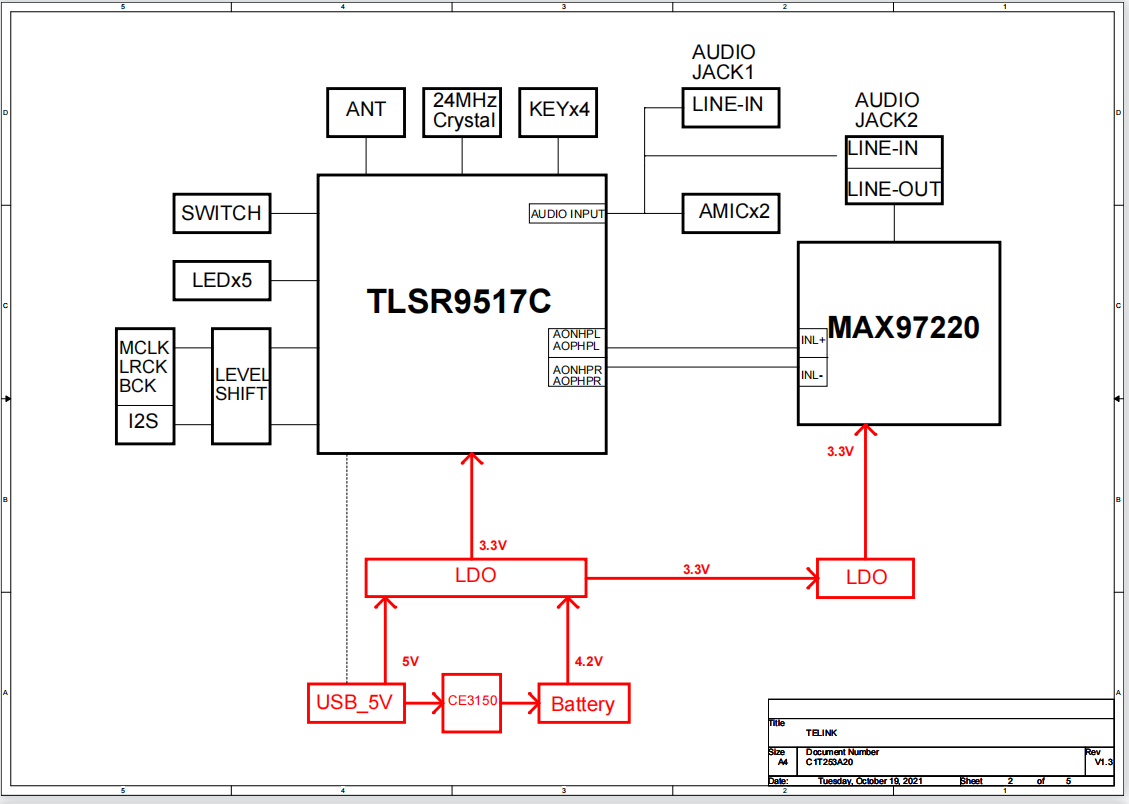
Hardware Block Diagram
TLSR9517CBAR56D_c1T253A91 (TX):
TLSR9517CDK56D_c1T253A20 (RX):
EVB Development Board
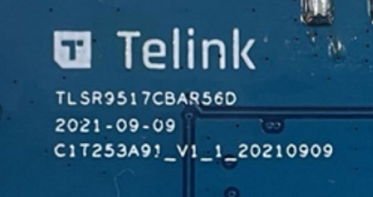
The development board model used by TX:
TLSR9517CBAR56D_c1T253A91
As shown below:
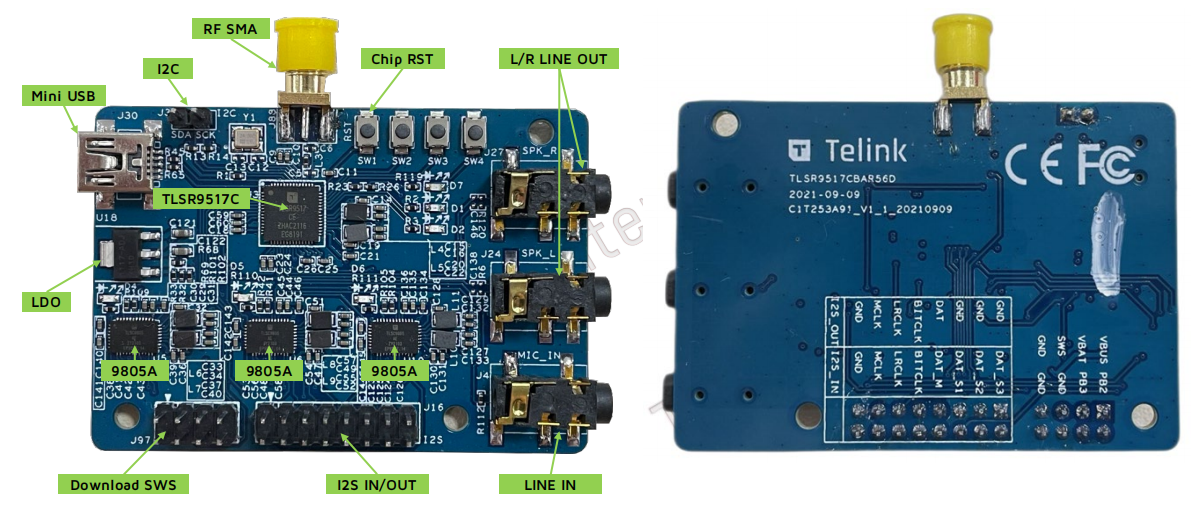
Development board name:
The soundbar 6p1 EVB is sold externally under the name TLSR9517CBAR56D, and customers submit orders under this name for purchase;
The soundbar 6p1 EVB has serial numbers on the board for version differentiation, the figure below shows the serial number for version V1.1. The latest version of the soundbar 6p1 EVB is V1.1.
The development board model used by RX:
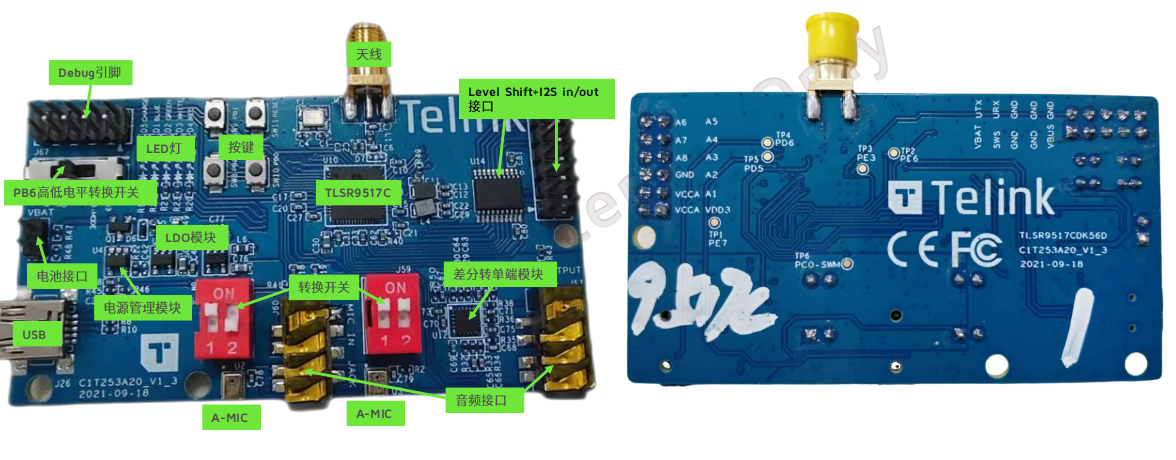
TLSR9517CDK56D_c1T253A20
As shown below:
Development board name:
The single-end Audio EVB is sold externally under the name TLSR9517CDK56D, and customers submit orders under this name for purchase;
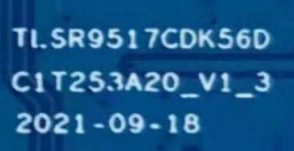
The single-end Audio EVB has serial numbers on the board for version differentiation, the figure below shows the serial number for version V1.3. The latest version of the single-end Audio EVB is V1.3.
For specific details of the development board, please refer to the doc:
TLSR9517CBAR56D:
https://doc.telink-semi.cn/doc/hardware/design_file/devboard/TLSR9517CBAR56D.zip
TLSR9517CDK56D:
https://doc.telink-semi.cn/doc/hardware/design_file/devboard/TLSR9517CDK56D.zip
Note
- The TLSR9517CBAR56D as the audio transmitter end (TX);
- In 1-to-1 case, the TLSR9517CDK56D as the subwoofer (SUB).
- In 1-to-3 case, three TLSR9517CDK56D are required as left surround (SODL), right surround (SODR) and subwoofer (SUB).
Instruction
LED Instructions
TX:
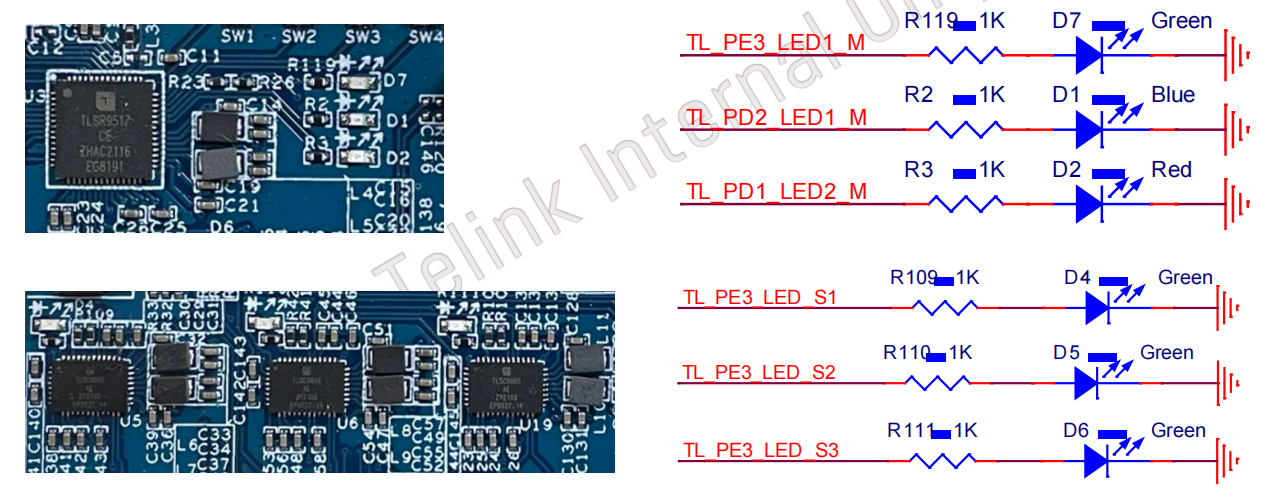
D7: main loop indicator, flashes once every 500ms, if it continues to flash, it indicates normal operation.
D2: Connection indicator, D2 is always on to indicate that all RX devices are connected. (Up to three RX devices can be connected)
Master chip D1, slave Chip D4 D5 D6: Working indicator, flashing indicates that the slave chip is working properly.
RX:
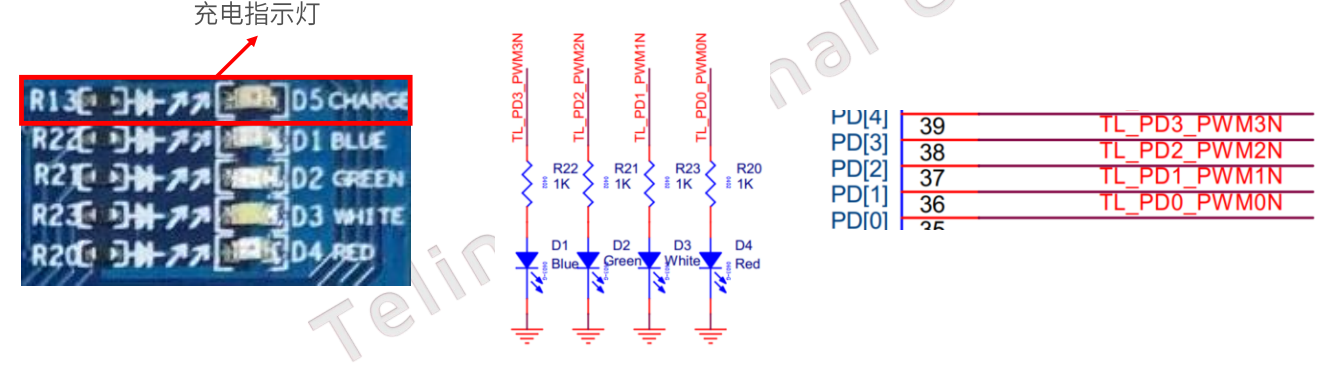
D1: D1 is always on to indicate that the RX device is working properly during power on initialization.
D2: main loop indicator, flashes once every 500ms, if it continues to flash, it indicates normal operation.
D3 & D4: Represents the connection state, D4 light on D3 light off indicates normal connection, D4 light off D3 light on indicates disconnection.
D5: Charging state indicator. (Current program power on will be always on by default)
Key Function Description
TX:
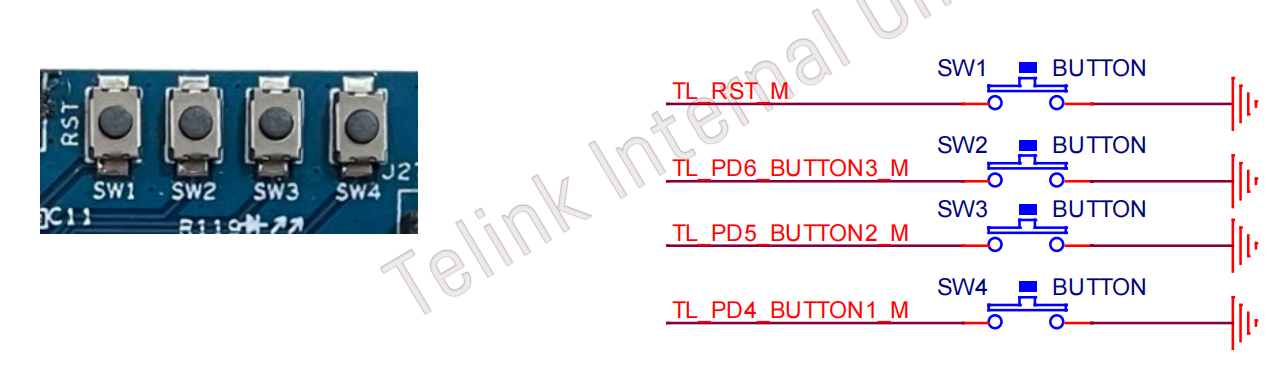
Sw1: Hardware reset.
Sw2: Short press to switch APP mode, from App1 to App2.
Sw3: Short press to enter pairing mode for 10s. Hold down (hold key) to delete all device pairing records and enter pairing mode for 3s.
Sw4: Short press, mute; short press twice, unmute.
RX:
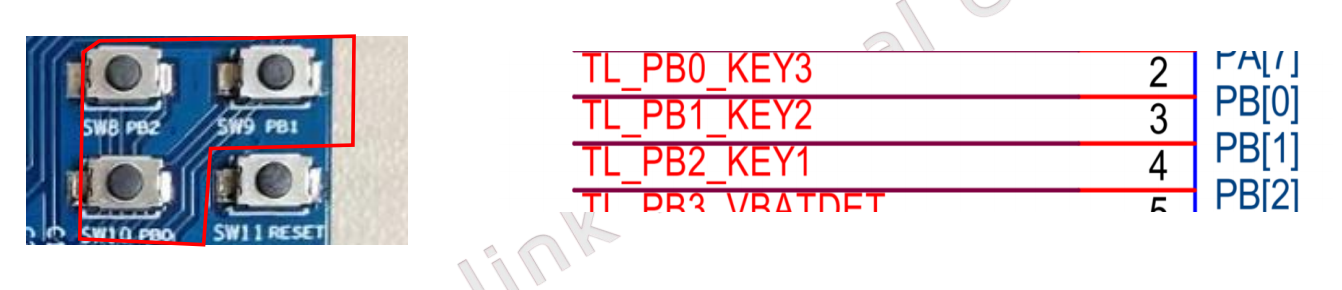
Sw8: Short press to switch APP mode, from App1 to App2.
Sw9: Short press to enter pairing mode for 10s. Hold down (hold key) to delete all device pairing records and enter pairing mode for 3s.
Sw10: Short press to switch audio chn (chn 0, 1, 2; chn0 SODL; chn1 SODR; chn2 SUB).
Sw11: Hardware reset.
Demo Operation (Take 1V3_16bit_Codec as An Example)
Hardware Preparation
One TLSR9517CBAR56D EVB board, three TLSR9517CDK56D EVB boards and four USB cables are required.
Compile the SDK
(1) Import
Firstly, open the Andesight IDE and a dialog box for selecting the workspace will appear. Click "Browser" to select a directory as your workspace. You can select any directory as the workspace directory.
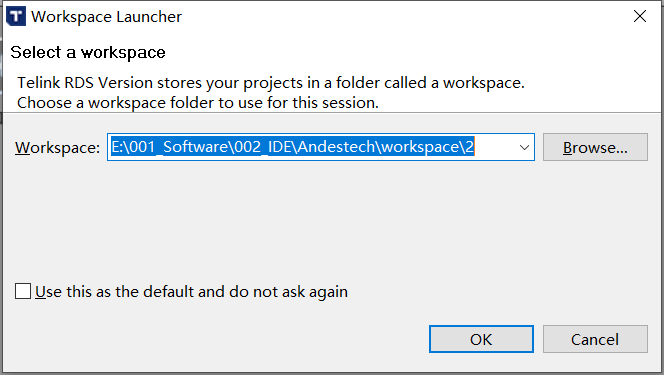
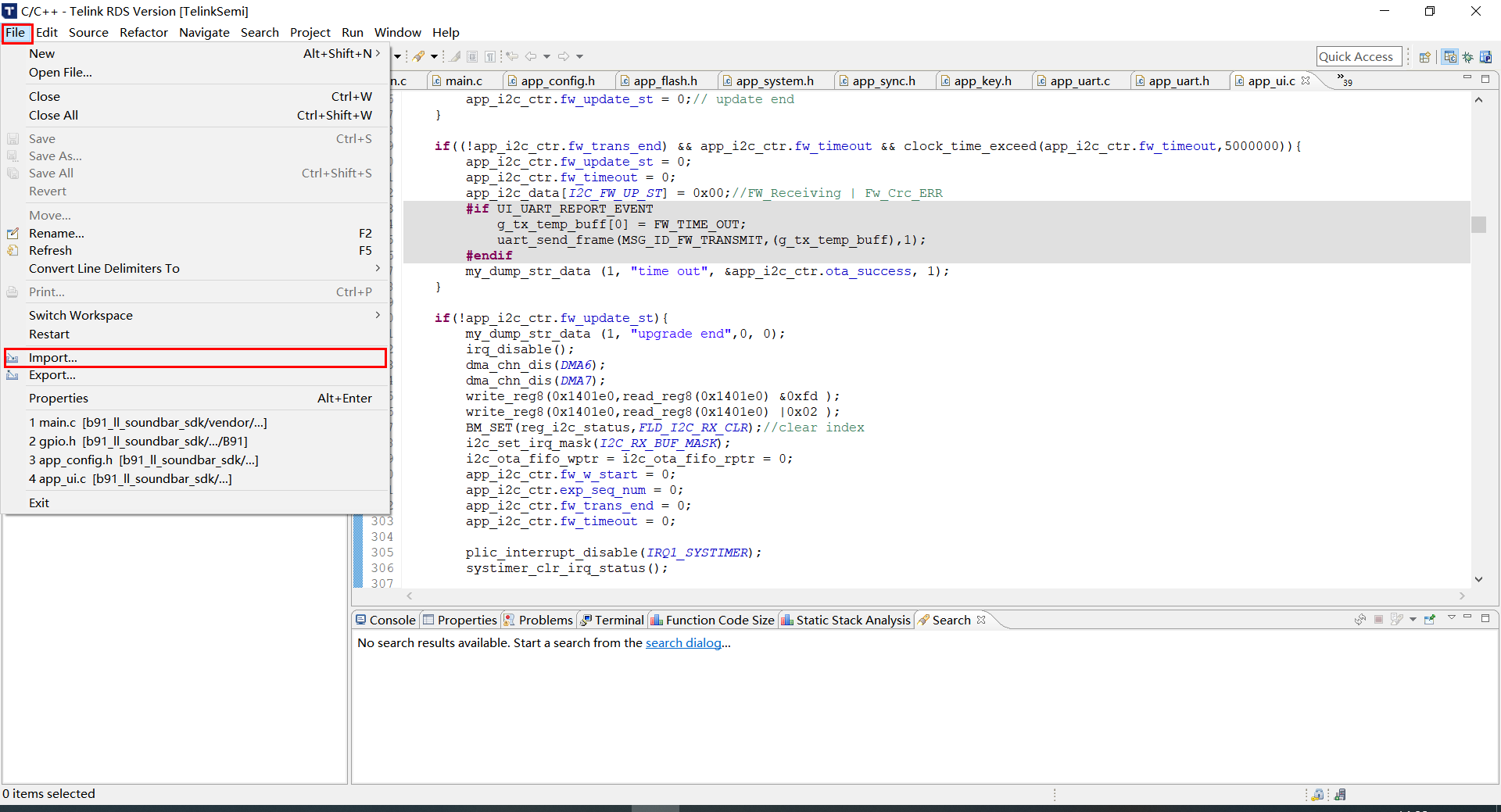
Select File -> Import, as shown in the following figure:
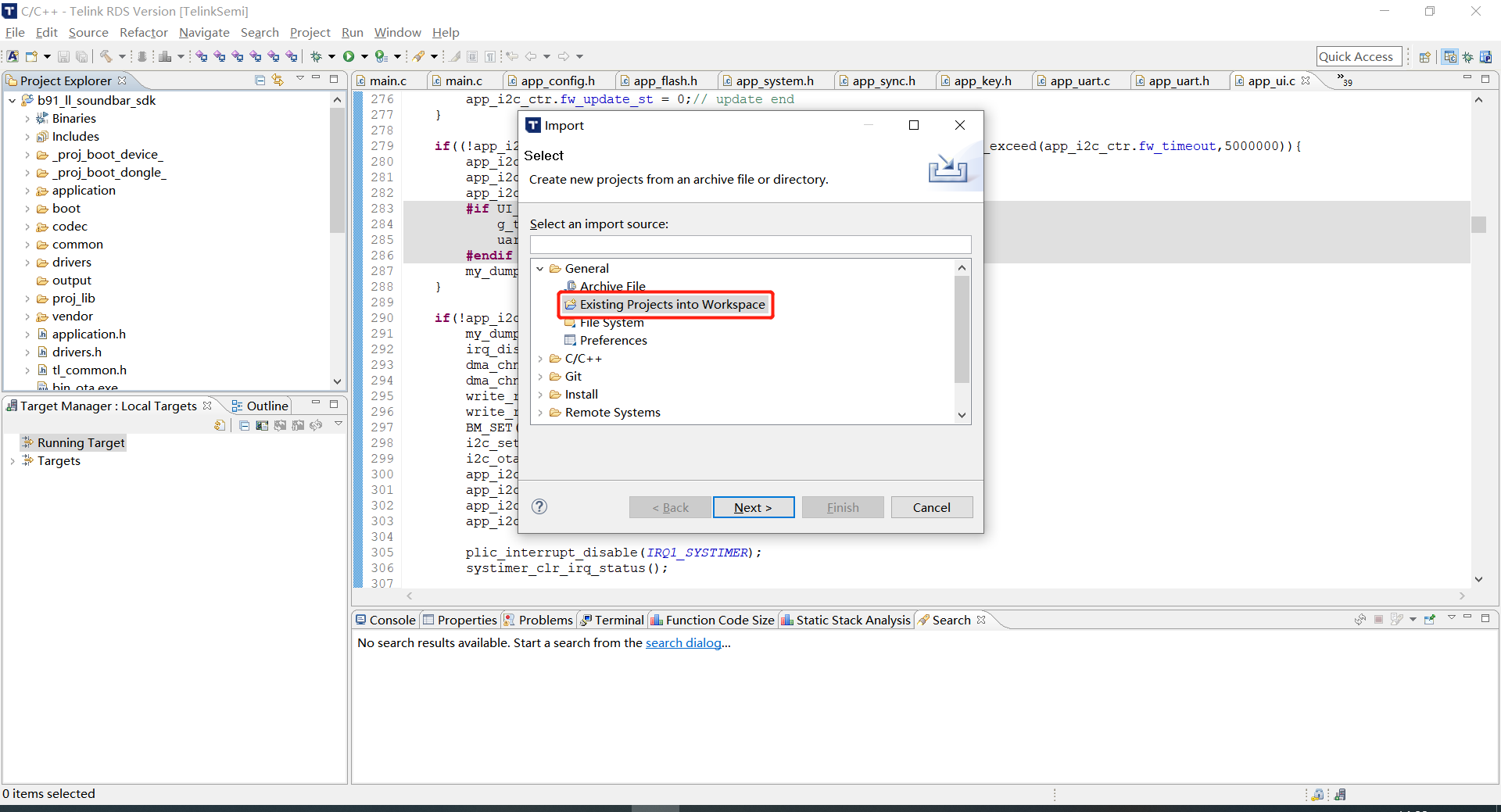
In the pop-up window, click "General" and select "Existing Projects into Workspace".
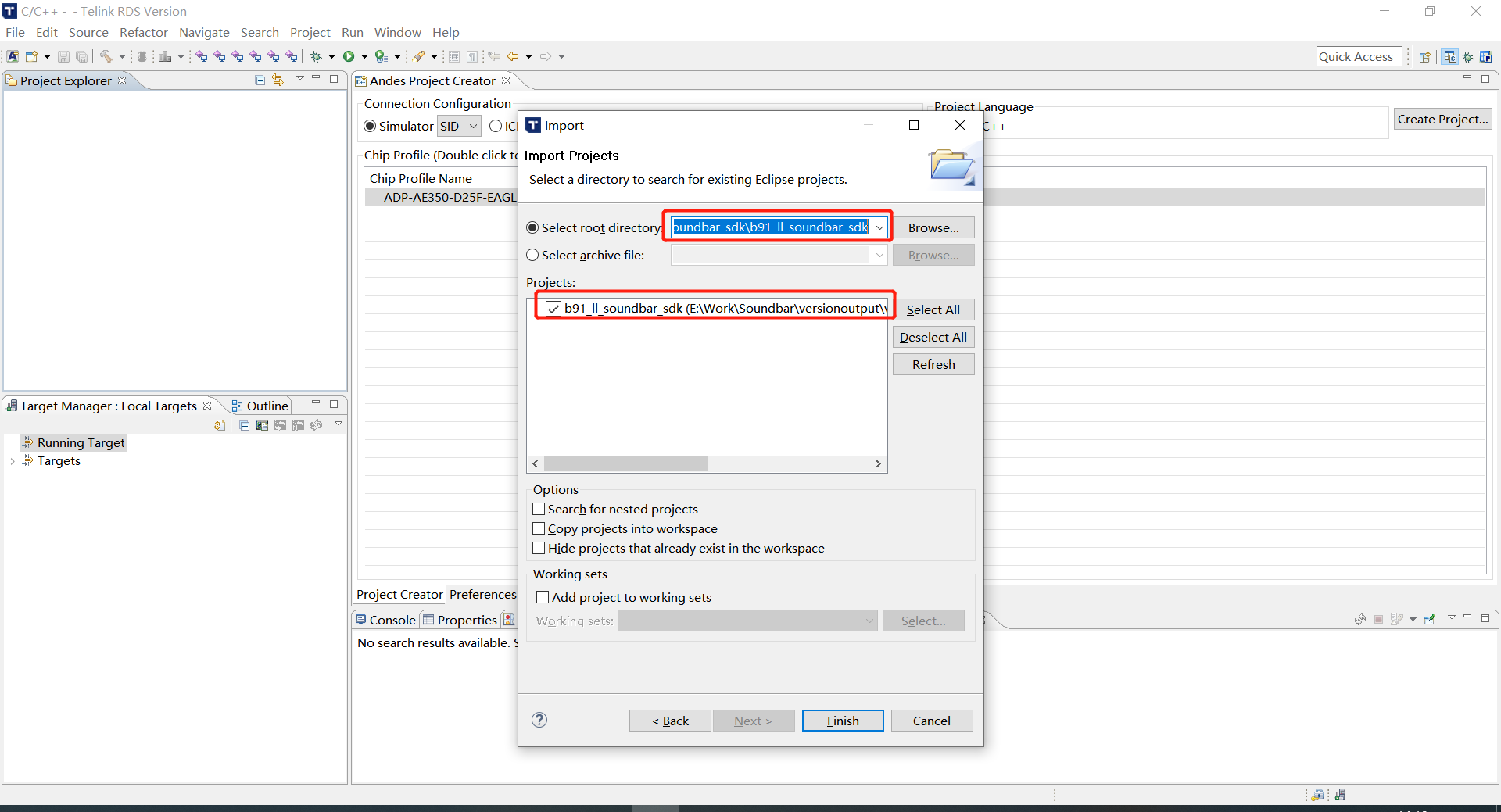
Enter the path where the SDK is located in the "Select root directory" box, or directly click "Browser" to select the directory where the SDK is located, then tick the SDK and click "Finish" to import the project (note: it is recommended to make a distinction between the IDE working path and the path where the SDK source code is located, so that multiple projects can be opened).
(2) Compile
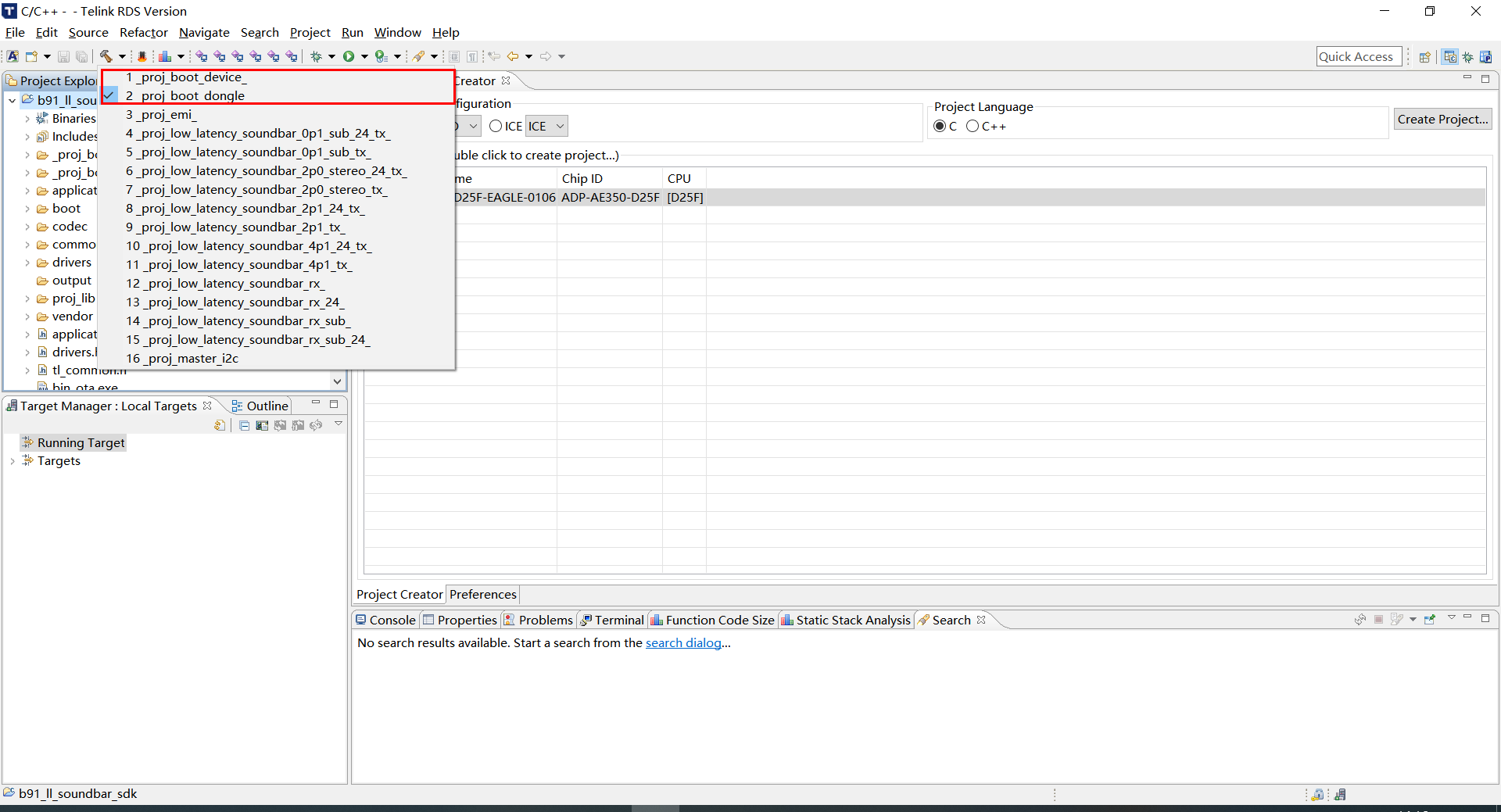
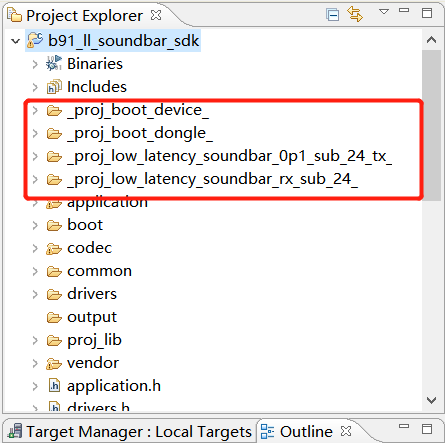
Before compiling the project, you need to select the appropriate project and first compile the _proj_boot_device_ and _proj_boot_dongle_ projects for subsequent generation of the merged firmware.
Note
- When compiling for the first time, you must compile two boot projects before compiling other projects, otherwise an error will be reported.
Configuration:
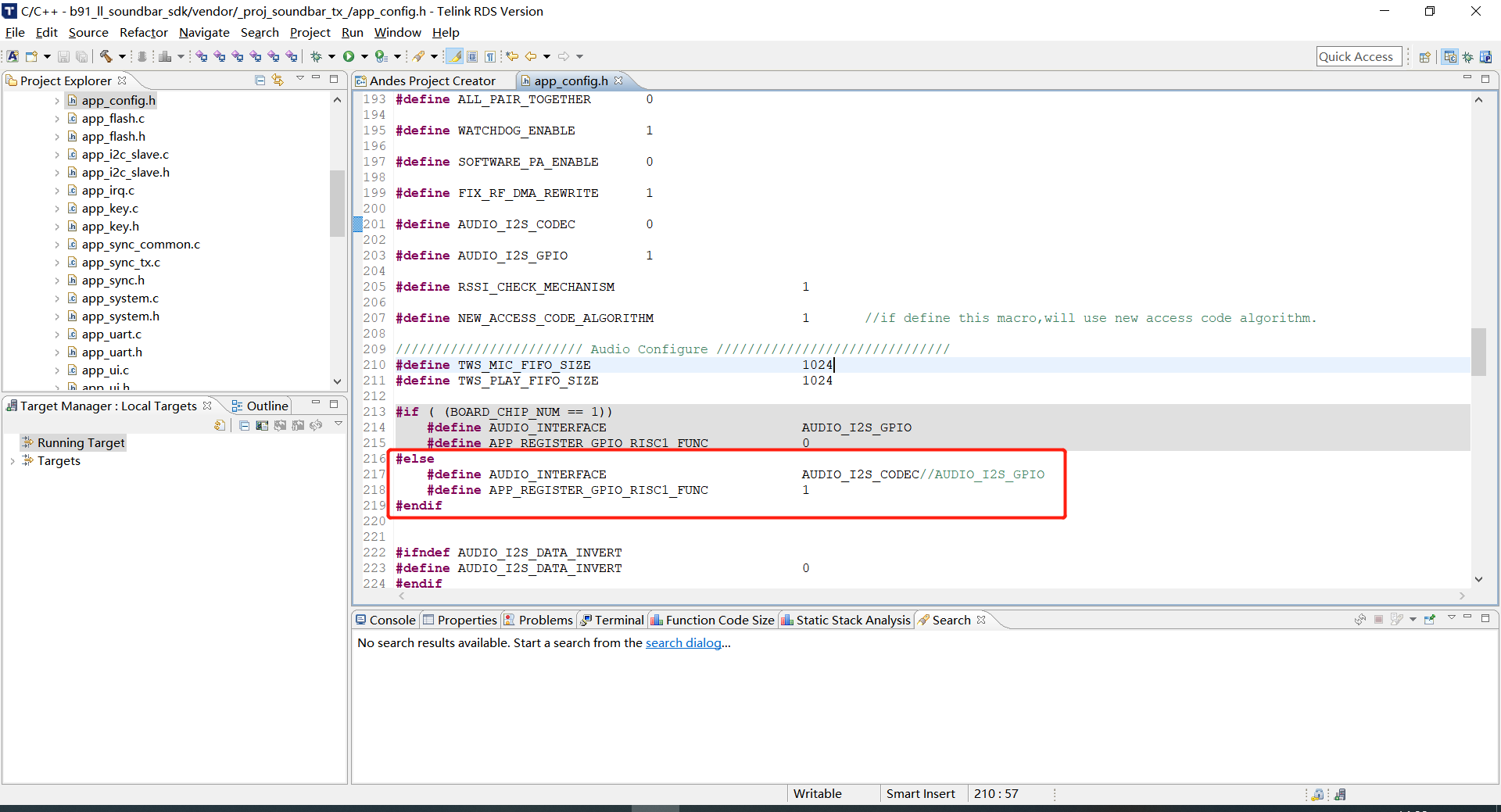
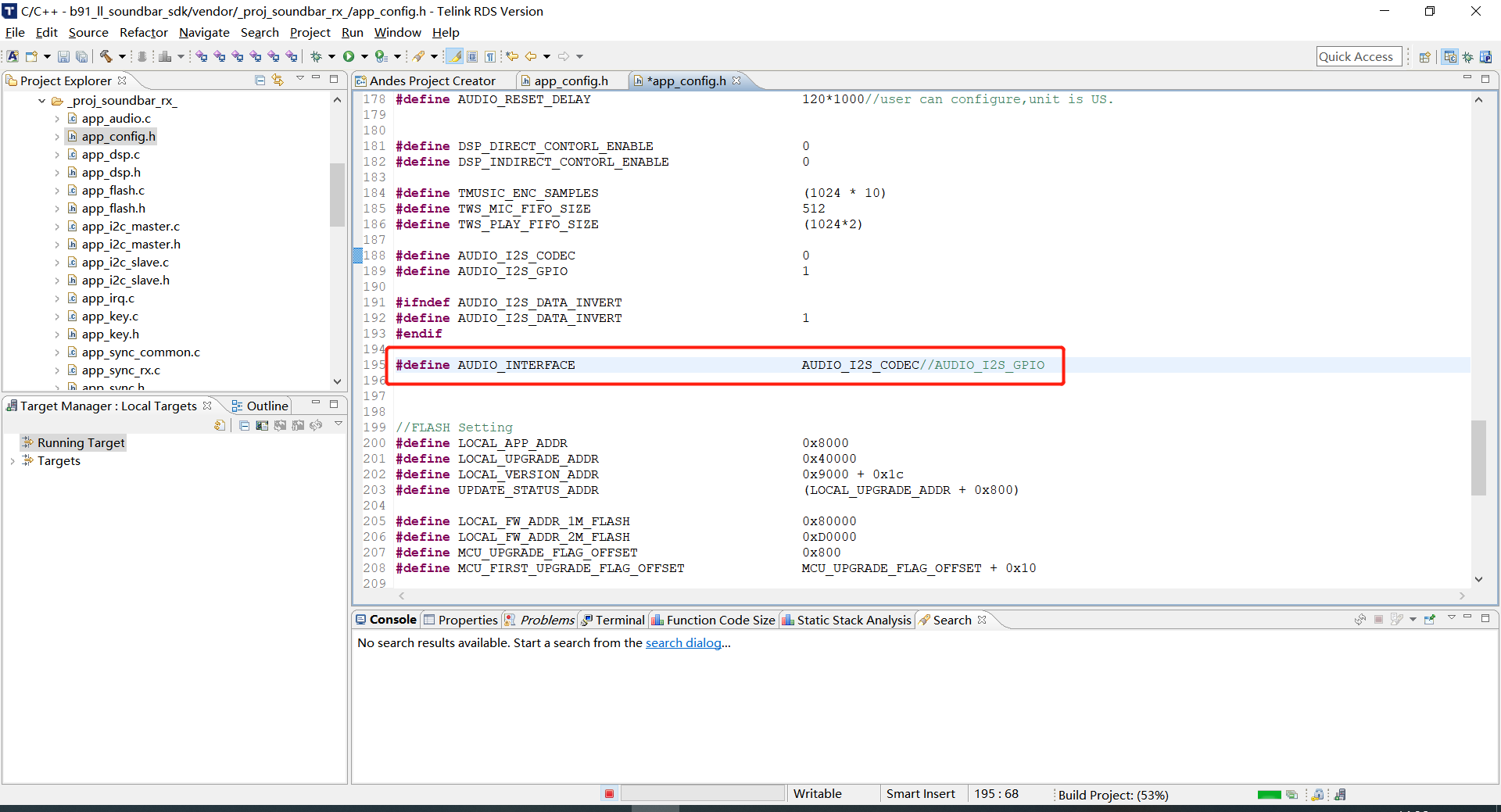
If you use LINEIN_LINEOUT mode, you need to set the AUDIO_INTERFACE macro definition in the APP configuration file to AUDIO_I2S_CODEC, the default is I2S_IN and I2S_OUT.
vendor/_proj_soundbar_tx_/app_config.h
vendor/_proj_soundbar_rx_/app_config.h
If you want to configure the number of device connections, you can modify it via the macro DEVICE_CONNECT_NUM in vendor/_proj_soundbar_tx_/app_config.h and vendor/_proj_soundbar_rx_/app_config.h, the default value is 3, optional 1, 2, 3.
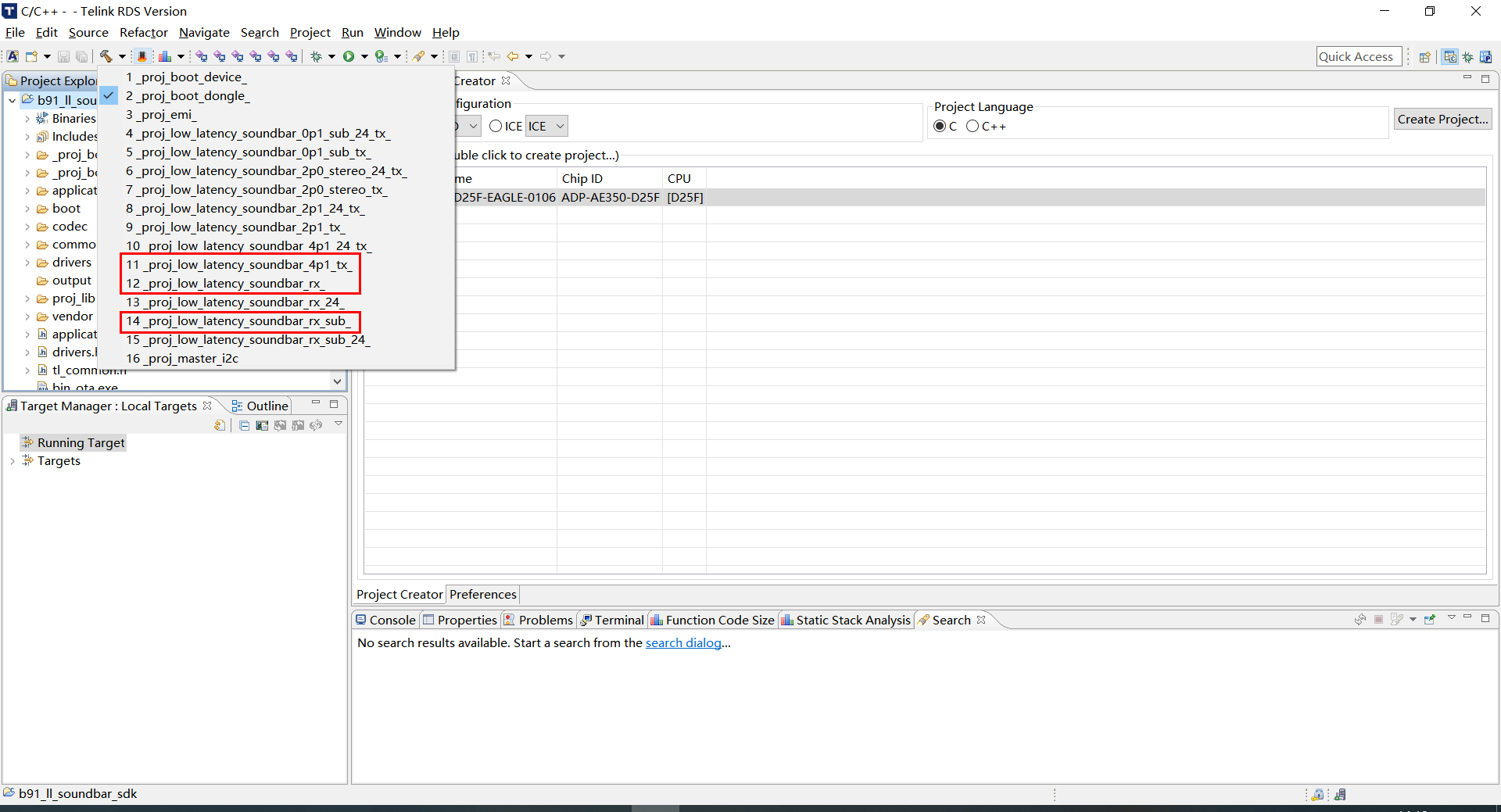
Then compile the 11 (TX_4P1_16bit), 12 (RX_SOD_16bit) and 14 (RX_SUB_16bit) projects。
Software Burning
One TLSR9517CBAR56D board is used as TX, burning "_img_proj_low_latency_soundbar_4p1_tx_.bin" file.
One TLSR9517CDK56D board is used as SUB, burning "_img_proj_low_latency_soundbar_rx_sub_.bin" file.
Two TLSR9517CDK56D boards are used as SOD, named SODL and SODR respectively (distinguished by configuration files), burning "_img_proj_low_latency_soundbar_rx_.bin" file.
The firmware is in the output directory and the burning steps are as follows:
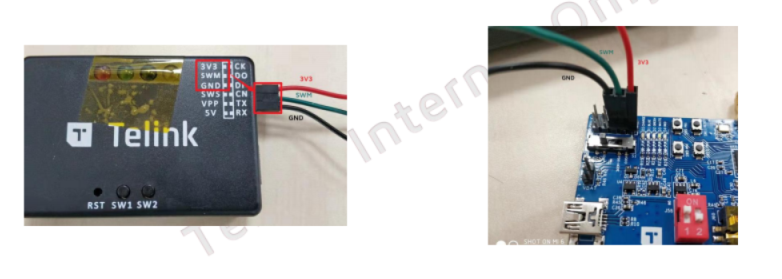
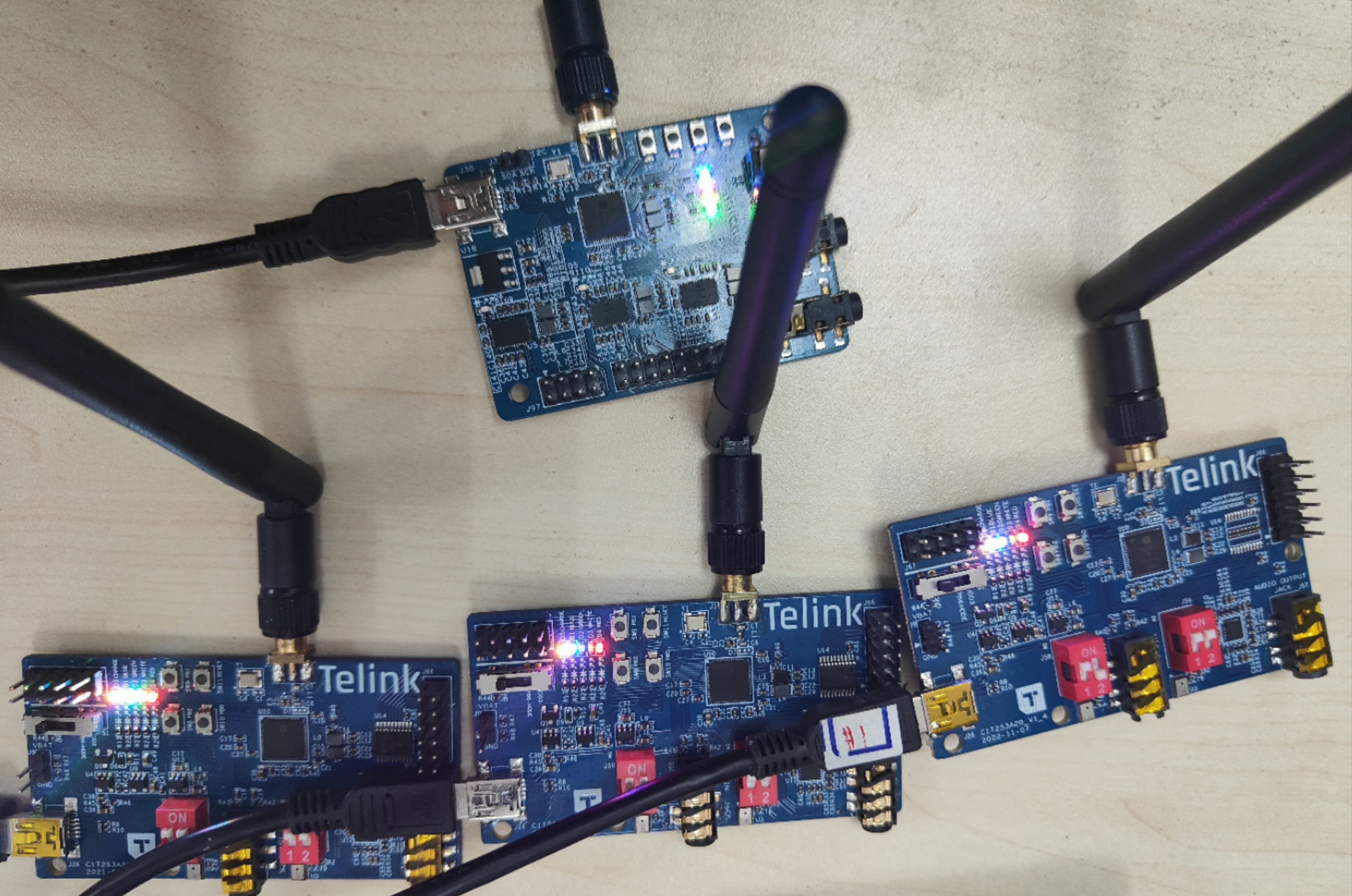
Step 1: Prepare the Telink burner and connect it as shown in the following figure.
TX (TLSR9517CBAR56D):
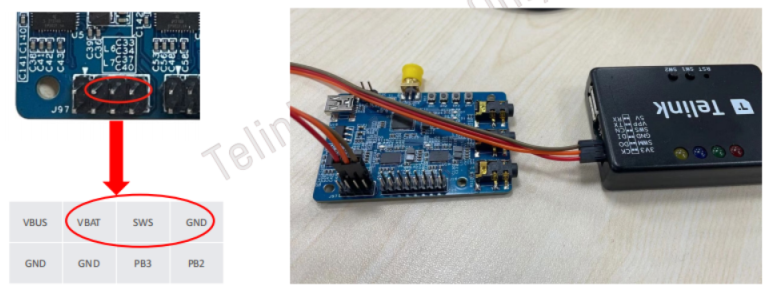
RX (TLSR9517CDK56D):
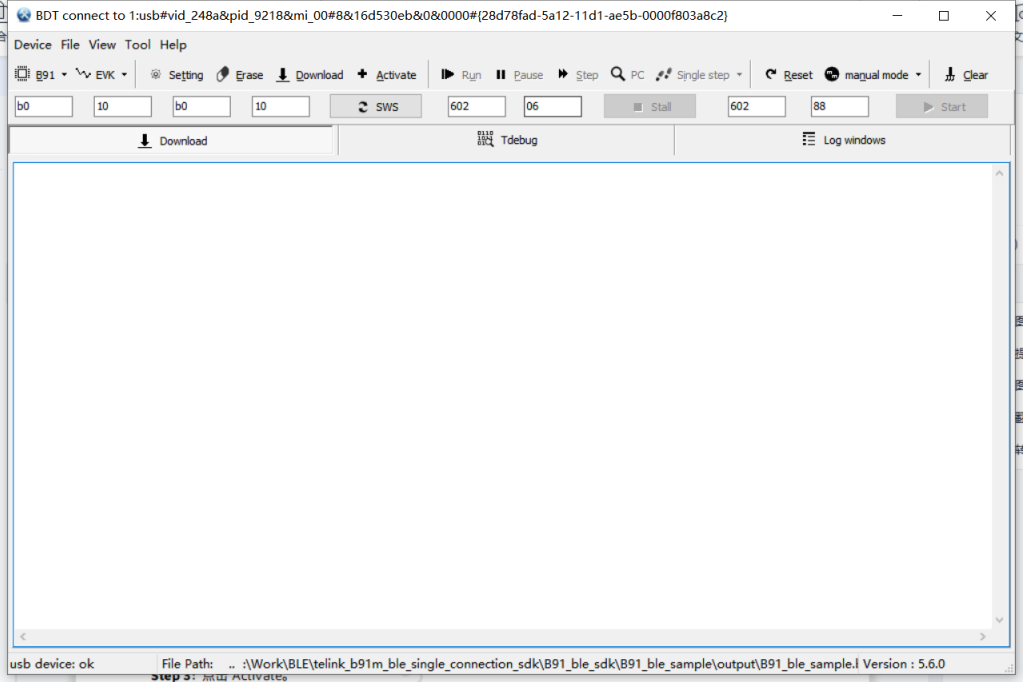
Step 2: Open the Telink BDT.exe program.
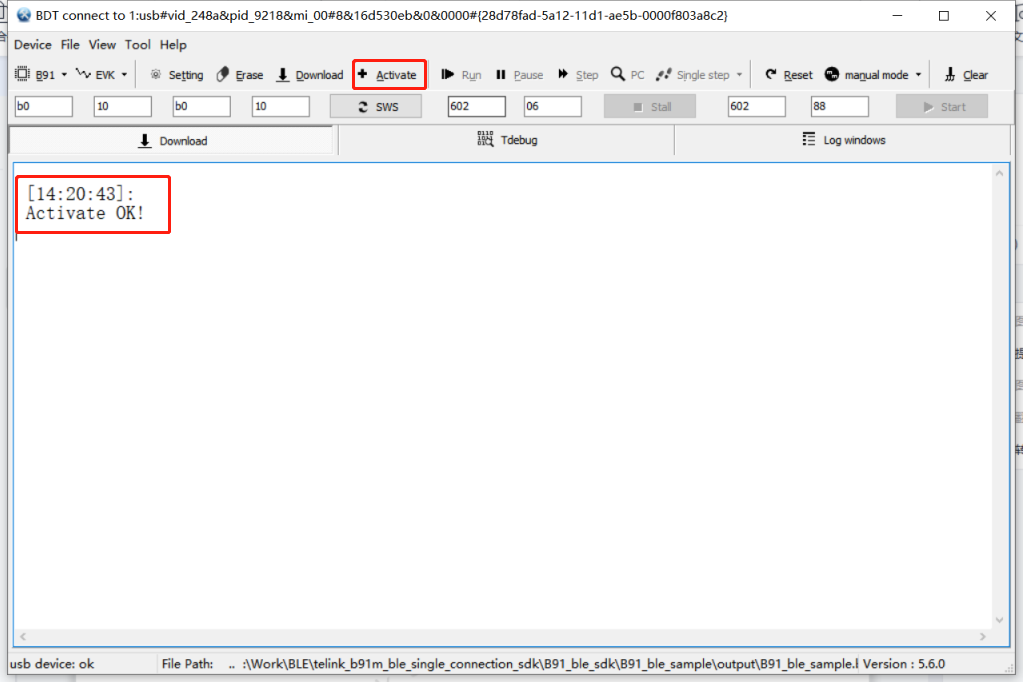
Step 3: Click "Activate".
Step 4: Firmware, configuration files, MAC burning.
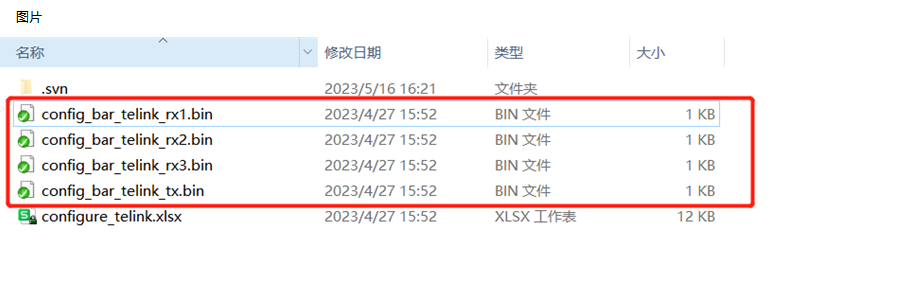
DEVICE_CONNECT_NUM is 1
Select RX configuration file:
config_bar_telink_rx1.bin
DEVICE_CONNECT_NUM is 2
Select RX configuration file:
config_bar_telink_rx1.bin
config_bar_telink_rx2.bin
DEVICE_CONNECT_NUM is 3
Select RX configuration file:
config_bar_telink_rx1.bin
config_bar_telink_rx2.bin
config_bar_telink_rx3.bin
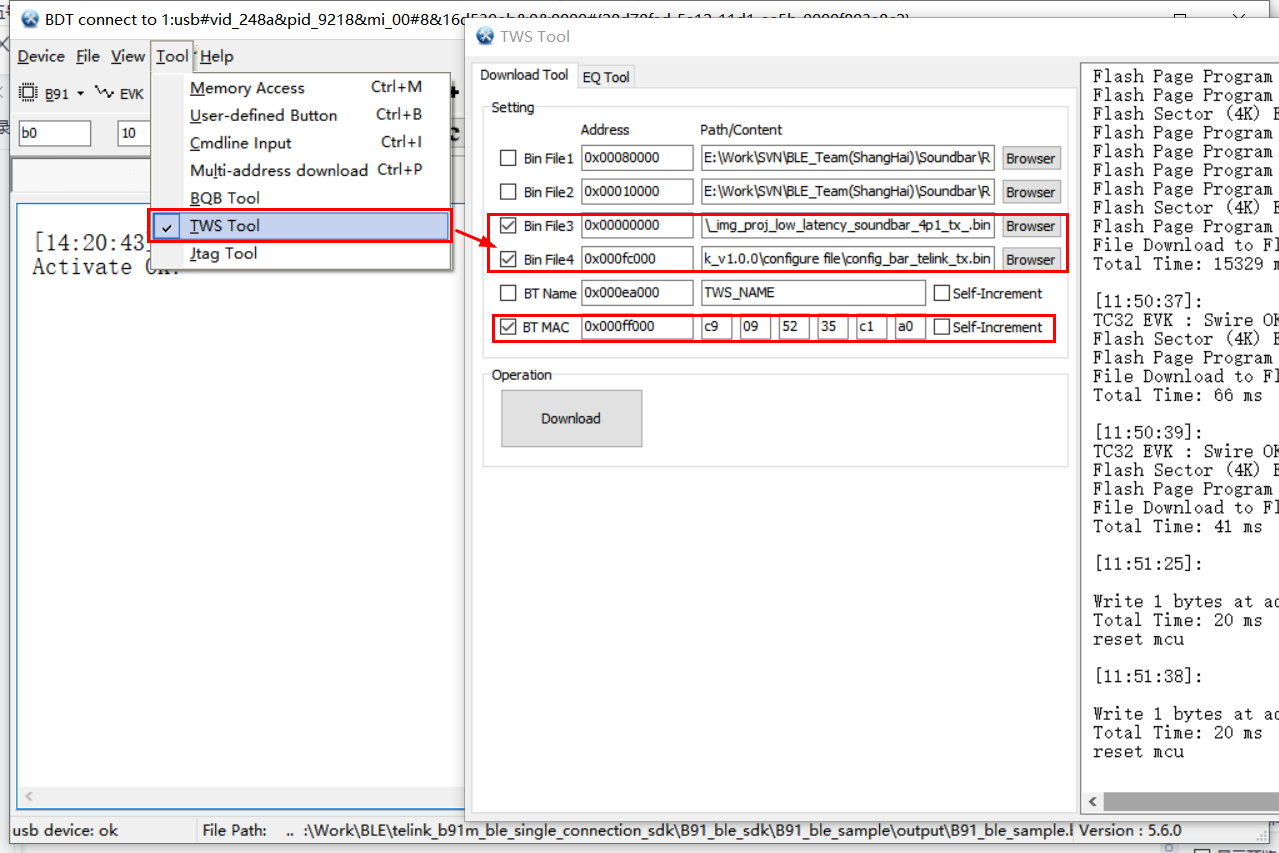
The figure above shows the corresponding bin burning address:
The corresponding files are burned at the firmware address (0x00000000) and the configuration file address (0x000fc000).
The BT MAC address (0x000ff000) is written to the MAC.
Other notes:
- When filling in the MAC address, be sure to ensure the uniqueness of each module, and do not burn the full ff or full 0 address;
- The flash size of the above burning address is 1M by default. If the flash size is 2M, then the firmware address is 0x00000000, the configuration file address is 0x001fc000 and the BT MAC address is 0x001ff000.
Pairing Process
Step 1: Each EVB is powered on;
Step 2: The TX is connected to the input signal.
Step 3: RX (left surround SODL, right surround SODR, subwoofer SUB), click the pairing button on the TX sequentially.
Step 4: Once the pairing is successful, each RX audio interface will receive the corresponding data.
SDK Overview
Overview
Soundbar SDK is generally divided into sending and receiving ends according to functions, hereinafter referred to as TX, RX.
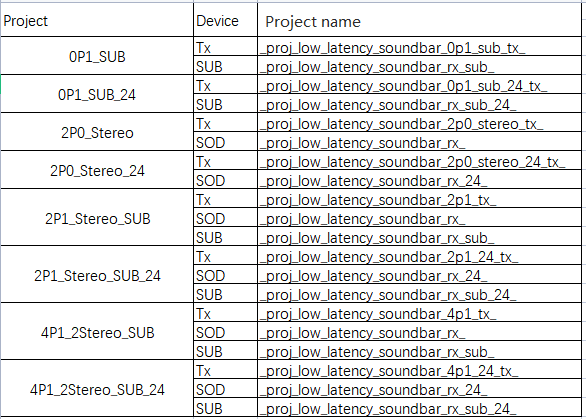
TX is the signal sampling end. The signal is compressed/coded after being collected by I2S signal or Line-in, and data is transmitted by 2.4GHz wireless signal. Taking b91_ll_soundbar_sdk as an example, the corresponding projects are:
_proj_low_latency_soundbar_0p1_sub_24_tx_
_proj_low_latency_soundbar_0p1_sub_tx_
_proj_low_latency_soundbar_2p0_stereo_24_tx_
_proj_low_latency_soundbar_2p0_stereo_tx_
_proj_low_latency_soundbar_2p1_24_tx_
_proj_low_latency_soundbar_2p1_tx_
_proj_low_latency_soundbar_4p1_24_tx_
_proj_low_latency_soundbar_4p1_tx_
RX receives the data sent from the TX end through the 2.4GHz signal, then decodes/decompresses the data, and outputs audio through the I2S signal or Line-out. Taking b91_ll_soundbar_sdk as an example, the corresponding projects are:
_proj_low_latency_soundbar_rx_
_proj_low_latency_soundbar_rx_24_
_proj_low_latency_soundbar_rx_sub_
_proj_low_latency_soundbar_rx_sub_24_
Software Architecture
The figure below shows the file structure after the SDK project is imported in IDE, which mainly contains 8 top-layer folders: application, boot, codec, common, drivers, output, proj_lib and vendor.
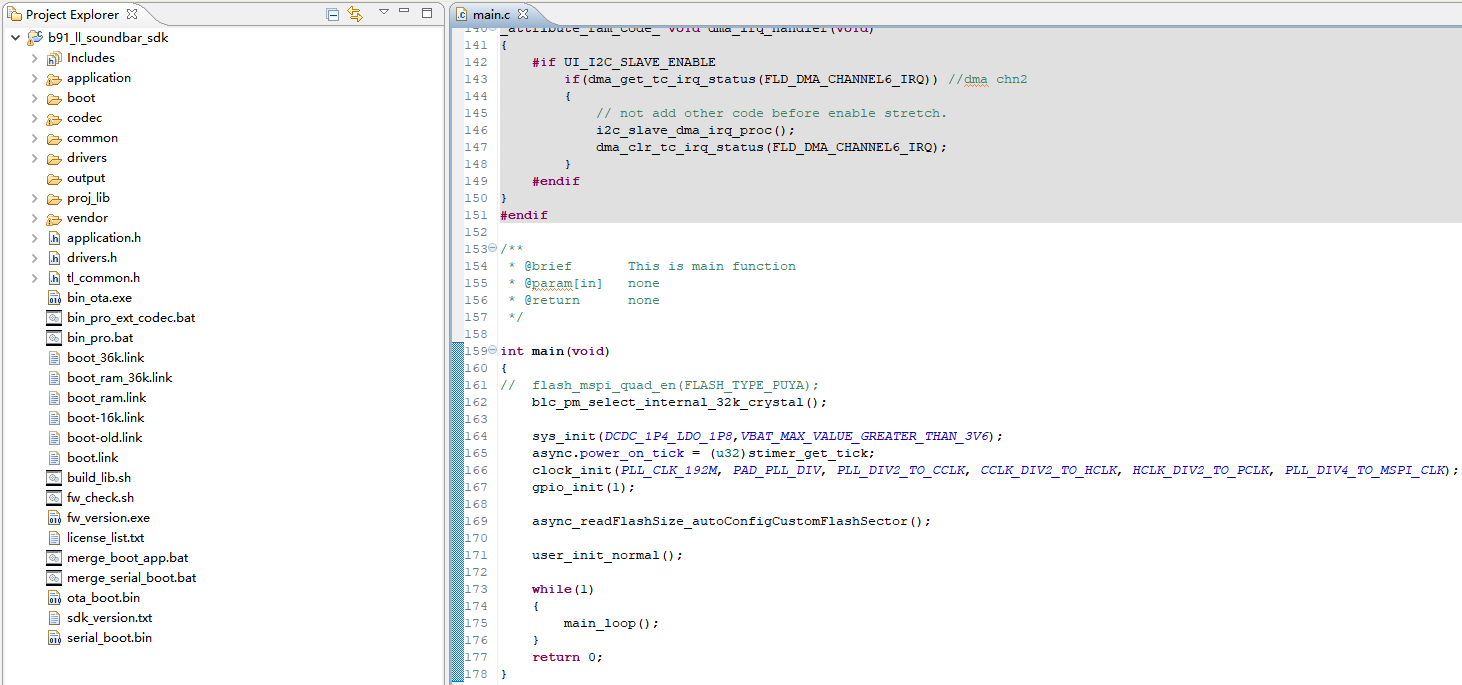
application: Provides some general application processing programs, such as print, keyboard, etc.
boot: Stores the cstartup_9518.S file. cstartup_9518.S: completes the initialization, move and copy of retention_reset, aes_data, retention_data, ramcode, data, sbss, bss, stack, flash initialization, interrupt vector entry, and some functions that need to be written in assembly.
codec: Codec related algorithms, such as filter, resample, etc.
common: Provides some general cross-platform handling functions, such as memory handling functions, string handling functions, etc.
drivers: Provides hardware settings and peripheral drivers that are closely related to the MCU, such as clock, flash, I2C, USB, GPIO, UART, etc.
output: Project compilation output directory.
proj_lib: Stores the library files necessary for SDK running (such as libB91_driver_dm.a). RF driver, PM driver and other files are encapsulated in the library file, and users cannot see the source file.
vendor: Stores user application-layer code.
bootlink: Flash, I-RAM, D-RAM layout file.
boot.link: The bootlink corresponding to the _proj_boot_xx project.
boot-36k.link: The bootlink corresponding to the project under vendor, the difference is that the SRAM and the corresponding flash address are offset by 0x9000 (36k).
main.c
It includes the main function entry, the related functions of system initialization, and the writing of the infinite loop while(1). It is recommended not to make any modifications to this file, and directly use inherent writing (some unimportant codes have been omitted).
int main(void)
{
    blc_pm_select_internal_32k_crystal();

    sys_init(DCDC_1P4_LDO_1P8,VBAT_MAX_VALUE_GREATER_THAN_3V6);
    async.power_on_tick = (u32)stimer_get_tick;
    clock_init(PLL_CLK_192M, PAD_PLL_DIV, PLL_DIV2_TO_CCLK, CCLK_DIV2_TO_HCLK, HCLK_DIV2_TO_PCLK, PLL_DIV4_TO_MSPI_CLK);
    gpio_init(1);

    async_readFlashSize_autoConfigCustomFlashSector();

    user_init_normal();

    while(1)
    {
        main_loop();
    }
    return 0;
}
Configuration File
(1) app_config.h
The application function configuration file is used to configure the application function parameters of the whole system, including board selection, USB related functions, audio input and output functions and algorithm related functions.
The meaning of each parameter in the configuration file is explained later in the introduction to each module.
BootLoader Introduction
The BootLoader projects including TX and RX are _proj_boot_dongle_ and _proj_boot_device_ respectively. After power-on, it will detect APP firmware integrity and jump to the APP for execution. In the APP firmware, you can also call the function to enter the BootLoader to perform the OTA operation. For the operation method of OTA, please refer to the OTA section.
Telink b91_ll_soundbar_sdk Introduction
SDK Overview
The b91_ll_soundbar_sdk supports 1-to-1 (1 bass)/1-to-2 (2 full band)/1-to-3 (2 full band + 1 bass), and has the characteristics of low latency and strong anti-interference, etc. The effective use distance is related to the product format and transmission times, and needs to be tested according to the actual product. Typical 1-to-3 audio performance is as follows:
16bit I2S input and output: 19.29ms (LC3+ and Private codecs), frequency response 20 ~ 20kHz, THD+N as low as 0.05%, and SNR reaches 90dB.
24bit I2S input and output: 19.90ms (LC3+ and Private codecs), frequency response 20 ~ 20kHz, THD+N as low as 0.05%, and SNR reaches 90dB.
The SDK provides users with eight project demos, as shown below:
SDK Function Introduction
The specific functions of the TX end are as follows.
(1) Supported application related functions:
(a) USB module: USB HID, USB Debug;
(b) Watchdog module;
(c) Algorithm module: including EQ, noise canceling algorithm, resampling algorithm;
(d) OTA module;
(e) EMI module: support EMI test instructions;
(f) 2.4GHz module: RF related: 2.4GHz Tx, transmit power adapting, frequency hopping; wireless related: manual pairing, reconnection, and automatic pairing.
(2) Supported audio related functions:
(a) Coding: The bass SUB chn uses a private algorithm codec and the full-range SOD chn uses the LC3+ codec;
(b) Audio input: Line-in, I2S.
(3) Supported UI related functions:
(a) KEY: short press, long press, double click;
(b) LED;
The UI function of the RX end is the same as that of the TX end, other functions are as follows.
(1) Supported application related functions:
(a) USB module: USB HID, USB Debug;
(b) Watchdog module;
(c) OTA module: OTA upgrade;
(d) EMI module: supports EMI fixed frequency test;
(e) 2.4GHz module: RF related: 2.4GHz Rx, frequency hopping, packet error correction; wireless related: manual pairing, reconnection, automatic pairing, 1-to-1, 1-to-2, 1-to-3, 1-to-3 simultaneously.
(2) Supported audio related functions:
(a) Coding: The bass SUB chn uses a private algorithm codec and the full-range SOD chn uses the LC3+ codec;
(b) Audio output: local Line-out, I2S.
NOTE:
Royalty fee for certain Audio Codec:
- This SDK include options for multiple audio codecs, it should be noted that use of certain Codecs may incur Royalty fees. It is the end product manufacturer's responsibility to sign license agreement with the license onwers and pay royalty fees. Telink as an IC provider cannot cover these charges.
- Use of LC3+ codec: If you choose to use LC3+ codec, please contact Fraunhofer/Ericsson (Fraunhofer IIS: lc3-licensing@iis.fraunhofer.de and Ericsson: lc3.licensing@ericsson.com) for proper license agreement and royalty fee information. A flat fee is charged by these License owners for product incorporating LC3+ codec. The royalty fee is open and transparent and charged per device (e.g. Headset, TV ,Box, …).
- Use of LC3 codec: LC3 usage is only free for product qualified as a Bluetooth product by Bluetooth SIG. If your product is not Bluetooth qualified and you choose to use LC3 codec, please contact Fraunhofer/Ericsson (Fraunhofer IIS: lc3-licensing@iis.fraunhofer.de and Ericsson: lc3.licensing@ericsson.com) for proper license agreement and royalty fee information. A flat fee is charged by these License owners for non-Bluetooth product incorporating LC3 codec. The royalty fee is open and transparent and charged per device (e.g. Headset, TV ,Box, …).
Key Macro Introduction
Many functions of the SDK are controlled via macro switches. The following briefly introduces app_config.h.
(1) Auto Configuration Item
Configure items to be switched by compiling the corresponding macro of the project.
BOARD_CHIP_NUM:
Function description: number of chips for TX.
AUDIO_BIT_WIDTH_24:
Function description: bit depth selection of Audio algorithm and channel.
ALGORITHM_BIT_WIDTH_24:
Function description: bit depth selection of Audio algorithm.
ASRC_ALGORITHM_24:
Function description: bit depth selection of ASRC algorithm.
PCM_MAX_LEN:
Function description: algorithm data buff size.
(2) Board and GPIO Configuration
BOARD_MODEL:
Default value: BOARD_ADK_80D;
Function description: set Board;
Remark: two types of boards are currently supported: BOARD_ADK_80D(c91T213A20_V2_2_20210908) and BOARD_BAR_56D(c1T253A91_V1_1_20210909).
RST_PIN_S1:
Function description: slave chip 1, reset pin.
RST_PIN_S2:
Function description: slave chip 2, reset pin.
RST_PIN_S3:
Function description: slave chip 3, reset pin.
SW2:
Function description: pin for key 2.
SW3:
Function description: pin for key 3.
SW4:
Function description: pin for key 4.
MASTER_SYNC_PIN:
Function description: master chip synchronization, pin.
SLAVE_SYNC_PIN:
Function description: slave chip synchronization, pin.
MASTER_ROLE_PIN:
Function description: pin for identifying the master chip.
LED_GREEN:
Function description: green led pin.
LED_BLUE:
Function description: blue led pin.
LED_RED:
Function description: red led pin.
(3) UI Configuration
UI_LED_ENABLE:
Default value: 1;
Function description: enable SDK LED indicating UI.
UI_KEY_ENABLE:
Default value: 1;
Function description: enable SDK key UI.
SWIRE_DEF_ID:
Default value: 0;
Function description: swire default id.
SLV1_ID:
Default value: 1;
Function description: slave chip 1 swire id.
SLV2_ID:
Default value: 2;
Function description: slave chip 2 swire id.
SLV3_ID:
Default value: 3;
Function description: slave chip 3 swire id.
SWIRE_SPEED:
Default value: 16000000;
Function description: swire transmission rate.
SWM_CLK:
Default value: 8000000 //8MHz;
Function description: swire clk rate.
DEVICE_CONNECT_NUM:
Default value: 3; optional 1, 2, 3.
Function description: the number of devices that can be connected.
ALL_PAIR_TOGETHER:
Default value: 0;
Function description: SODL, SODR and SUB simultaneous pairing enable.
WATCHDOG_ENABLE:
Default value: 1;
Function description: watchdog enable.
SOFTWARE_PA_ENABLE:
Default value: 0;
Function description: PA enable.
AUDIO_I2S_CODEC:
Function description: Audio driver mode codec, input and output interfaces are line in, lineout.
AUDIO_I2S_GPIO:
Function description: Audio driver mode gpio, input and output interfaces are i2s in, i2s out.
RSSI_CHECK_MECHANISM:
Default value: 1;
Function description: RSSI inspection mechanism.
NEW_ACCESS_CODE_ALGORITHM:
Default value: 1;
Function description: use the new access code algorithm.
UI_UART_ENABLE:
Default value: 0;
Function description: UART SDK function enable.
UI_I2C_SLAVE_ENABLE:
Default value: 1;
Function description: I2C SDK function enable.
UI_I2C_OTA_ENABLE:
Default value: 1;
Function description: I2C OTA enable.
APP_REGISTER_I2C_IRQ:
Default value: 1;
Function description: I2C interrupt enable.
UI_I2C_STRETCH:
Default value: 1;
Function description: I2C strech enable.
I2C_CMD_PAIRING_EN:
Default value: 1;
Function description: I2C command pairing enable.
I2C_CLEAR_PAIR_INFO_EN:
Default value: 1;
Function description: I2C clear pairing information command enable.
UI_UART_REPORT_EVENT:
Default value: 1;
Function description: serial reporting event enable.
UART0_DMA_CHANNEL_TX:
Default value: DMA4;
Function description: configure UART0 DMA channel.
UART0_BAUDRATE:
Default value: 115200;
Function description: serial port reports baud rate.
UART_SYNC_HEADER:
Default value: 0x5A;
Function description: serial port synchronization header.
DEBUG_GPIO_ENABLE:
Default value: 0;
Function description: GPIO debugging enable.
(4) Audio Configuration
TWS_MIC_FIFO_SIZE:
Default value: 1024;
Function description: MIC BUFFER size.
TWS_PLAY_FIFO_SIZE:
Default value: 1024;
Function description: PLAYBACK BUFFER size.
AUDIO_INTERFACE:
Function description: set Audio drive mode.
APP_REGISTER_GPIO_RISC1_FUNC:
Default value: 1;
Function description: TX chip synchronization interrupt enable.
AUDIO_I2S_DATA_INVERT:
Default value: 0;
Function description: I2S data channel invert.
(5) Flash Configuration
LOCAL_APP_ADDR:
Default value: 0x8000;
Function description: APP partition address.
LOCAL_UPGRADE_ADDR:
Default value: 0x40000;
Function description: OTA partition address.
LOCAL_VERSION_ADDR:
Default value: 0x901c;
Function description: version number address.
UPDATE_STATUS_ADDR:
Default value: 0x40800;
Function description: OTA status bit address.
FIRSR_UPDATE_STATUS_ADDR:
Default value: 0x40810;
Function description: FIRST OTA status bit address.
CFG_ADR_BT_USE_TIME_1M_FLASH:
Default value: 0xEA000;
Function description: 1M flash, BT use time partition address.
CFG_ADR_SYS_USER_BASE_1M_FLASH:
Default value: 0xEB000;
Function description: 1M flash, pairing information storage address.
CFG_ADR_USER_DEF_CONFIG_TABLE_1M_FLASH:
Default value: 0xFC000;
Function description: 1M flash, configuration information storage address.
CFG_ADR_CALIBRATION_1M_FLASH:
Default value: 0xFE000;
Function description: 1M flash, calibration information storage address.
CFG_ADR_MAC_1M_FLASH:
Default value: 0xFF000;
Function description: 1M flash, MAC address storage address.
CFG_ADR_MAC_1M_FLASH_LOCK:
Default value: 0xDF000;
Function description: 1M flash, MAC address flash lock storage address.
CFG_ADR_CAP_FRQ_OFT_1M_FLASH:
Default value: 0xDD000;
Function description: 1M flash, RF CAPTURE information storage address.
CFG_ADR_BT_USE_TIME_2M_FLASH:
Default value: 0x1EA000;
Function description: 2M flash, BT use time partition address.
CFG_ADR_SYS_USER_BASE_2M_FLASH:
Default value: 0x1EB000;
Function description: 2M flash, pairing information storage address.
CFG_ADR_USER_DEF_CONFIG_TABLE_2M_FLASH:
Default value: 0x1FC000;
Function description: 2M flash, configuration information storage address.
CFG_ADR_CALIBRATION_2M_FLASH:
Default value: 0x1FE000;
Function description: 2M flash, calibration information storage address.
CFG_ADR_MAC_2M_FLASH:
Default value: 0x1FF000;
Function description: 2M flash,MAC address storage address.
CFG_ADR_MAC_2M_FLASH_LOCK:
Default value: 0x1DF000;
Function description: 2M flash, MAC address flash lock storage address.
CFG_ADR_CAP_FRQ_OFT_2M_FLASH:
Default value: 0x1DD000;
Function description: 2M flash, RF CAPTURE information storage address.
FLASH_PROTECT_EN:
Default value: 0;
Function description: flash write protection enable.
CONFIG_CHECK_ENABLE:
Default value: 0;
Function description: configuration information verification enable.
(6) USB Configuration
FLAG_PRINTER_DEBUG:
Default value: 1;
Function description: USB PRINTER function value.
FLAG_USB_HID:
Default value: 8;
Function description: USB HID function value.
APP_MODE_DEBUG_ONLY:
Default value: FLAG_PRINTER_DEBUG;
Function description: ONLY USB PRINTER.
APP_MODE_DEBUG_HID:
Default value: (FLAG_PRINTER_DEBUG | FLAG_USB_HID);
Function description: USB HID + USB PRINTER.
APP_MODE:
Default value: APP_MODE_DEBUG_ONLY;
Function description: USB mode setting.
MODULE_USB_ENABLE:
Default value: 0;
Function description: USB module enable.
USB_SPEAKER_ENABLE:
Default value: 0;
Function description: USB SPEAKER function enable.
USB_MIC_ENABLE:
Default value: 0;
Function description: USB MIC function enable.
USB_HID_NOT_SUBCLASS:
Default value: 1;
Function description: USB setting NOT SUBCLASS.
USB_CUSTOM_HID_REPORT:
Default value: 1;
Function description: HID customized report.
MIC_CHANNLE_COUNT:
Default value: 1;
Function description: number of MIC channels.
VCD_EN:
Default value: 1;
Function description: vcd debugging enable.
SL_ASYNC_EN:
Default value: 0;
Function description: audio channel related VCD debugging enable.
SL_TASK_EN:
Default value: 1;
Function description: each task related VCD debugging enable.
SL_APP_EN:
Default value: 0;
Function description: APP VCD debugging enable..
SL_BLE_EN:
Default value: 1;
Function description: RF process VCD debugging enable.
SL_CONNECT_EN:
Default value: 1;
Function description: connection process VCD debugging enable.
MCU
Program Startup Process Introduction
The sdk supports 1M Flash and 2M Flash adaptation. By default, 1M Flash memory is allocated.
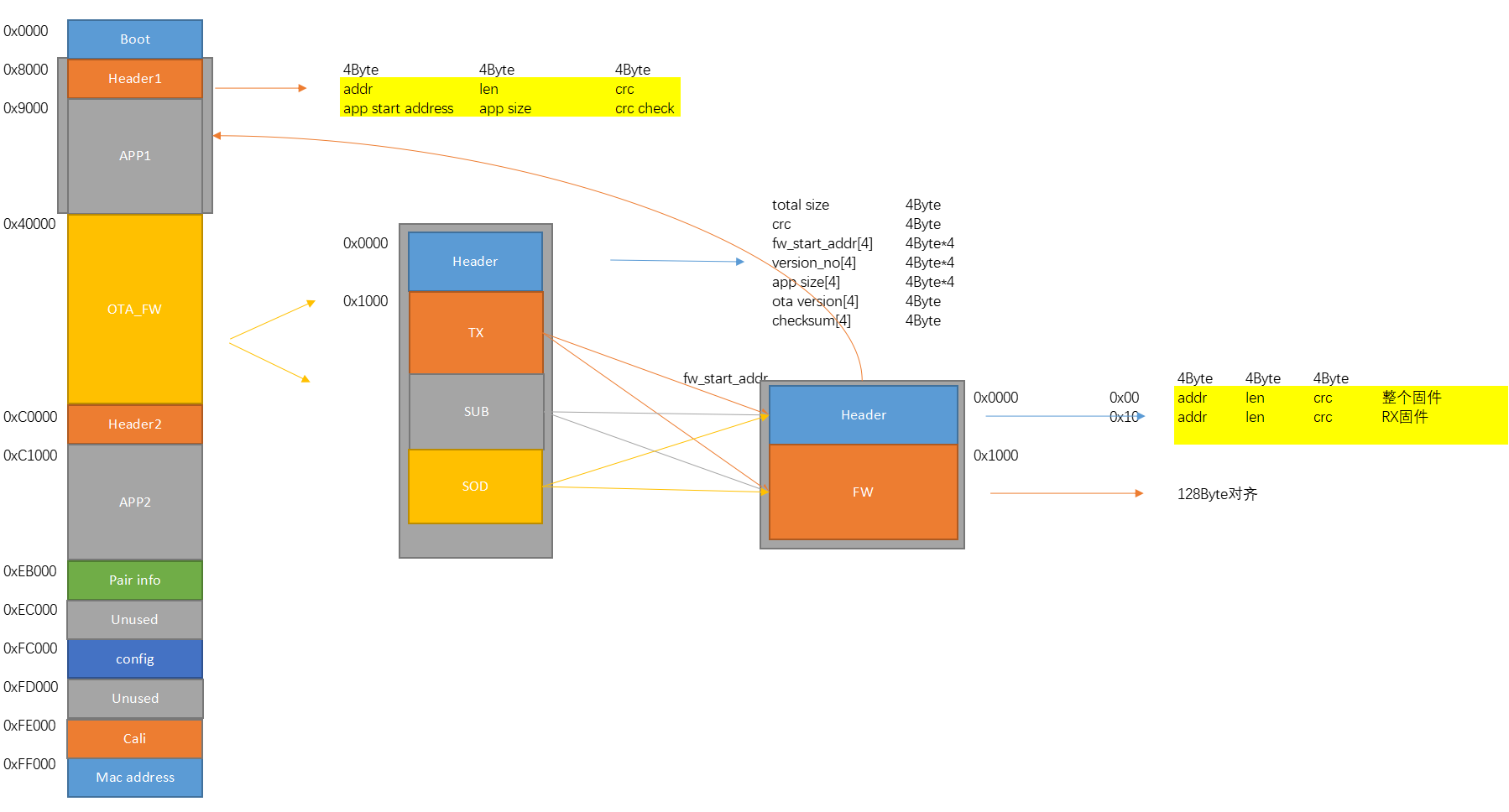
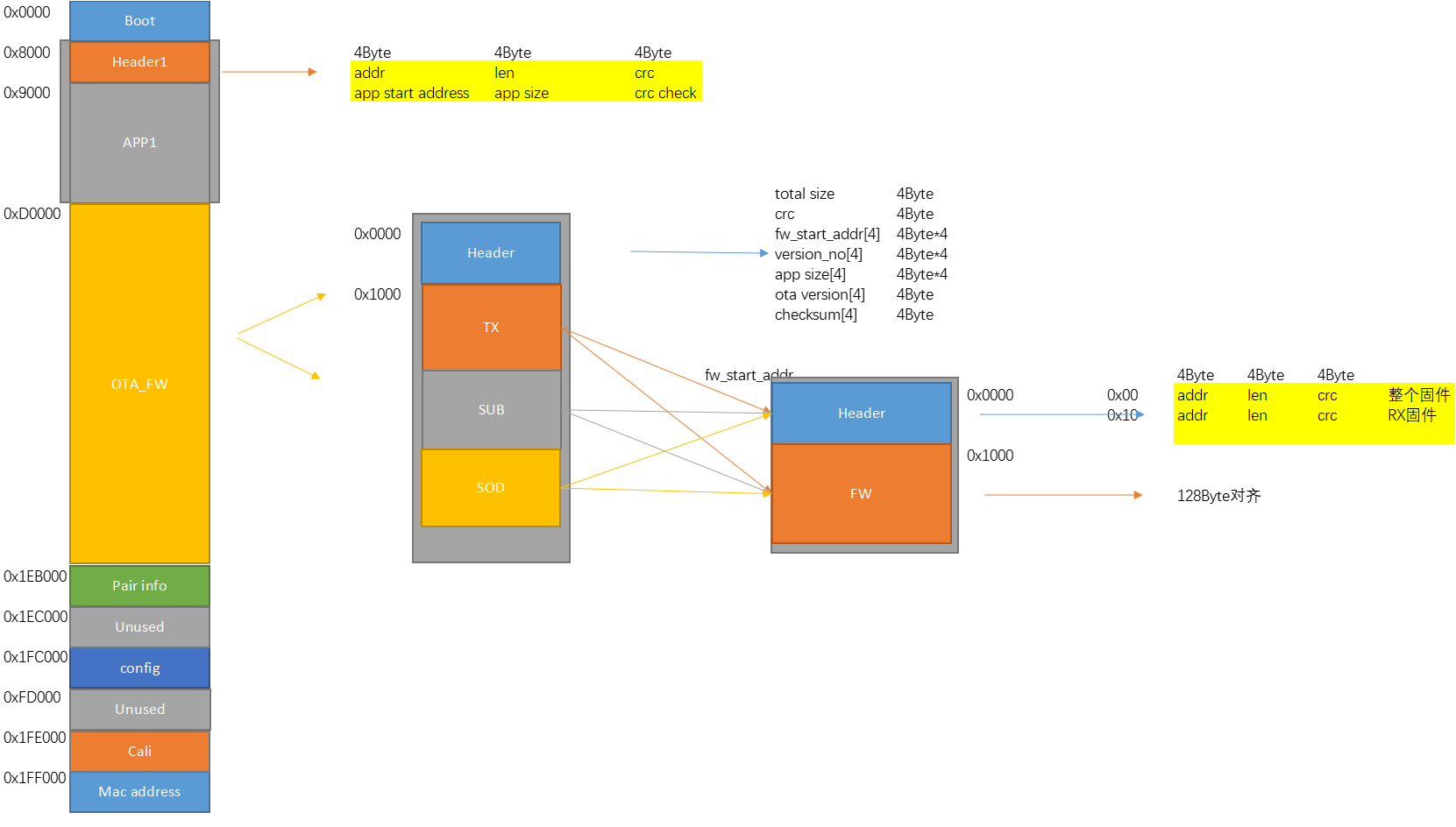
TX Flash Memory Allocation
RX Flash Memory Allocation
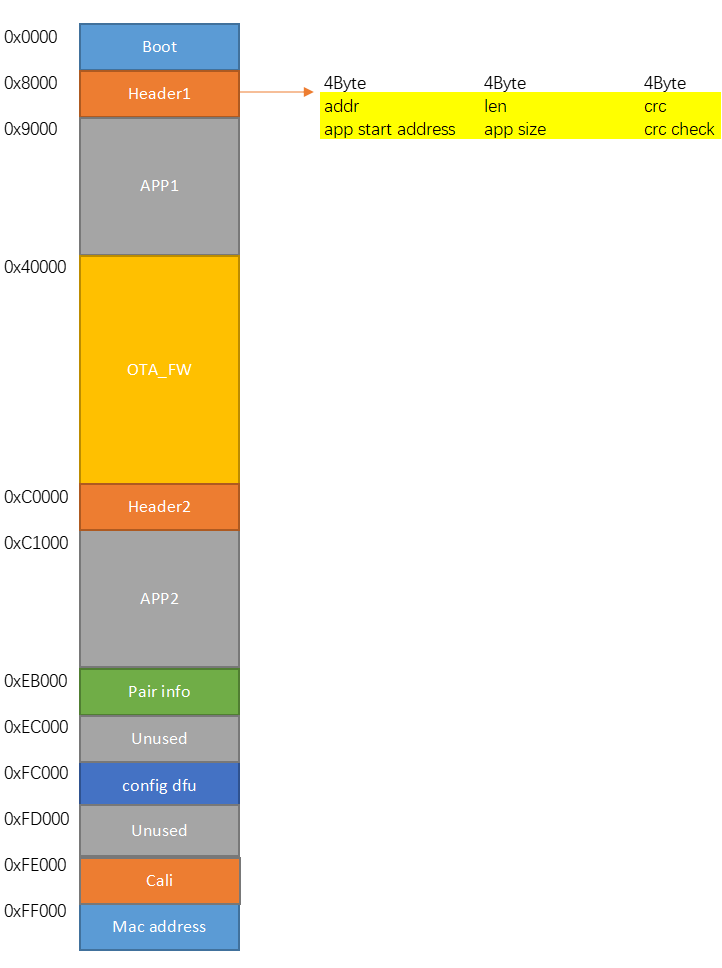
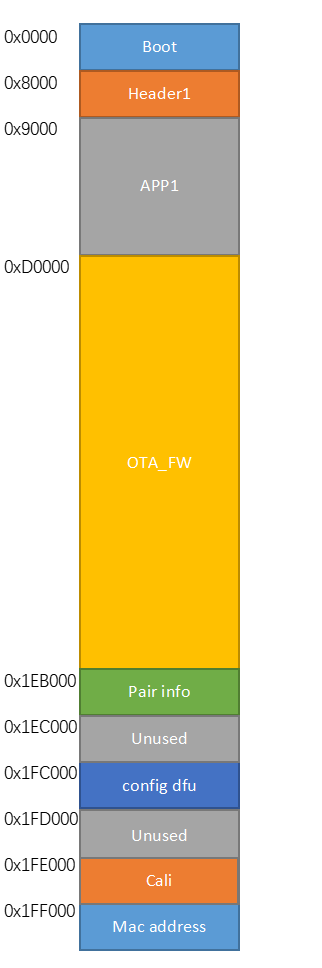
The basic architecture of 1M Flash and 2M Flash memory allocation is the same, but there are some differences in address allocation, so here we will only introduce the address allocation of 1M Flash.
Boot: The start of the Flash 0x00 address stores the boot program. After the MCU is powered on, it will execute the boot program first, and then jump to the APP program.
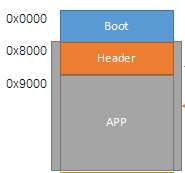
Header1: The start of the Flash 0x8000 address stores some information of APP1, such as APP1 program stores flash first address, APP1 bin size, and APP1 CRC check code. The Boot program will perform CRC check on APP1 according to the information stored in Header1 to determine whether the APP1 program is complete.
APP1: The start of the Flash 0x9000 address stores the APP1 program, the Boot program checks whether the APP1 is complete. If it is complete, it will directly jump to the flash 0x9000 address and start to execute the APP1 program.
OTA_FW: The start of the Flash 0x40000 address stores the backup FW. If the APP is detected to be incomplete in the boot, a new FW will be loaded from OTA_FW to the APP. If the user does not turn on the APP switching function, 0x40000~0xEB000 can be used as the backup FW area.
Header2: If the user has enabled the APP switching function, the start of the Flash 0xC0000 address stores the APP2 program, such as APP2 program stores flash first address, APP2 bin size, and APP2 CRC check code. The Boot program will perform CRC check on APP2 according to the information stored in Header2 to determine whether the APP2 program is complete.
APP2: If the user has enabled the APP switching function, the start of the Flash 0xC1000 address stores the APP2 program. After the user sets PROJ_APP_ENABLE to 1 in the APP project, the user can switch the application software in the APP through the usb command or key. The MCU will first return to the Boot program to check whether the APP2 is complete. If it is complete, it will directly jump to the flash 0xC1000 address to execute the APP2 program. The starting address of Header2 and APP2 can be modified as needed, for details of this function, please refer to the subsequent APP function switching chapter.
Pair info: The start of the Flash 0xEB000 address stores the pairing information, and the wireless module is reconnected according to the pairing information.
Configure: The Flash 0xFC000 address stores the configure bin. The APP will determine which series of Soundbar products are currently running according to the configuration table. At the pairing stage, it will also check whether tx and rx are the same series. If not, pairing is not allowed.
Calibration: The Flash 0xFE000 address stores the calibration value, and the chip CAP value is adjusted according to the calibration value when the MCU is powered on.
Mac address: The Flash 0xFF000 address stores the Mac address, a total of 6 bytes. The wireless module uses the access code calculated by the TX MAC address to communicate.
MCU Startup Process Introduction
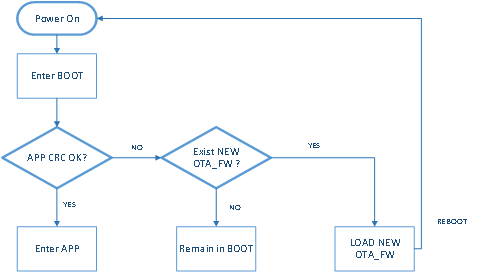
According to the flash memory allocation diagram, the boot program stored at 0x00 address, and the MCU is started from the boot every time it is powered on. The header stores the APP's first address, bin size and CRC check code. After the MCU starts from the boot, it will perform CRC check according to the APP information stored in the Header to determine whether the APP is complete. If CRC Check fails, the MCU will determine whether there is a new firmware available for upgrade. If not, it will stay on the boot. If there is a new firmware, it will move to the starting position of flash 0x9000 first, and then reboot the MCU to execute the above process again until the APP CRC check is successful. After the APP CRC check is successful, the MCU will jump to the flash 0x9000 address to execute the App.
Bin File Introduction
In the first compilation, the user must compile the boot project first, and then compile the soundbar project. At this time, the soundbar app bin and the boot bin are merged to generate a new bin. The user can burn the new bin when debugging or burning the chip for the first time. The new bin structure is as follows :
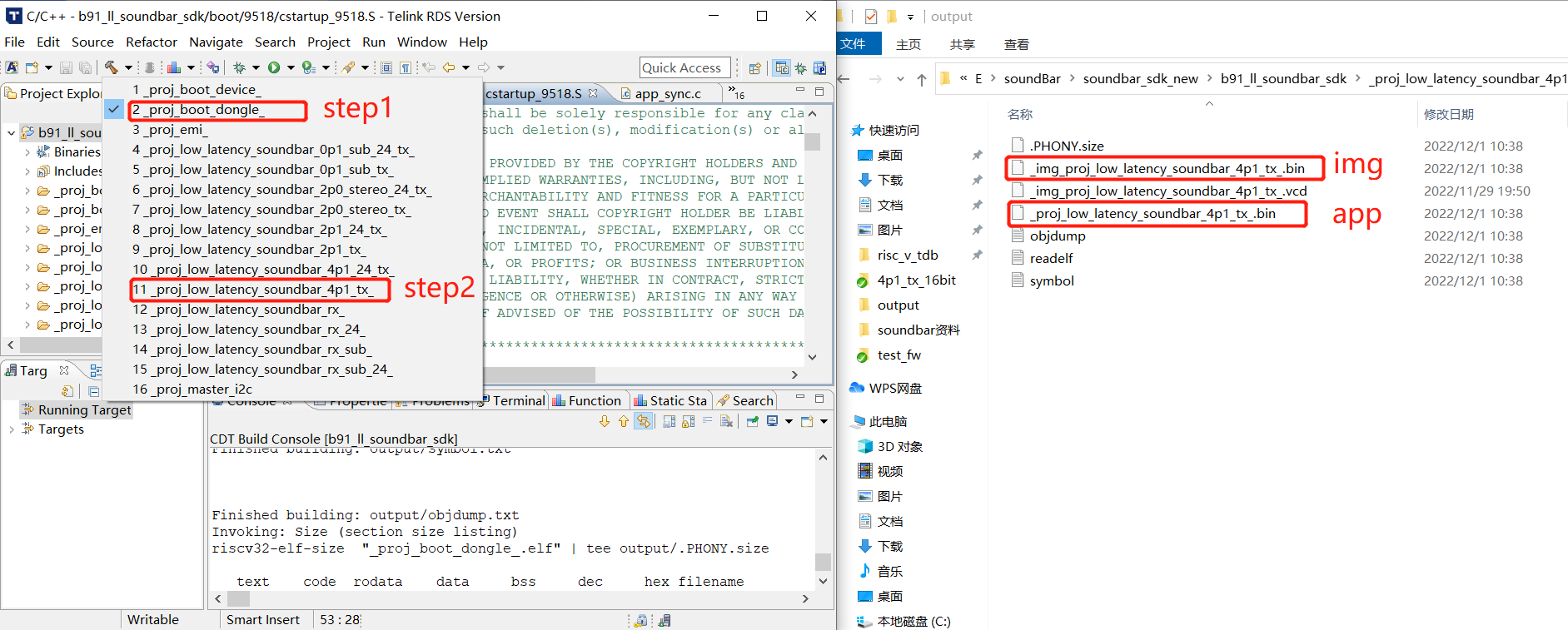
For example, when compiling the soundbar_4p1_tx project for the first time, the user needs to compile the boot dongle project first, and then compile the soundbar_4p1_tx project, and burn the firmware with the img mark the first time you burn the firmware. Similarly, when compiling the rx project for the first time, remember to compile the boot device project first. Details are shown in the following figure:
APP Function Switching
APP Function Switching Principle Introduction
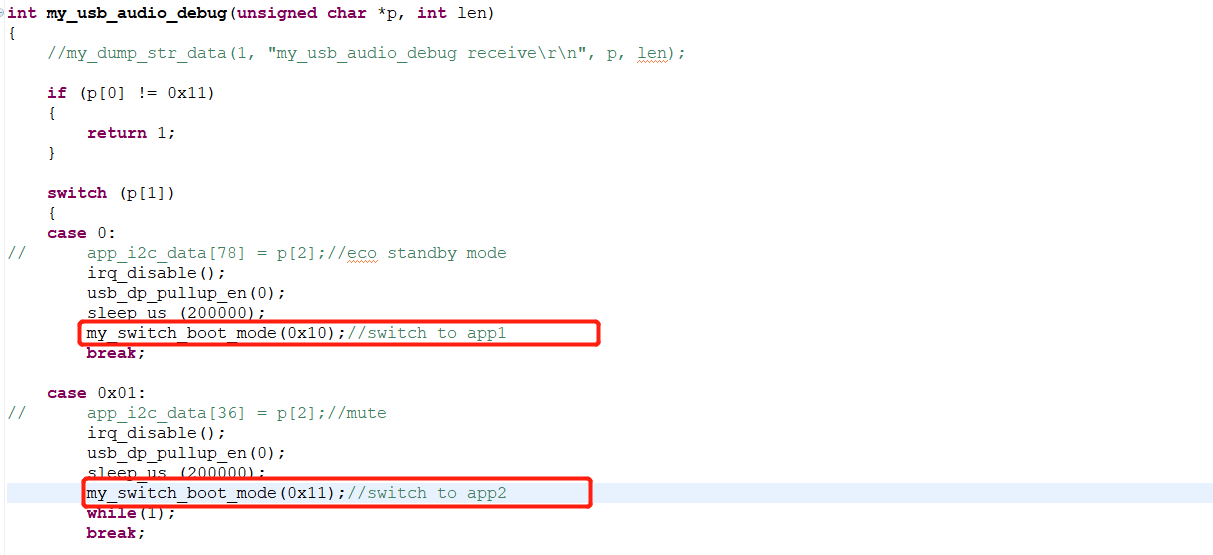
When the app is running normally, it will call the function void my_switch_boot_mode(int mode) to reset the app into boot after receiving a specific instruction, and boot will select the starting address of the app according to the parameter mode of the function to switch between app1 and app2.
APP Starting Address and APP Header Starting Address Introduction
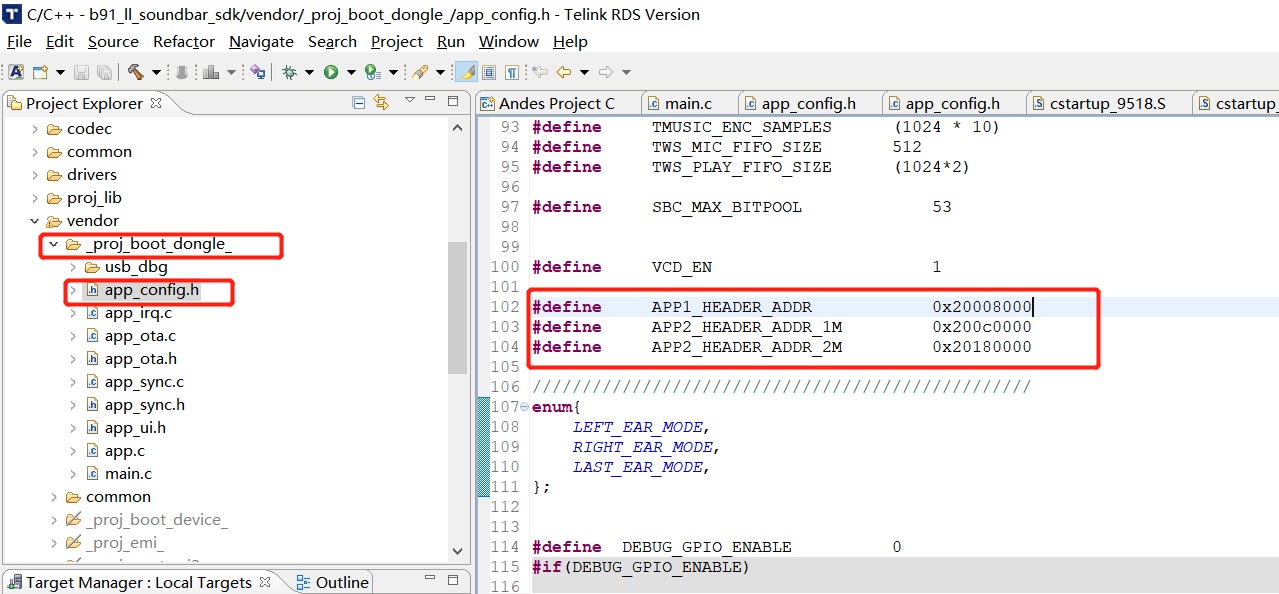
(1) The default starting address of the APP1 Header is 0x8000, and the default starting address of the APP2 Header is 0xC0000. Users can modify the default starting address of APP Header according to the bin file size, especially when using 2M flash, the start of the 0xD0000 stores the OTA upgrade file, so the space available for APP2 is only 0x10000. The user needs to modify the starting address of the APP2 Header according to the project requirements, the modified location is as follows:
(2) The default starting address of the APP1 is 0x9000, and the default starting address of the APP2 is 0xC1000, and the starting address is stored in the first 4 bytes of APP1 Header and APP2 Header respectively for invert. Users can modify the default APP starting address according to the bin file size, the modified location is as follows:
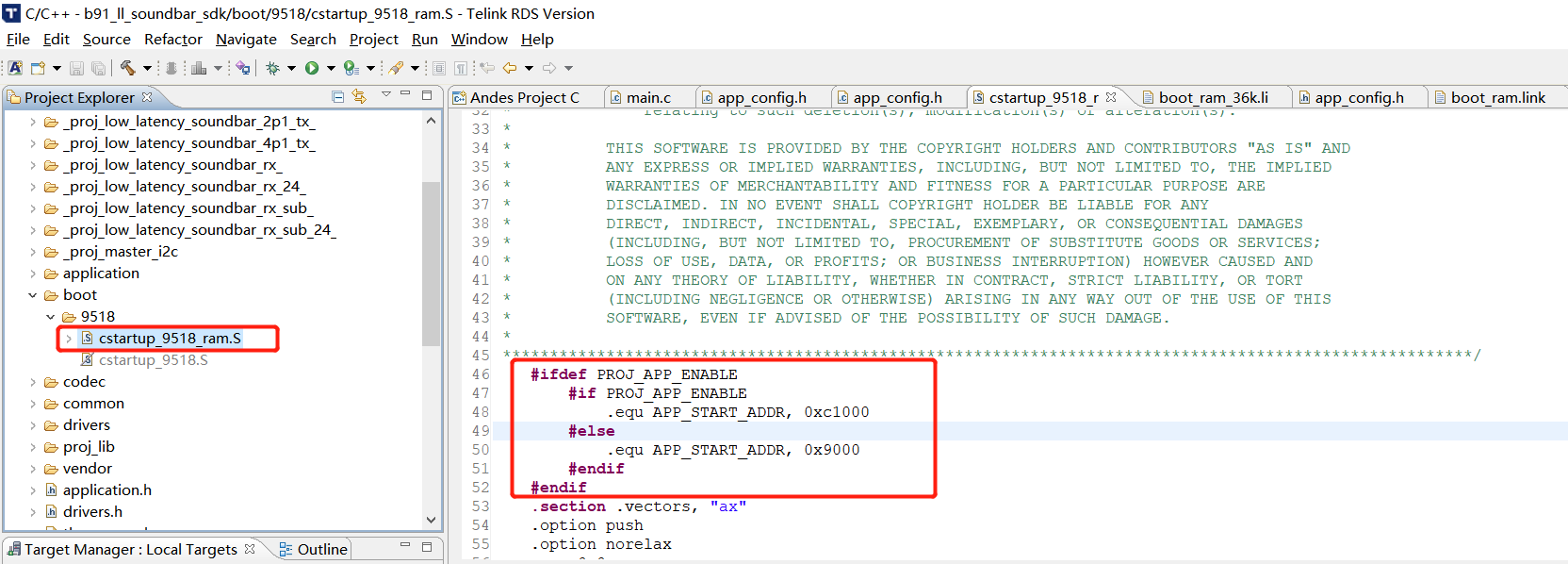
APP Function Switching Demonstration
(1) Use soundbar_4p1_tx project for demonstration, app function switching is disabled by default in sdk. Users can modify the project configuration file and set PROJ_APP_ENABLE to 1 to enable this function according to their needs, the specific location is as follows:
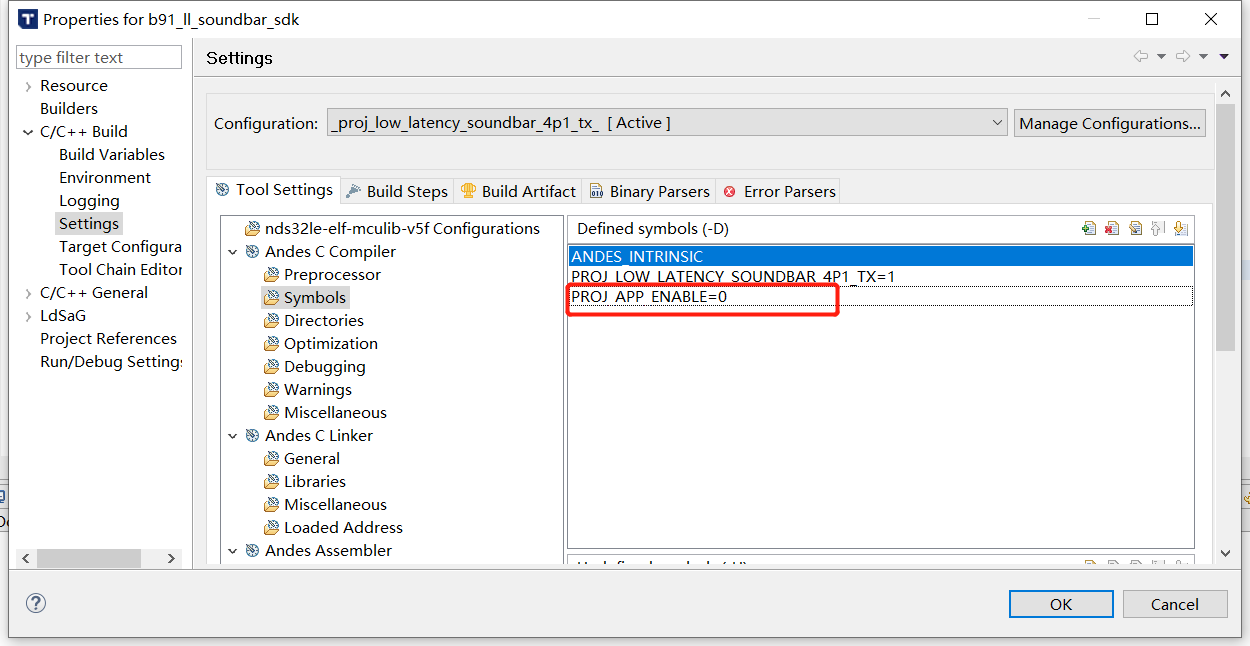
(2) After the modification, the whole project needs to be compiled again. After compilation, the bin file with img header is selected as firmware 1, which includes boot, app1 header and app1.
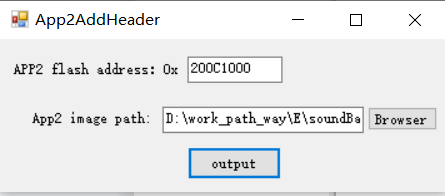
(3) Similarly, after using the same method to compile other projects in SDK, select the bin without img header, which does not contain boot and header, and use the App2AddHeader tool to add the header manually. For APP2 flash address, which fills in the starting address of the APP2 Header (as shown in the figure below), click "output" to generate a file with the crc32 suffix, and find it in the same path, just remove the crc32 suffix to get the firmware 2 we need.
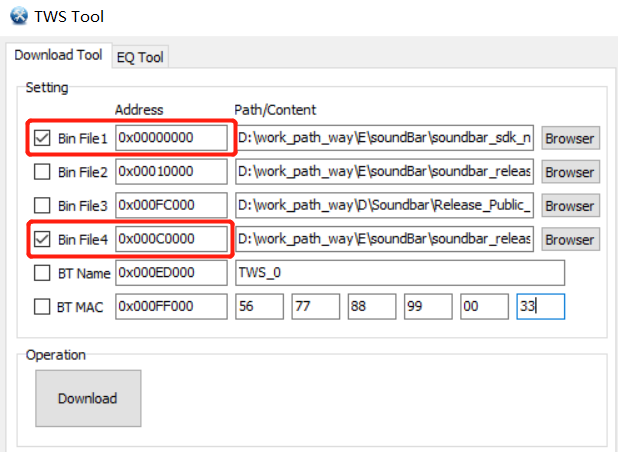
(4) Then use the BDT tool to burn firmware 1 and firmware 2 to the flash location of 0x00000 and 0xC0000 on the TX board, as shown in the following figure:
(5) After TX runs, app1 will be run first. Users can switch to app2 by sending 11 01 command through rsic-v tool, and then send 11 00 command to switch back to app1, or you can switch from app1 to app2 by pressing the SW2 button. The specific code is as follows :
Introduction to Chip Cascade Scheme
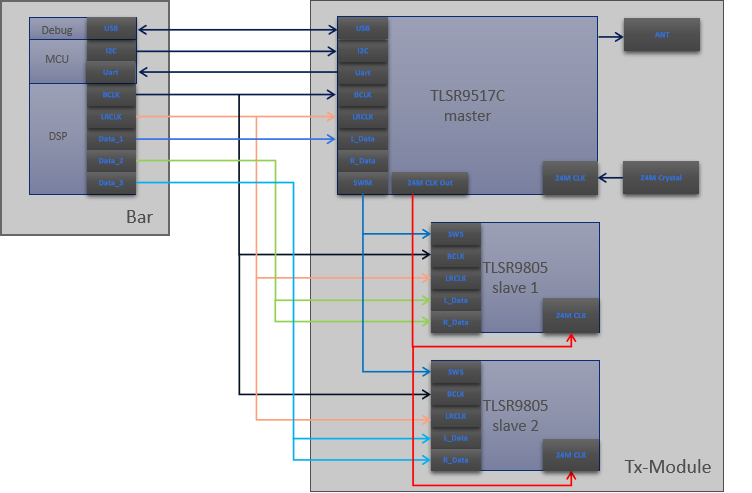
The Telink Soundbar sdk introduces several application demos. Due to the limitation of MCU resources, there are mainly 1p1(1 mcu), 2p1(2 mcu) and 4p1(3 mcu) according to the number of Tx module mcu.
Take 4p1 demo as an example:
The 4p1 demo needs to transmit 4.1 chn audio, and requires three channels of i2s data. The B91 chip has only one i2s module and only supports one i2s data.
In addition, the B91 chip main frequency can run up to 96MHz, if the audio of 4.1 chn is encoded (5ms frame length), the computational power cannot be reached.
Therefore, three chips (as shown in the figure below) are selected to work in parallel through cascade to complete 4.1 chn audio coding and RF transmission.
Slave Chip Working Mode Introduction
As mentioned above, the tx side of 4p1 demo works in parallel through the cascade of three chips, and the master chip has built-in flash, and the slave chip has no built-in flash. The master chip has a built-in flash, which can be started from the flash after power-on, the slave chip has no flash, and can only be started from the sram.
When the master chip starts from flash, it will move all data to iram and dram, including code segments. When the master chip executes the main function, it will output 24MHz clock through GPIO to provide the clock source for the slave chip, and then the master chip will download the iram and dram contents to the sram of the slave chip through single wire burning. When download fw, since the default ID of the two slave chips is 0, it can be performed simultaneously. After download fw, the master chip resets one of the slave chips through the reset pin, and then configures the communication ID for the other slave chip. In the same way, after all slave chip IDs are configured, the master chip can access the corresponding slave chip configured IDs through different IDs, and then the master chip will perform software reset on the slave chip, and the slave chip will run from the PC 0 pointer.
When the slave chip executes the main function, it will first perform the code segment crc self-check to confirm whether the download fw is normal.
After the slave chip self-check, the master chip will toggle sync gpio. After the slave chip detects the interruption of gpio, it can synchronize the timing of the master chip.
After the master and slave chips timing synchronization, the master chip will read the encoded data from the slave chip in a specific slot, and then package and send it together. The master and slave chips can be understood as running the same code, so the addresses of variables are the same on both sides, which is convenient for the master chip to read and write the slave chips.
In addition, since the 24M crystal clock of the slave chip is provided by the master chip, the master and slave chip clocks are the same source, which can avoid clock deviation.
24MHz clk Introduction
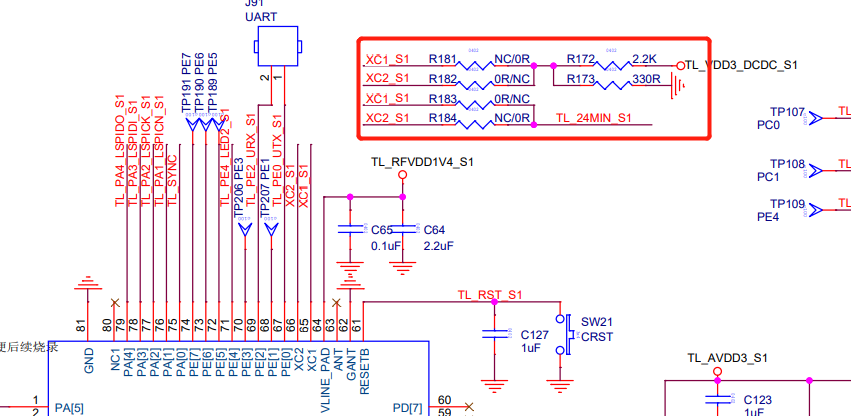
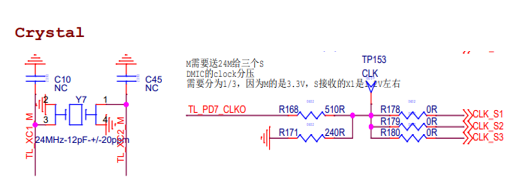
As for the design of 24M clock part from the master chip to the slave chip, the maximum internal voltage requirement of the chip is less than 1.2V, so the 3.3V circuit is divided outside the chip. The 9805 end has a 2.2k and 330R voltage divider that provides a common-mode level(0.3V ~ 0.4V) to the chip's internal buffer. In addition, the master and slave chips have the same clock source. The reference design circuit is as follows:
Description of the duty cycle and waveform requirements of the 24MHz clock:
(1) The PLL inside the chip has no specific requirements for the input waveform. The circuit is edge trigger, as long as there is a rising edge.
(2) The internal PLL has no specific requirements for the incoming CLK, 20% is acceptable. The internal baseband PLL will re-adjust the duty cycle;
(3) The 24MHz clock duty cycle of the main chip through GPIO output is about 40%. The clock output adds resistance divider, which will increase some parasitic capacitance, and the influence of the oscilloscope probe will cause the actual duty cycle to be about 40%. The 9805 just running audio codec, and this 40% duty cycle has fully met our needs for the clock.
Single wire Introduction
The single wire download fw introduction:
Swire communication is a private single-bus communication protocol of Telink, and the basic communication principle is based on the proportional relationship between the high and low levels. The ratio of low to high level is 4:1, which means 1 of a bit, and the ratio of low to high level is 1:4, which means 0 of a bit.
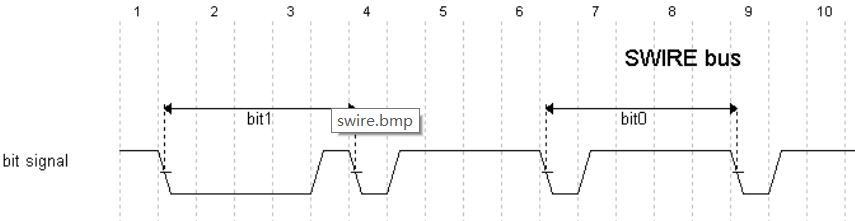
Before the swire communication, the swm end needs to send a special waveform to notify the sws end to shake hands, and then read and write operations can be performed according to the protocol requirements.
When swm end downloads the fw, the clk is configured as 8MHz, because the slave chip main clock is 24MHz RC clock (Hclk is also 24MHz), and the swm clk is configured as 8MHz to meet the sampling requirements.
Since the two slave chips are downloading fw at the same time, the process can only be written, not read, otherwise the two slaves respond at the same time, and the read content is not reliable.
When the master and slave chips are running normally, the hclk is 48MHz. At this time, the single wire clk will be configured as 16MHz to reduce the communication time between the master and slave.
It should be noted that in similar applications, do not configure the clock-related registers of the slave chip through swm, because this may cause the clock configuration of the slave chip to be abnormal, and the sws module to work abnormally, resulting in the master and slave chips work abnormally.
I2C Protocol
In the Soundbar sdk, In the sdk, the demo of hardware IIC communication between Telink MCU and external master is provided. Telink MCU is I2C slave, and users can migrate according to their needs.
I2C Protocol Description
(1) The default read/write length is 1.
(a) The supported write command is as follows:

\qquad **ID(7 bit) + W(1 bit) + Cmd(1 byte) + Data(1 byte)**

(b) The supported read command is as follows:

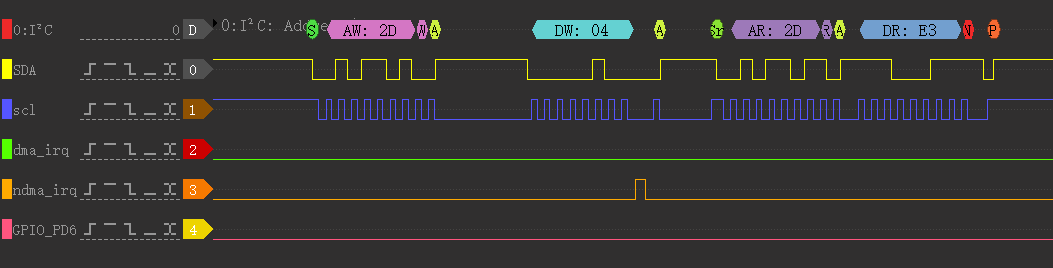
\qquad **ID(7 bit) + W(1 bit) + Cmd(1 byte) + ID(7 bit) + R(1 bit) + Data (1 byte)**

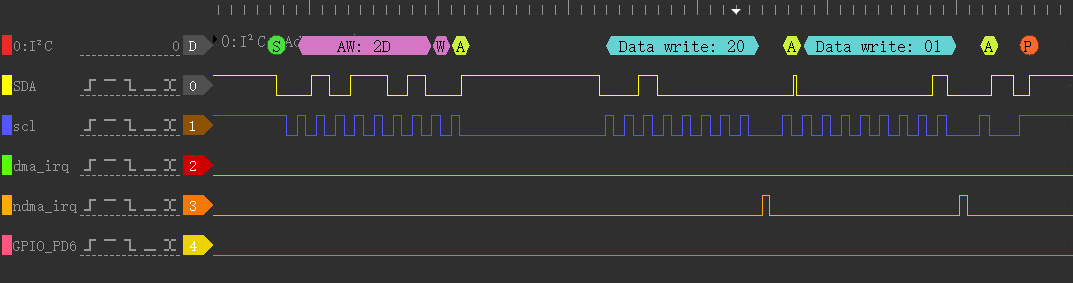
(c) By default, I2C write adopts ndma mode, and the trigger level length is 1. When a valid data is received, an interrupt will be generated. During the upgrade, I2C write adopts dma mode, and the length is 133 bytes.

(d) In the SDK, I2C interrupt priority is 2, and Stimer interrupt priority is 3. Telink I2C Slave supports the stretch function, when the I2C interrupt cannot be processed in time, the stretch function will be opened to notify the I2C Master that it is currently busy and cannot receive new data. In the SDK, as long as the interrupt priority is higher than 2, the stretch function will be opened at the entry of the interrupt processing function and closed at the exit of the interrupt processing function. Close the global interrupt and open the global interrupt also requires the same operation, the details can be directly referred to the SDK code.
The read command process is shown in the figure below (write a byte to register address 0x20 with the value of 0x01):

The write command process is shown in the figure below (Read the value of register address 0x04, and the value is 0xE3):

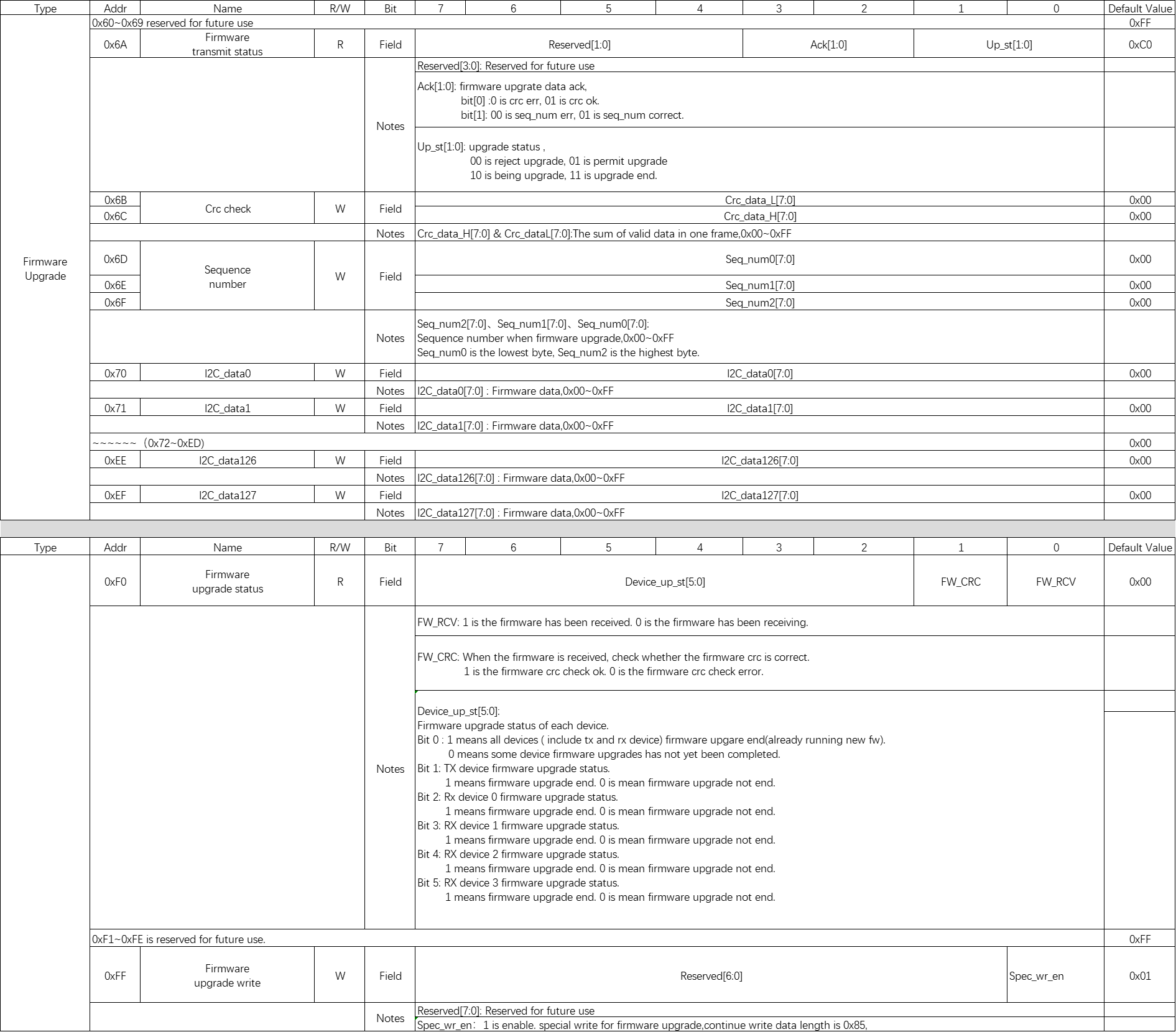
(2) During firmware upgrade, send a frame special write command: 0xff 0x01; and write data in the next frame, the Master writes data of 0x85 length to the fixed address 0x6b, and then returns to the default state. For the detailed protocol, please refer to the I2C protocol description document. The format is as follows:
ID(7 bit) + W(1 bit) + Cmd(0xff) + Data(0x01)
ID(7 bit) + W(1 bit) + Crc(2 byte) + Seq_num(3 byte) + Data(128 byte)
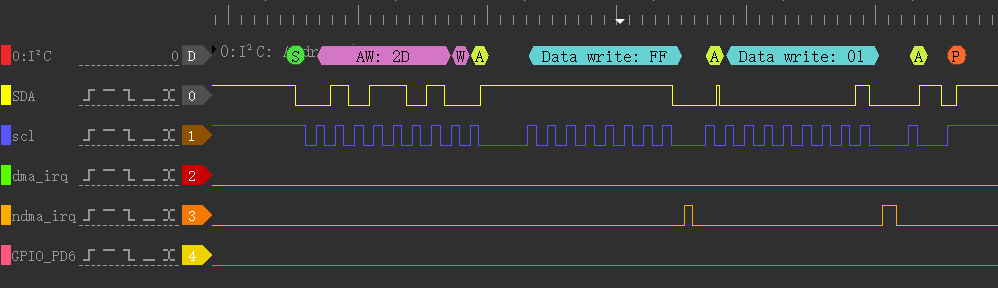
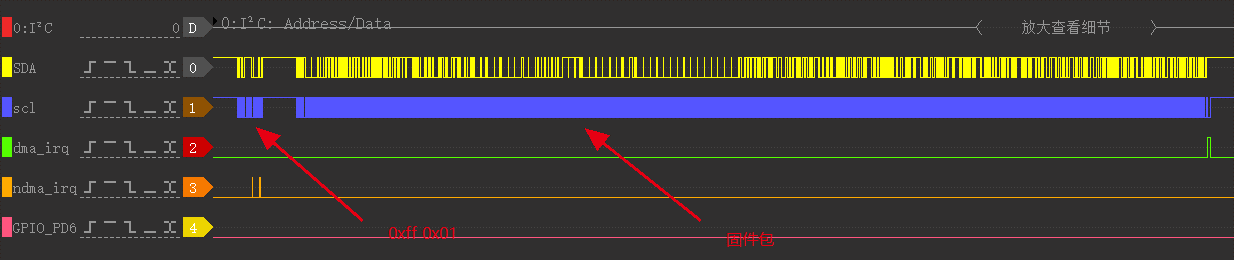
When sending long data, i2c slave adopts dma mode. An interrupt will be generated only after receiving a frame of data, and data verification will be processed in the interrupt processing function.
(3) After the master transmits the firmware, the master will send 0x5A of 128 bytes to notify the slave that the firmware has been transmitted. When the slave completes the local firmware upgrade, it will notify the master of the current event status through uart Tx.
I2C Firmware Transmission Process
Step 1: Master sends 0x27 0x01 to start firmware upgrade; (STEP1)
Step 2: Master sends 0xff 0x01 to notify slave that the next frame data is long data; (STEP2)
Step 3: Master sends the firmware package, as shown in the figure above; (STEP3)
Step 4: Master repeats the STEP3 until the firmware upgrade is completed;
Step 5: After the firmware upgrade is completed, the master will send 128 bytes of 0x5A to notify the slave that the firmware package transmission is completed. (STEP4)
Step 6: Slave receives the final end firmware package, parses the firmware package, and then upgrades the firmware.
I2C Command Description
Telink provides rich I2C commands to interact with the external master, which users can use according to their needs. The commands are shown in the following table:
(1) Basic info: a query command that provides basic information for querying TX/SUB/SOD_L/SOD_R Version, TX Mac address, and signal strength RSSI.
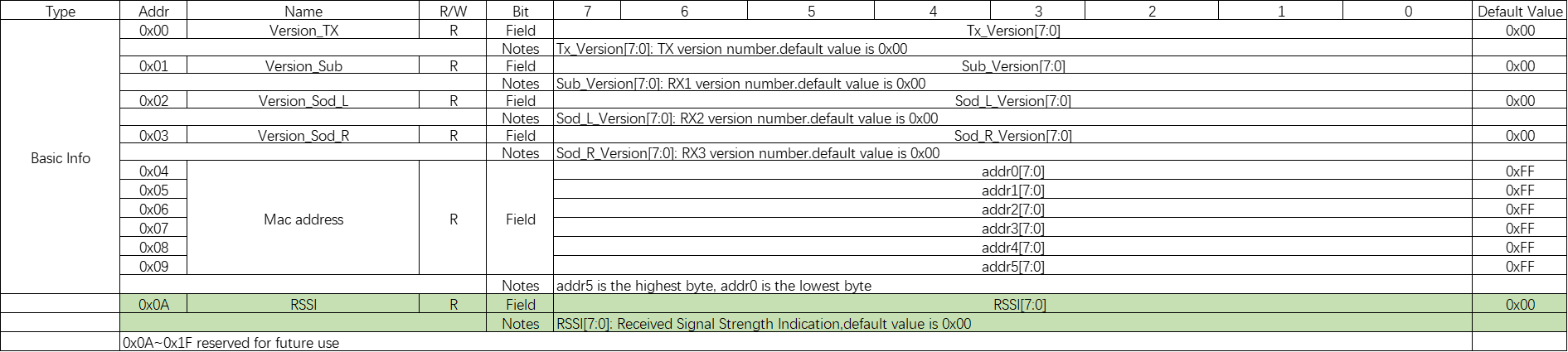
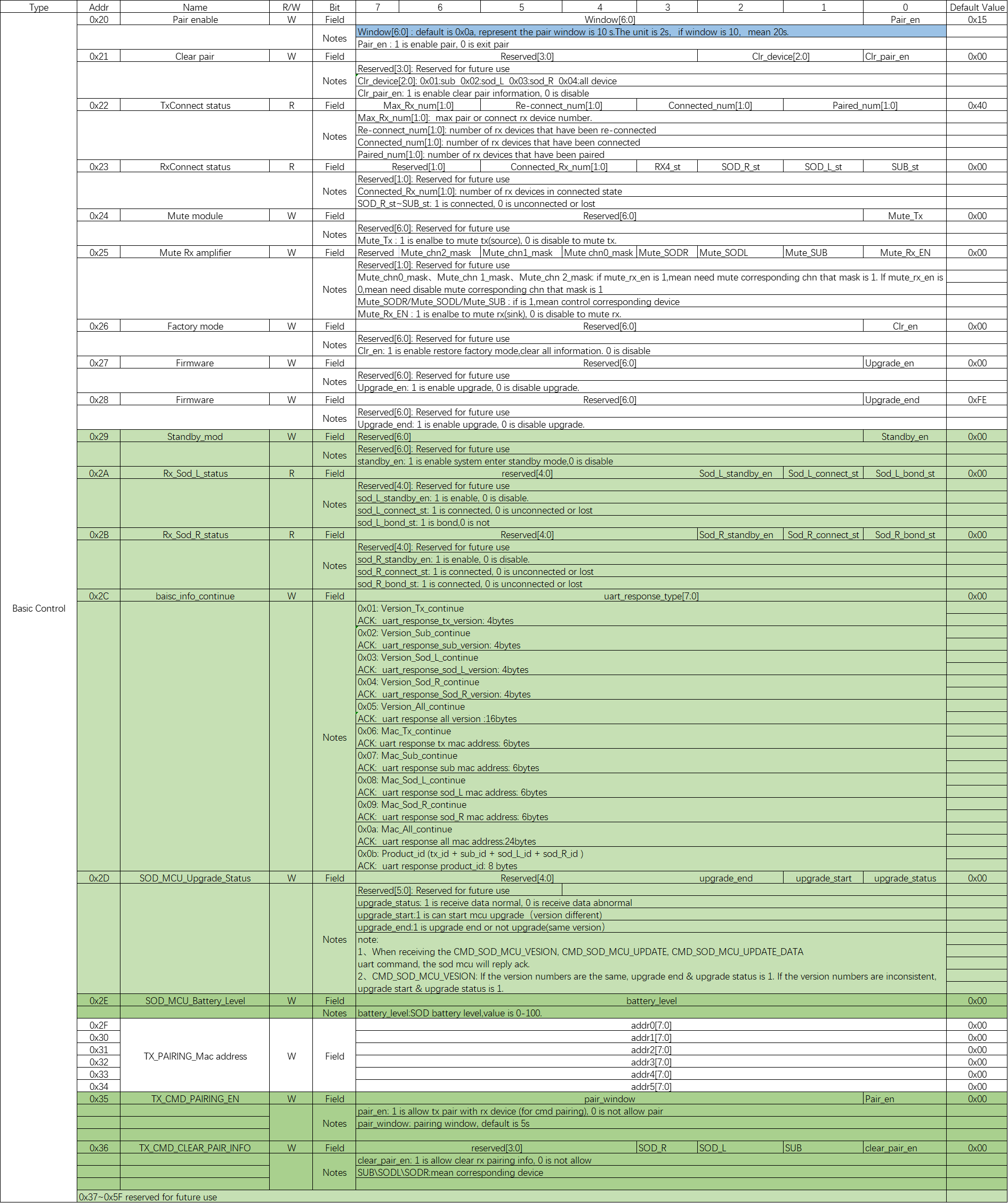
(2) Basic control:provides basic control commands, such as pairing function, pause/play music, enter standby mode, uart print information, etc.
(3) Firmware upgrade:provides firmware upgrade status query, etc.
MasterIIC Transmission Firmware Demonstration
The Telink EVB development board is used as the master board to simulate the external master to transmit OTA files to TX through the IIC interface. The specific steps are as follows:
(1) First you need to compile _proj_master_iic project to get the bin of the master, and then merge the OTA files with checksum through combine_tool in Chapter 9, as shown in the following figure:

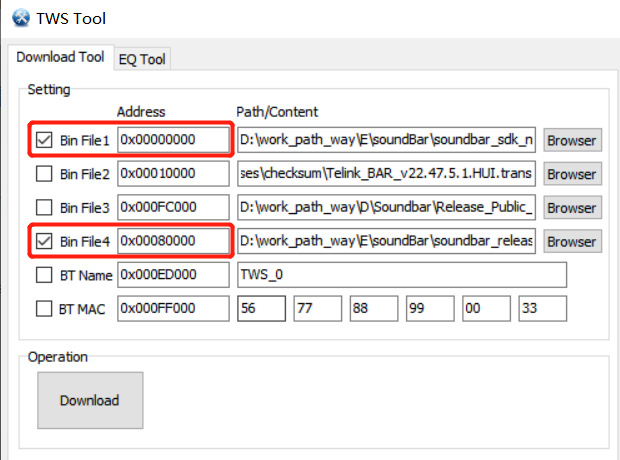
(2) Then burn the OTA file and the bin file of master iic to the master board through the Telink BDT tool, and the addresses are 0x00000 and 0x80000 respectively, as shown in the following figure:
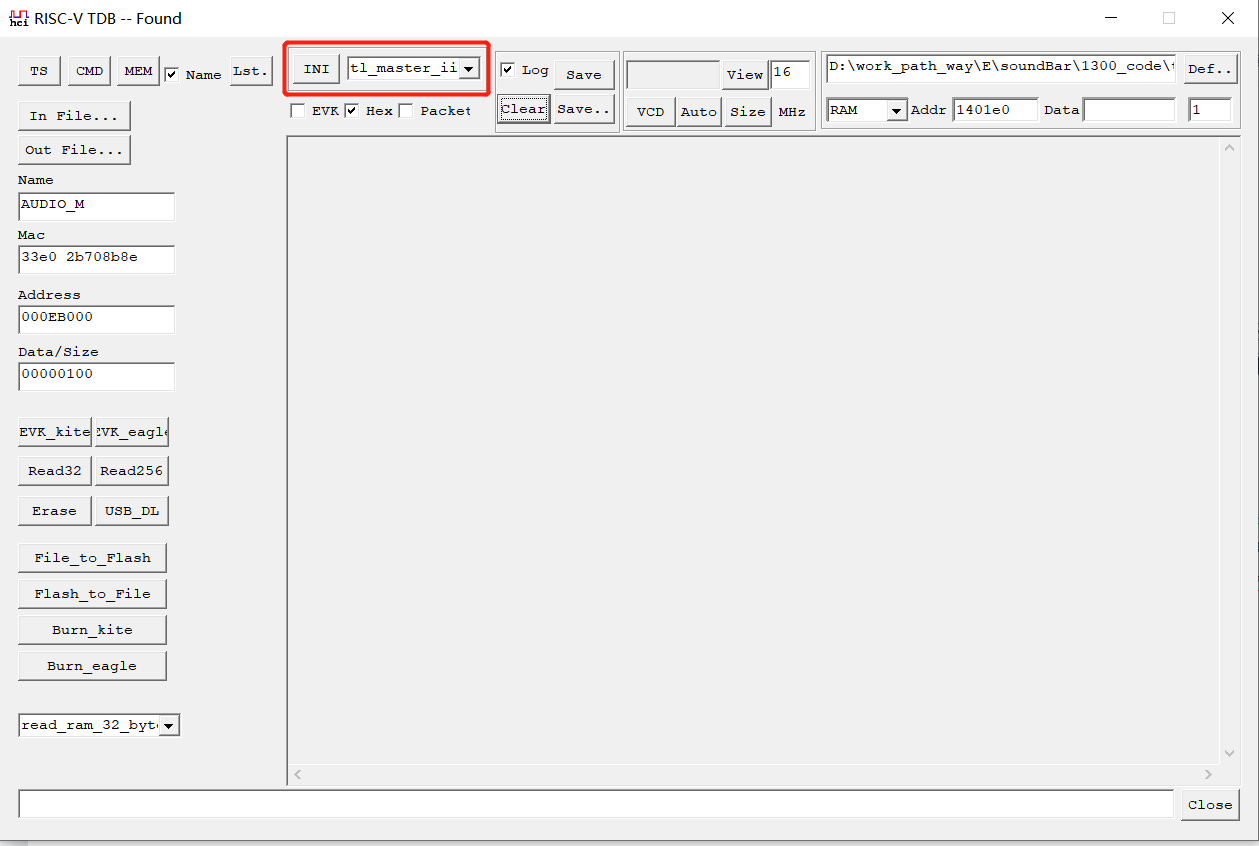
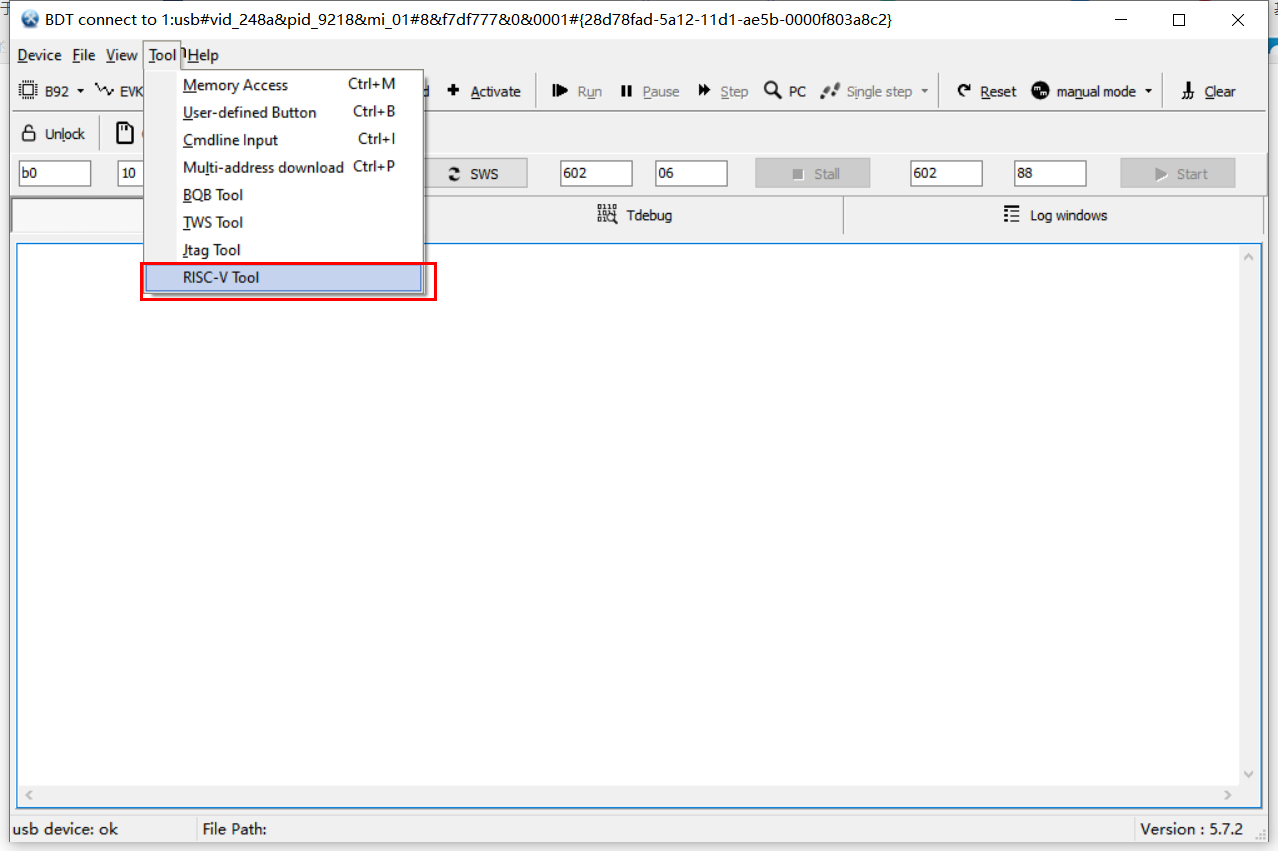
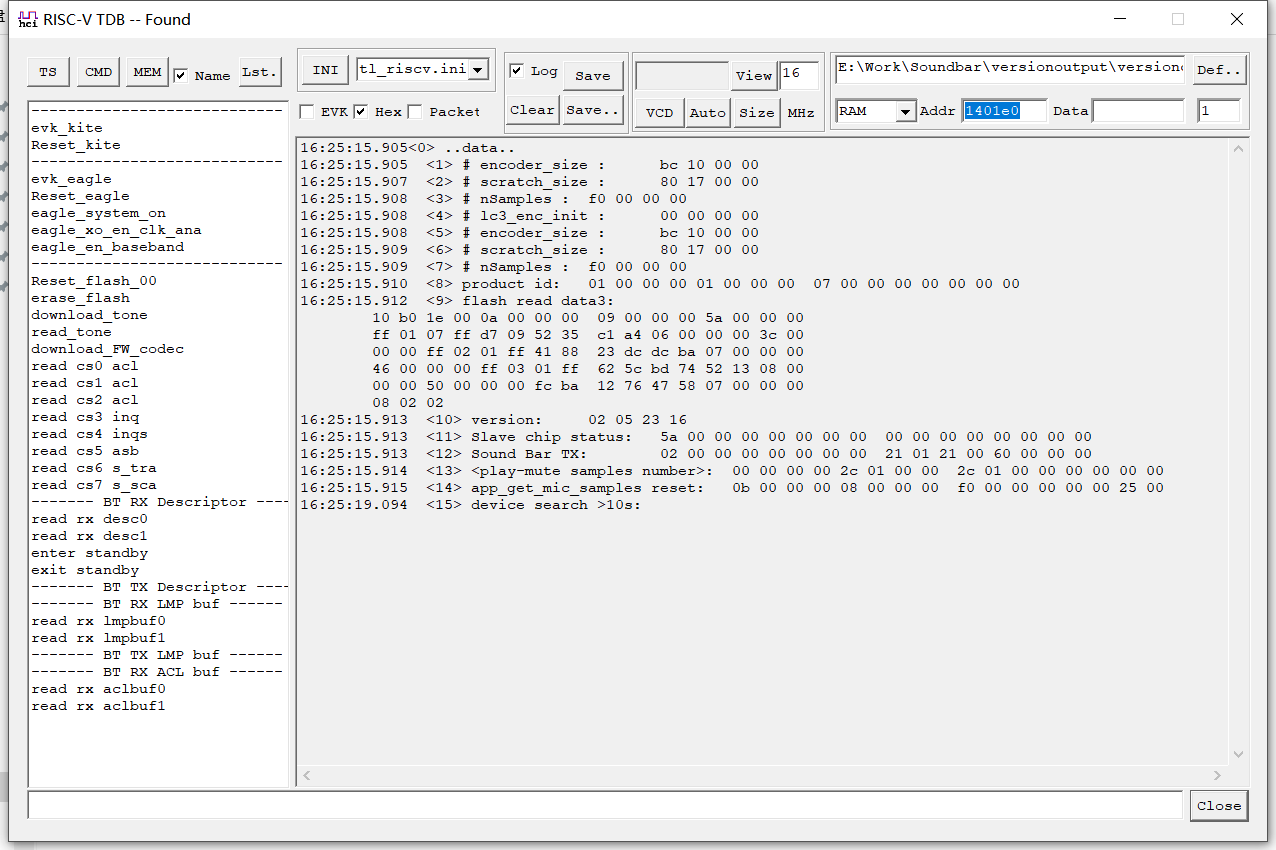
(3) Open the Telink RSIC-V tool and select the configuration file of the master iic project, Connect the master board and the computer with a USB cable, after the connection is normal, "Found" will be displayed in the upper left corner of the tool, as shown below:
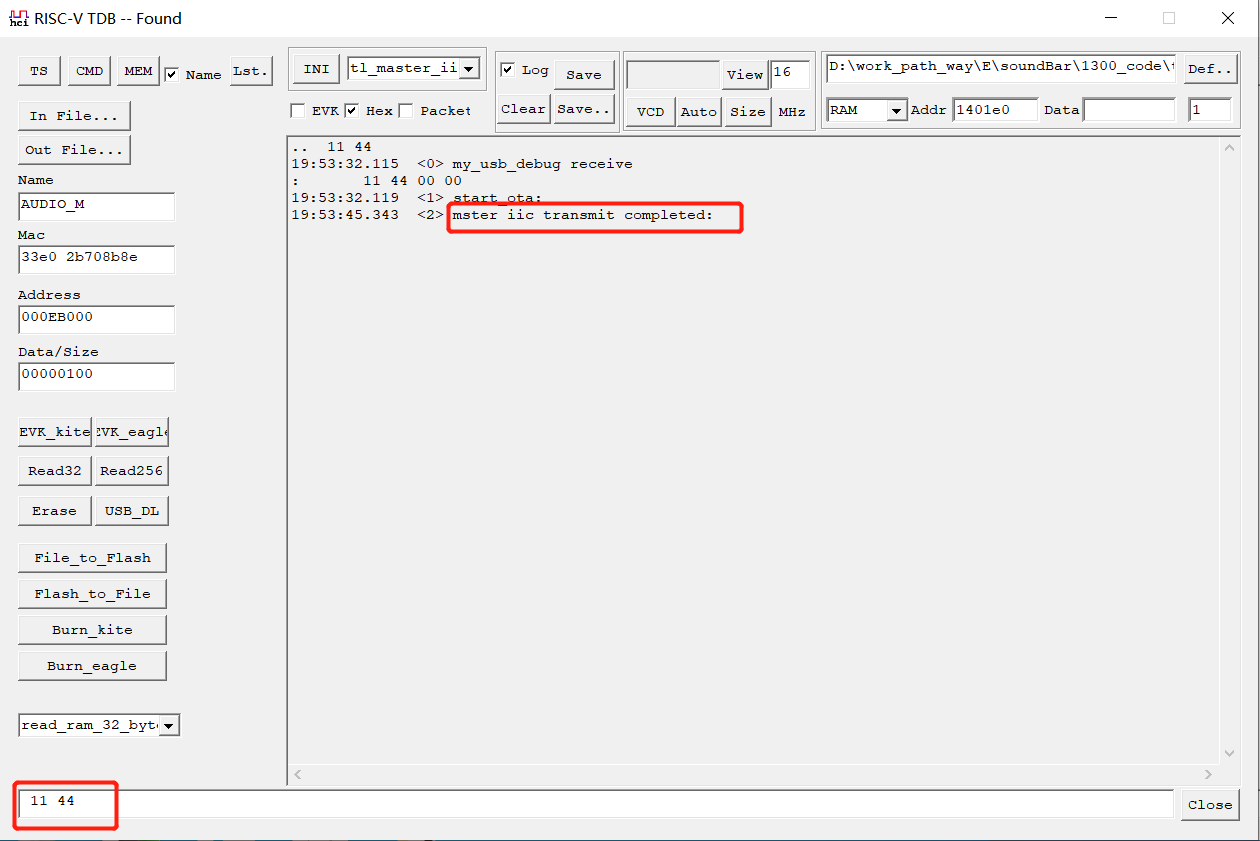
(4) Send the 11 44 command to the master board through the rsic-v tool, and trigger the master board to send the OTA file to the 0x40000 address of TX.
(5) After OTA file transfer is completed, the rsic-v tool connected to the master board will print "master iic transmit completed:", as shown in the following figure:
Note that if IIC fails to transfer OTA files, the following ideas are provided to solve the problem
The IIC pin needs to be connected with 4.7k pull-up resistor, whether the IIC pin is reused, whether the Combine_bin_App tool has correctly written the OTA upgrade version number, the master board and the TX board should common ground.
OTA
OTA Introduction
The OTA function is implemented in boot, where TX corresponds to _proj_boot_dongle_ project (including Remote OTA and Local OTA), and SOD and SUB correspond to _proj_boot_device_ project. The previous section has described that the master transfers the OTA upgrade package to the 0x40000 address of the TX through I2C. Next, the TX will enable First OTA, sets the variable first_ota_en to 1, and performs Local OTA and Remote OTA.
If the upgrade fails, TX will read the RX version number after entering standby mode when the TX and RX are connected. If the version is inconsistent with the OTA version, it will enter the standby OTA upgrade process, which is consistent with the Remote OTA process. The user can enter standby mode by sending IIC commands or other methods through the external master control, and can focus on the app_i2c_ctr.standby_chg variable in the function i2c_standby_control.
OTA Process
Local OTA
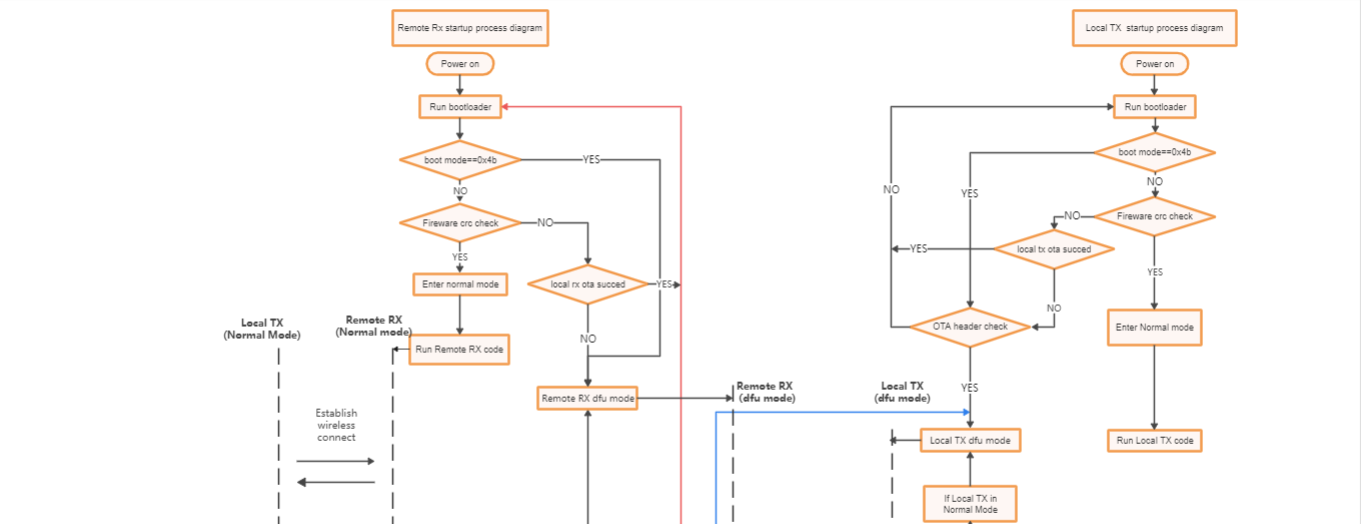
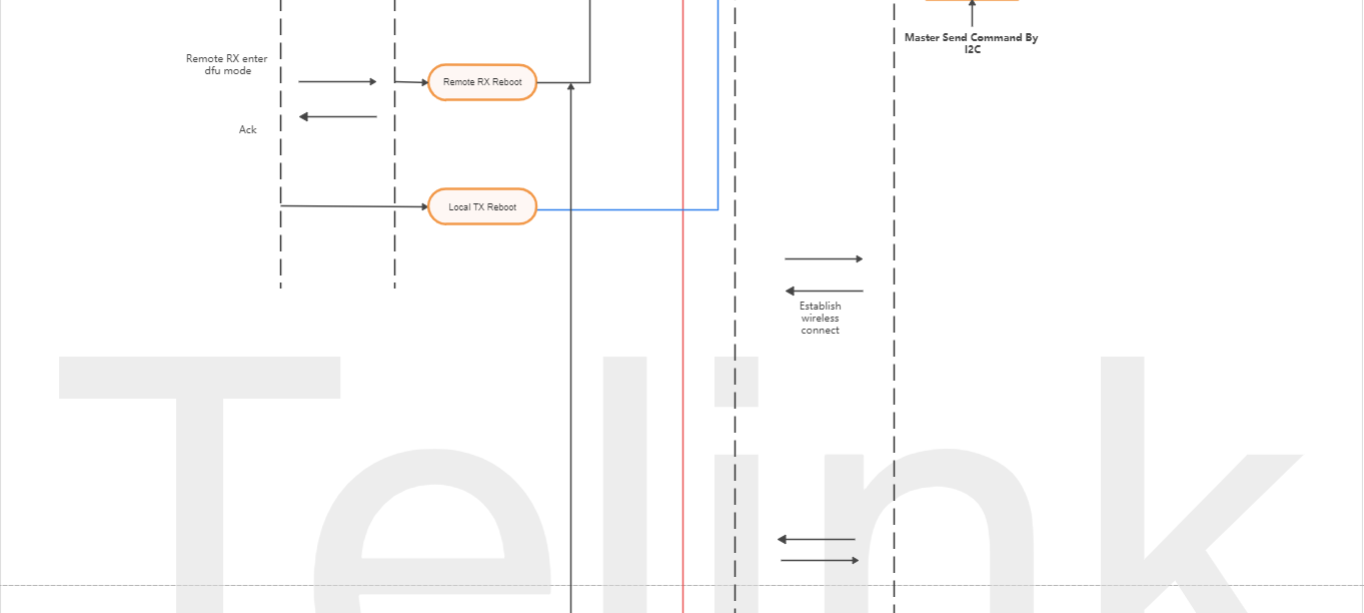
When OTA firmware is transferred to TX through IIC, TX will start the First OTA process and call the function void my_switch_boot_mode(int mode) to reset the app to boot to complete its own upgrade (However, at this time, it comes with a parameter of 0x4b, which is different from the parameter that the app function switch calls this function. Developers should pay attention to distinguish). The user can focus on the async_dfu_tx_local_upgrade function in the boot, the following is the diagram of the TX Local OTA:
Remote OTA
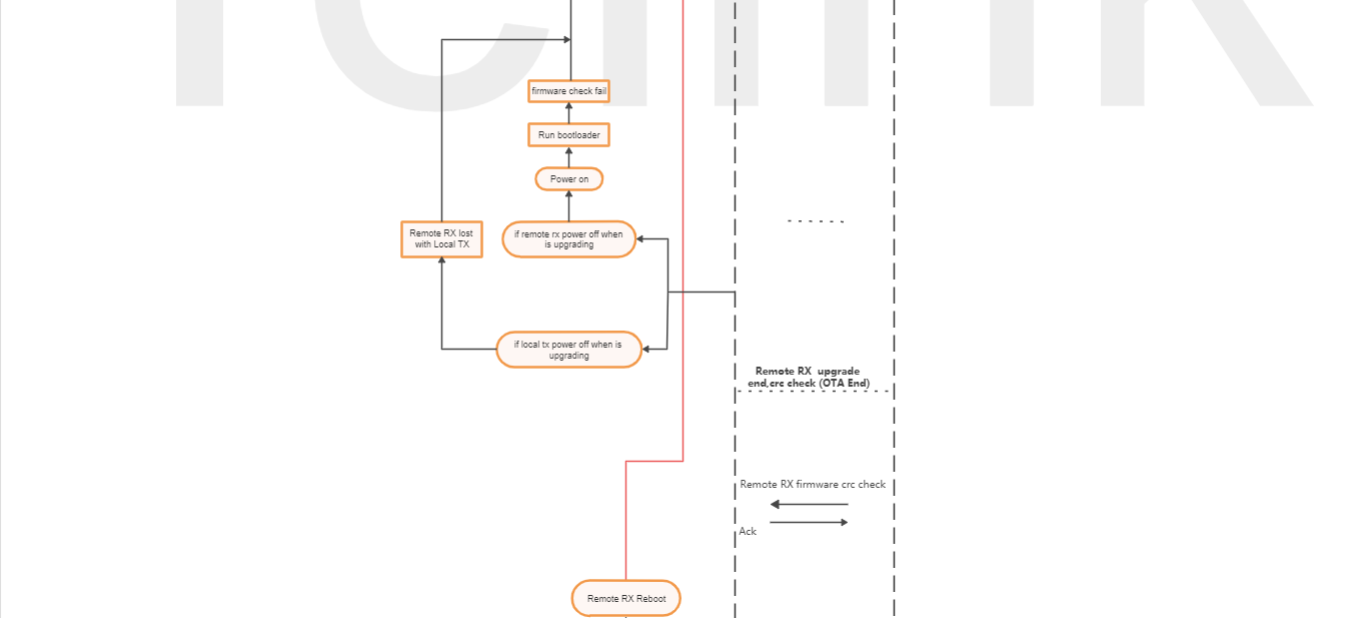
After TX finishes upgrading itself, it exits the boot and enters the app, and then notifies RX to enter the boot. TX enters the boot again. TX and RX enter the boot and re-establish the connection. TX transfers the corresponding OTA firmware package to RX, and then TX jumps back to the app and RX moves the new OTA firmware from 0x40000 to 0x8000 in the boot, and then exits the boot. At this time, the OTA upgrade is completed, the following is the diagram of the Remote OTA:

LinkLayer
As the physical layer of RF transceiver, LinkLayer uses LE 2M Phy in soundbar applications. The transmission rate of this physical layer is 2M bit/s, that is, the transmission time of a byte is 4us. To understand LinkLayer, users need to have some knowledge of Telink's RF driver, because there are many RF peripherals, this chapter only outlines the RF interface functions used in the soundbar. Other users can refer to the driver handbook through the Telink doc.
The entire data stream with ACK mechanism, with every 5ms for a frame of data, and N slot intervals are divided in each frame of data for receiving and sending packets. Different demo has different N value, for example, 4P1 demo N is 4. The RF port called by the RX end is srx2tx. When RX receives the correct crc packet, it will automatically send the packet to TX. When encoding and decoding, RX will decode the previously received audio packets in the fixed slot, and TX will encode the current audio packets in the fixed slot, which can ensure that the transmission delay of the entire audio data stream remains unchanged.
(1) Normal data stream
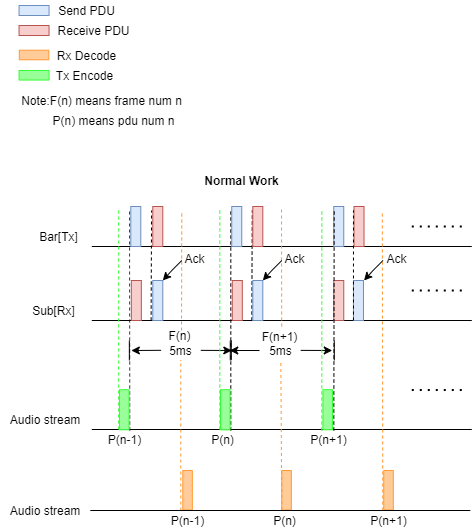
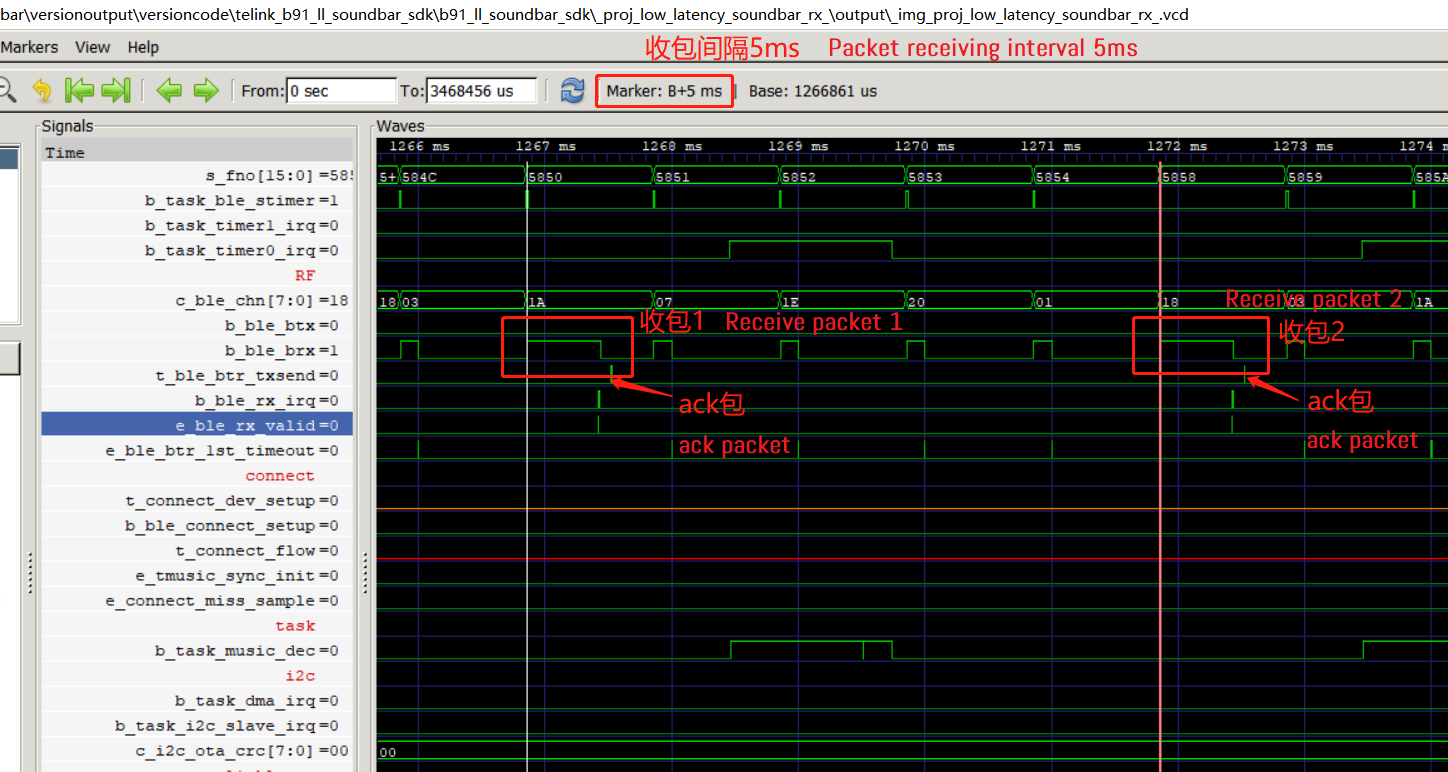
In normal operation, Bar[Tx] sends packets to Sub[Rx] in a frame of data every 5ms, and Sub[Rx] sends an ACK to Bar[Tx] when it receives the packet.
VCD Timing (refer to the Debug chapter for VCD generation):
Take 0P1 as an example:
Bar[Tx] sends packets to Sub[Rx]:
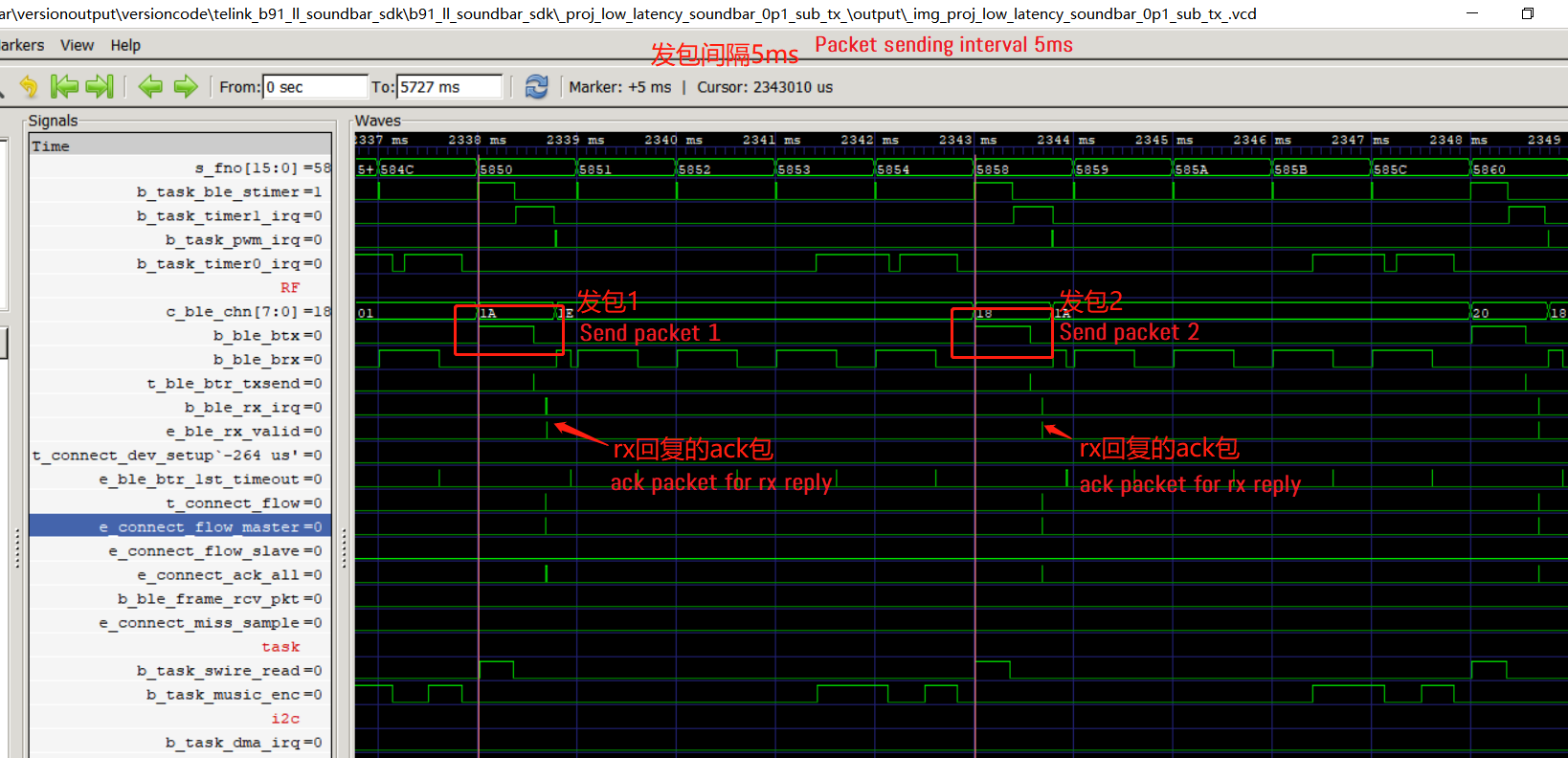
Sub[Rx] sends an ACK to Bar[Tx] when it receives the packet:
(2) Packet loss and retransmission
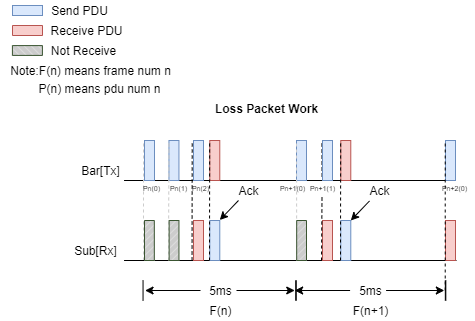
In the data cycle of a frame, if RX does not receive the data packet sent by TX or CRC ERR occurs when receiving the wrong packet, RX will not send back ACK to TX. If TX does not receive the ACK from RX, it will retransmit the data, and if TX receives the ACK packet sent from RX, it will end the sending in this cycle.
VCD Timing (refer to the Debug chapter for VCD generation):
Take 0P1 as an example:
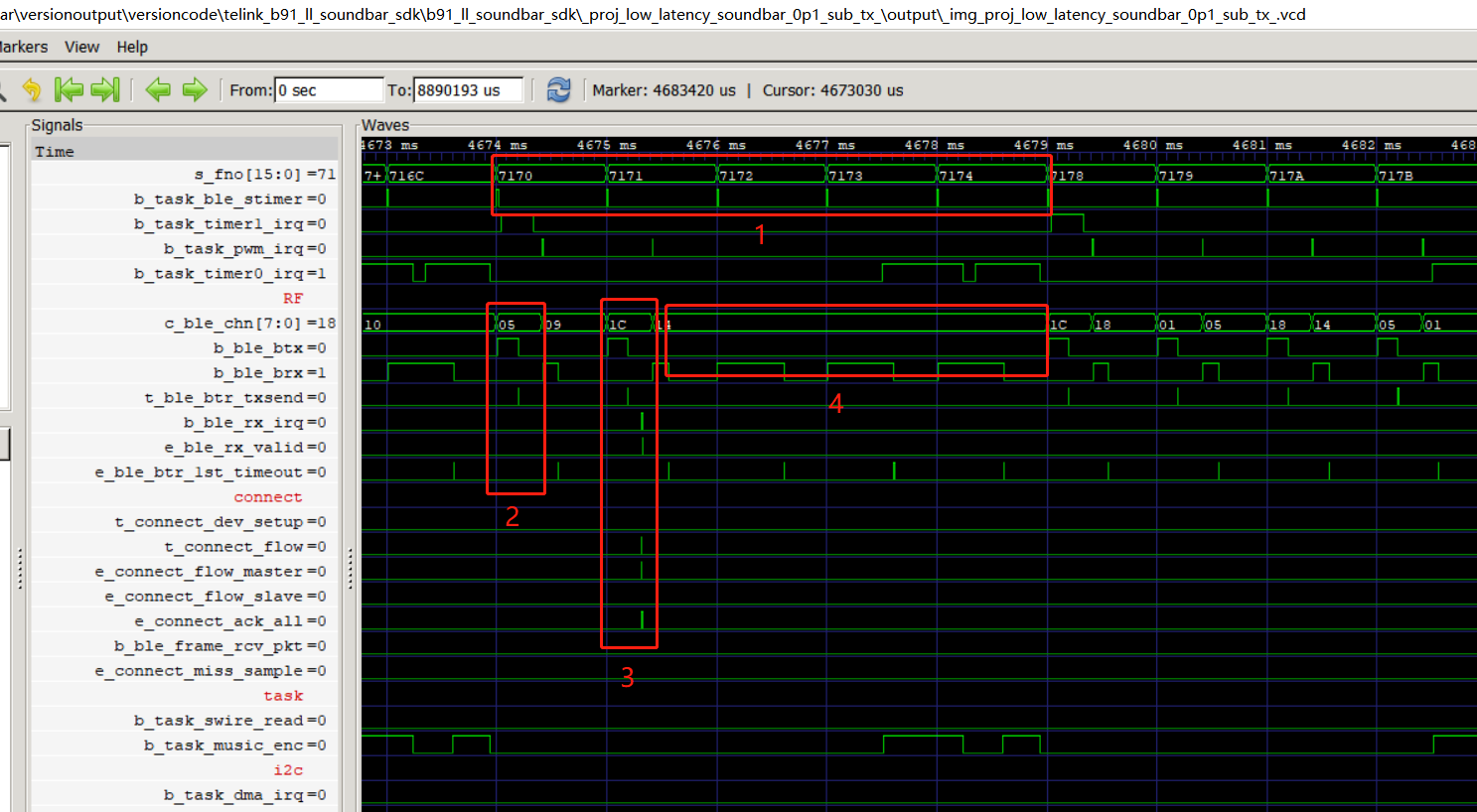
Red box 1: for a cycle.
Red box 2: TX did not receive an ACK packet from RX.
Red box 3: TX retransmits the packet and receives the ACK packet from RX.
Red box 4: End the sending packet in this cycle.
(3) Complete packet loss causes disconnection
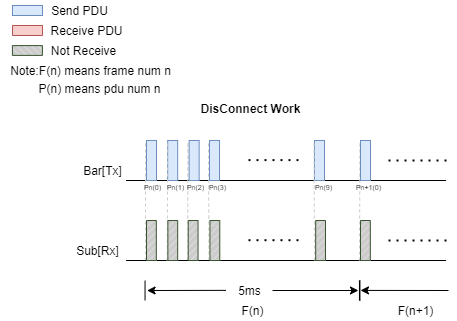
In the data cycle of a frame, if RX has not received the data packet sent from TX or received the wrong packet, TX will retransmit the data packet for a maximum of 10 times.
VCD Timing (refer to the Debug chapter for VCD generation):
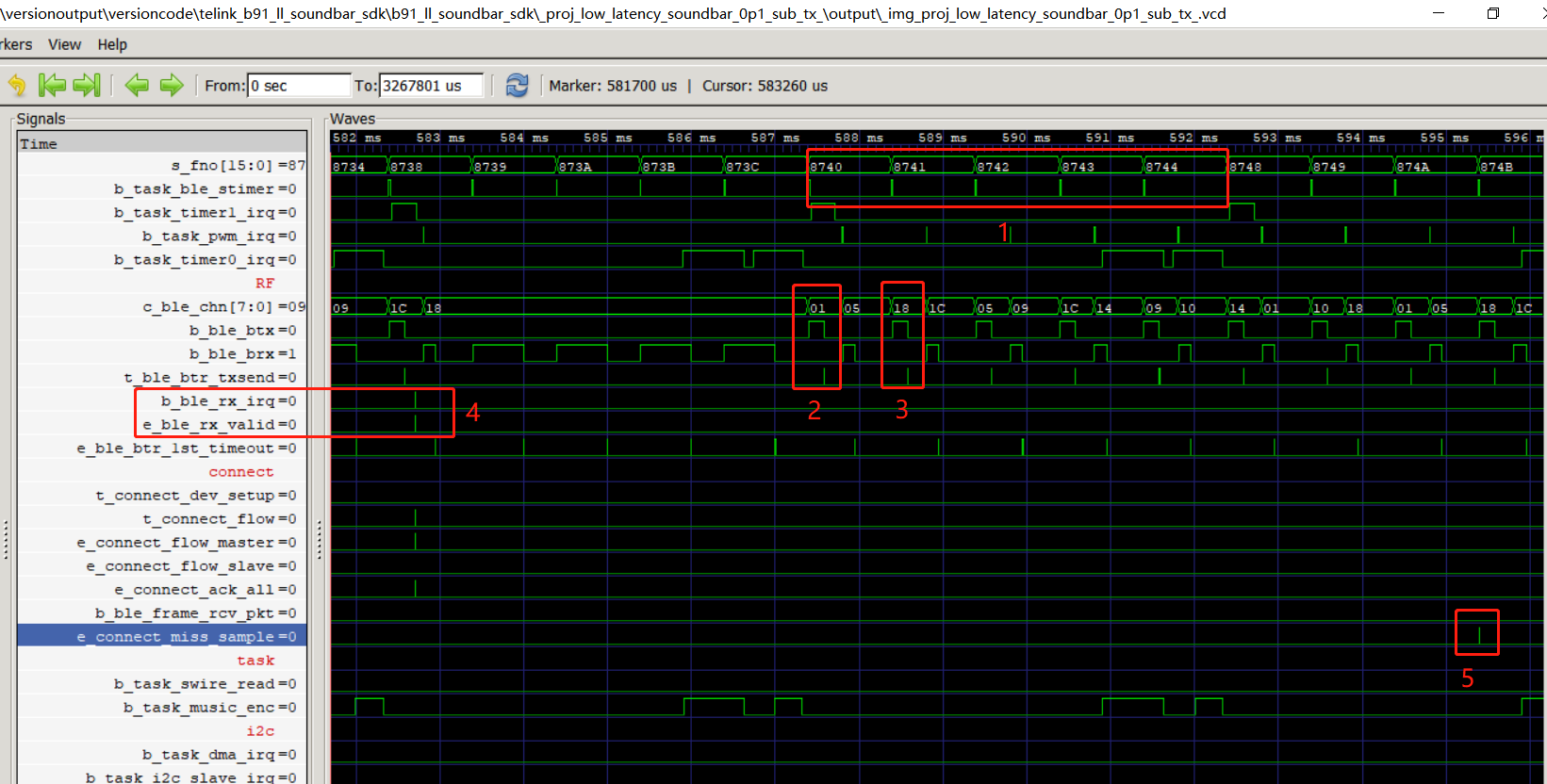
Red box 1: for a cycle.
Red box 2: TX did not receive an ACK packet from RX.
Red box 3: TX did not receive an ACK packet from RX.
Red box 4: No ACK packet received from RX in a frame data cycle.
Red box 5: Failure to reply to an ACK in one cycle determines packet loss.
Demo Introduction
The following is a brief introduction to the audio transmission details in 2p1 and 4p1 demos:
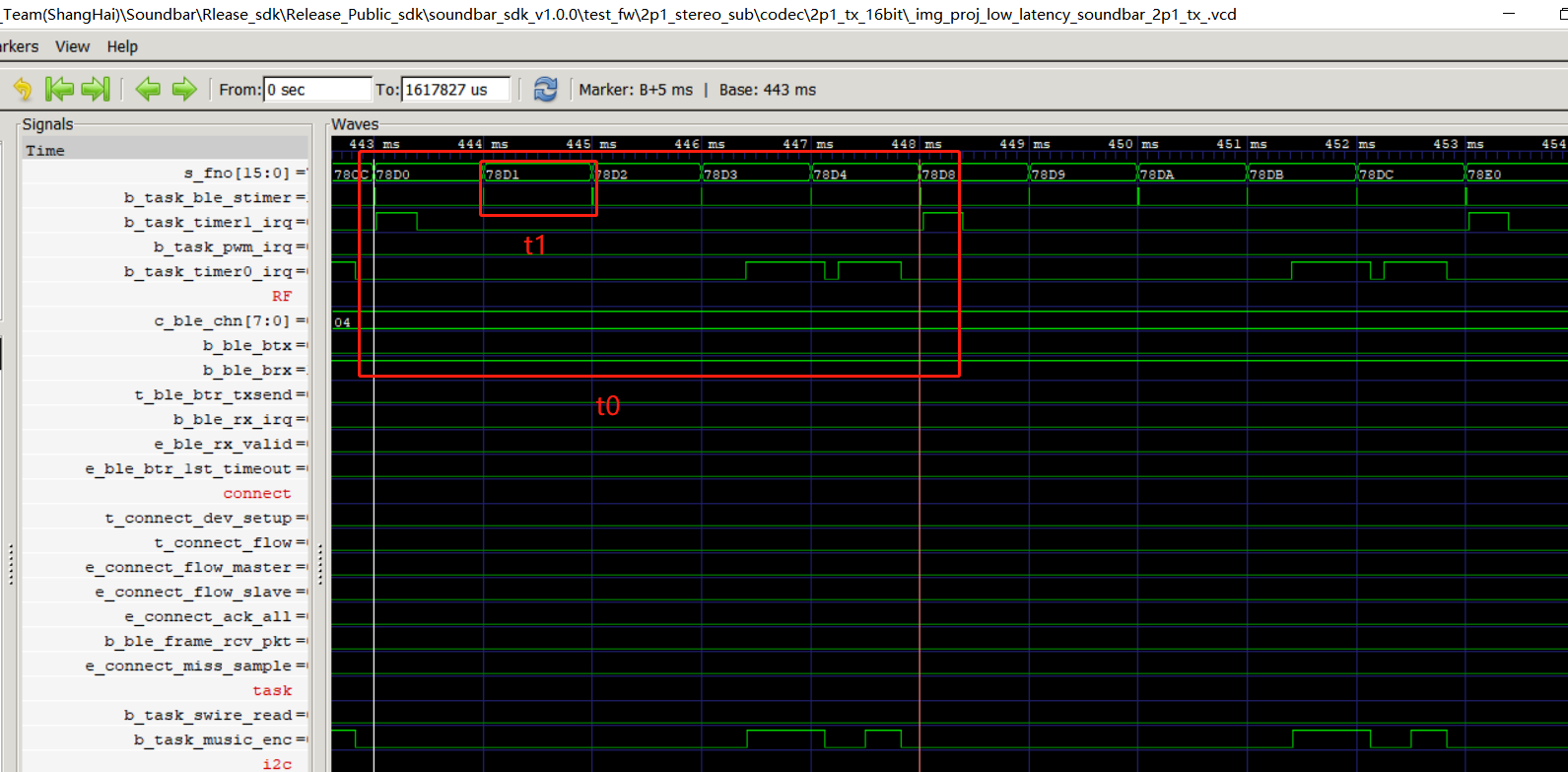
2p1 demo: Only one subwoofer and two full band surround sound are transmitted. 48kHz sampling rate, 5ms frame length, 16bit data, 5 slots per frame
The subwoofer channel is processed by resampling to transmit low-frequency signals within 200Hz. The surround channel is encoded by LC3Plus and then transmitted.
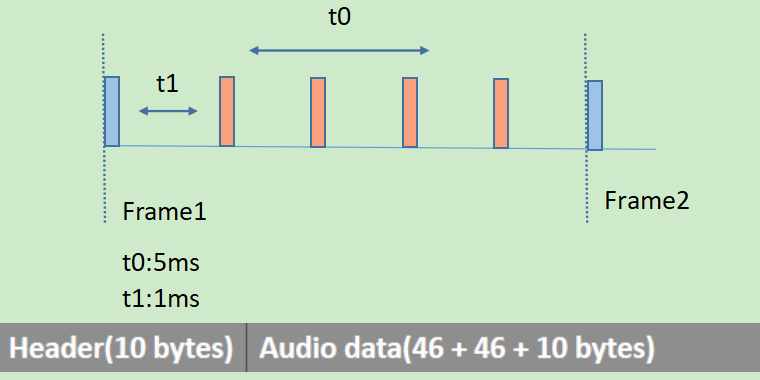
VCD Timing (refer to the Debug chapter for VCD generation):
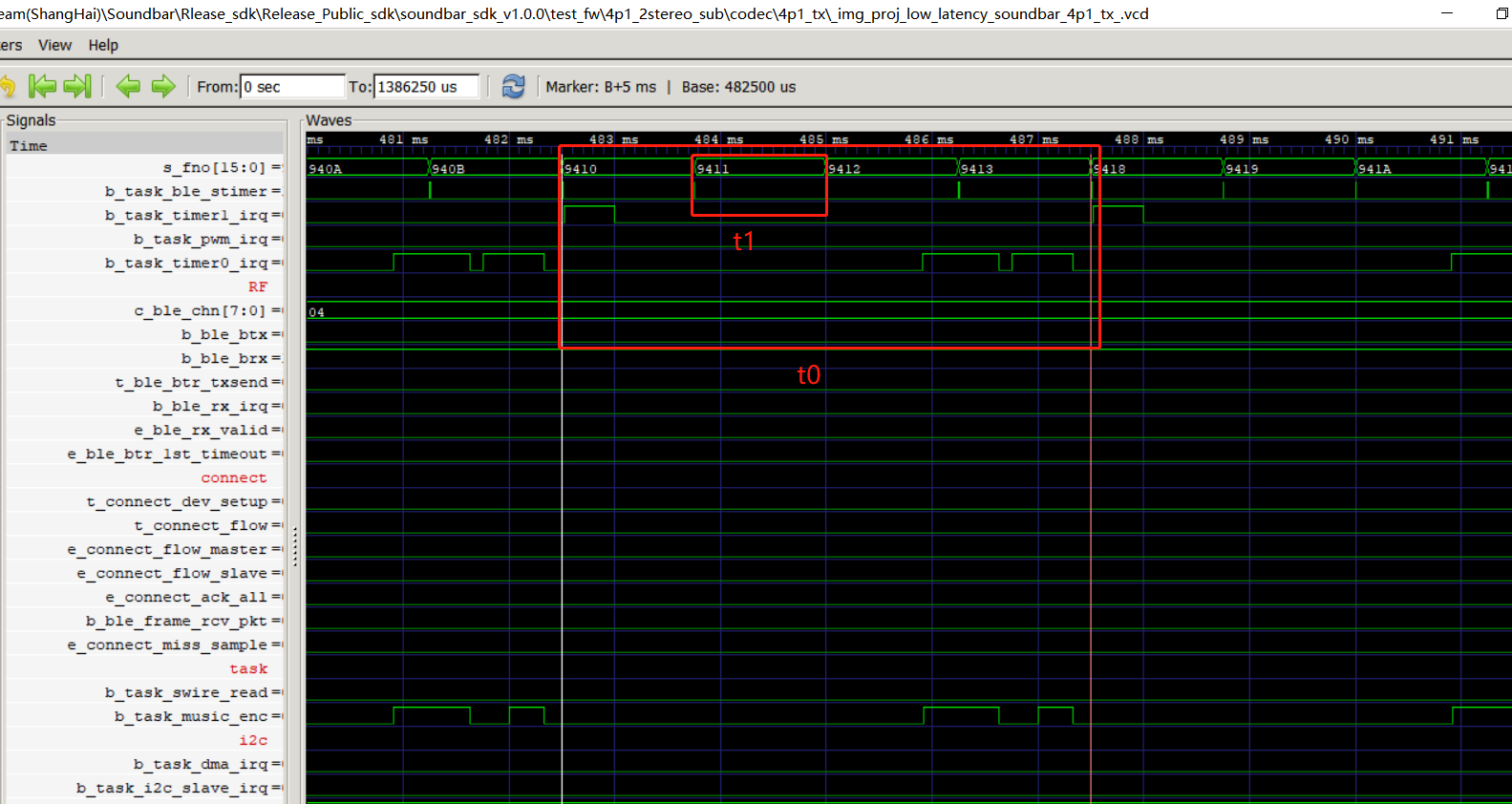
4p1 demo: Only one subwoofer and four full band surround sound are transmitted. 48kHz sampling rate, 5ms frame length, 16bit data, 4 slots per frame.
The subwoofer channel is processed by resampling to transmit low-frequency signals within 200Hz. The surround channel is encoded by LC3Plus and then transmitted.
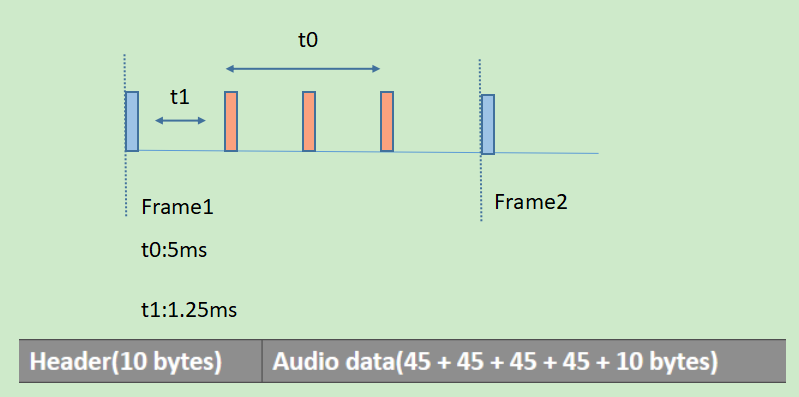
VCD Timing (refer to the Debug chapter for VCD generation):
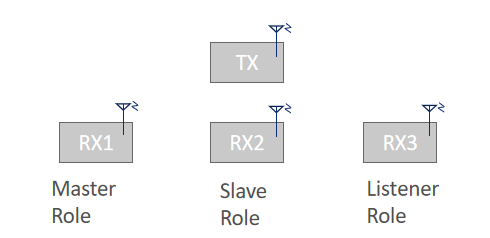
1TX&3RX
The SDK supports up to 1-to-3 connections (1TX&3RX). When RX establishes a connection with TX, it will assign roles in order, such as master, slave, listener. Each role will be automatically converted according to the current connection.
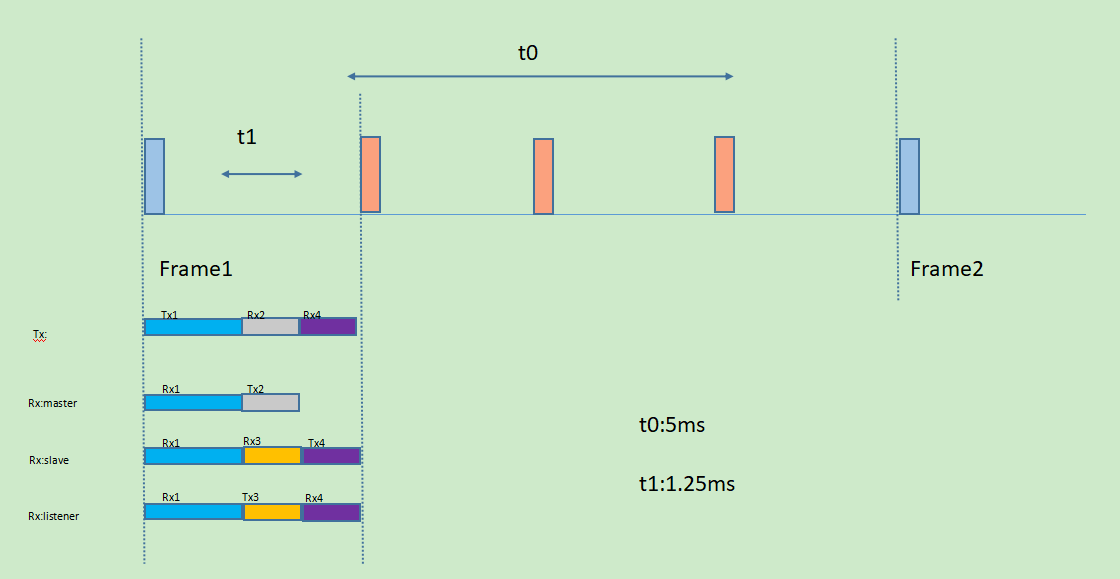
1Tx3Rx ACK mechanism introduction (take 4p1 as an example):
Note
- The same color represents the same packet. Note that TX represents the sending end and RX represents the receiving end. A TX packet may be received by multiple RX ends at the same time.
When TX sends audio packets or ordinary command packets, the three RX will be in the listening state. After TX sends packets, it will be in the receiving state and ready to receive ACK packets from RX. The Master role device will first return ACK to the TX, and the Slave role device will then return ACK to the TX. In the time slot when the Master role device returns the ACK, the listener role device sends the ACK to the Slave role device first. When the Slave role device returns to the ACK package, the state of the listener role device is returned to the TX device together.
VCD Timing (refer to the Debug chapter for VCD generation):
4p1 TX:
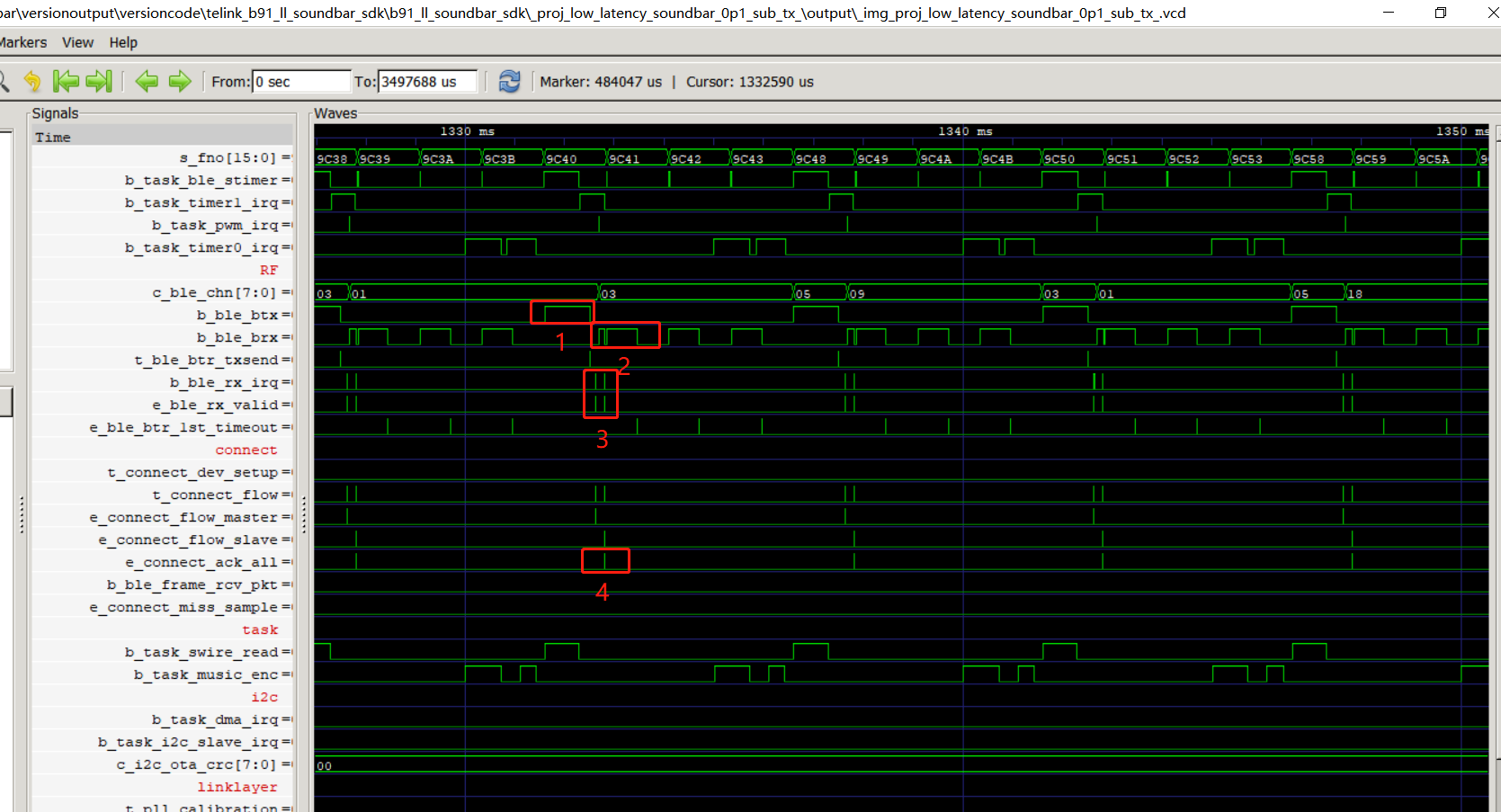
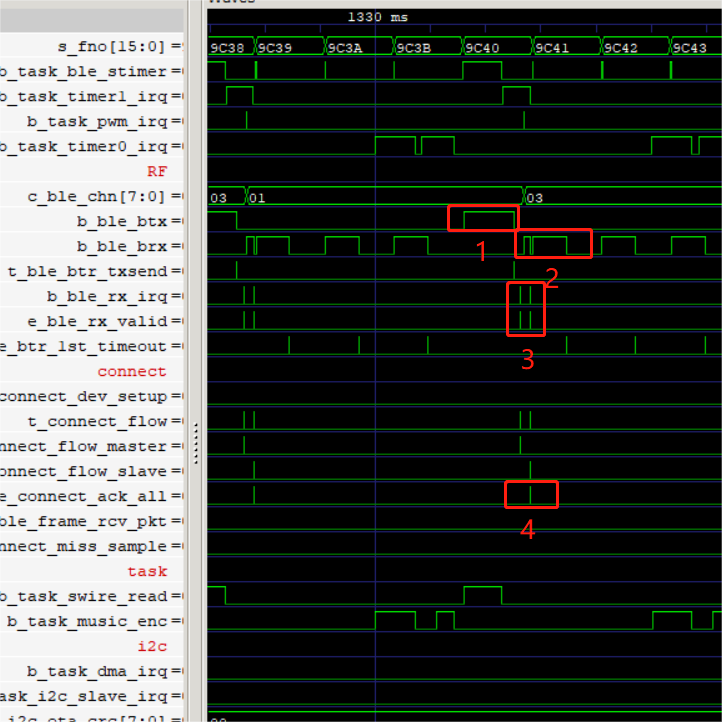
Red box 1: Send audio or normal command packets.
Red box 2: After sending the packet, it is in the receiving state and receives the ACK packet returned by RX.
Red box 3: ACK packets for master role and slave role.
Red box 4: All ACK packets are received during the cycle.
4p1 Master role:
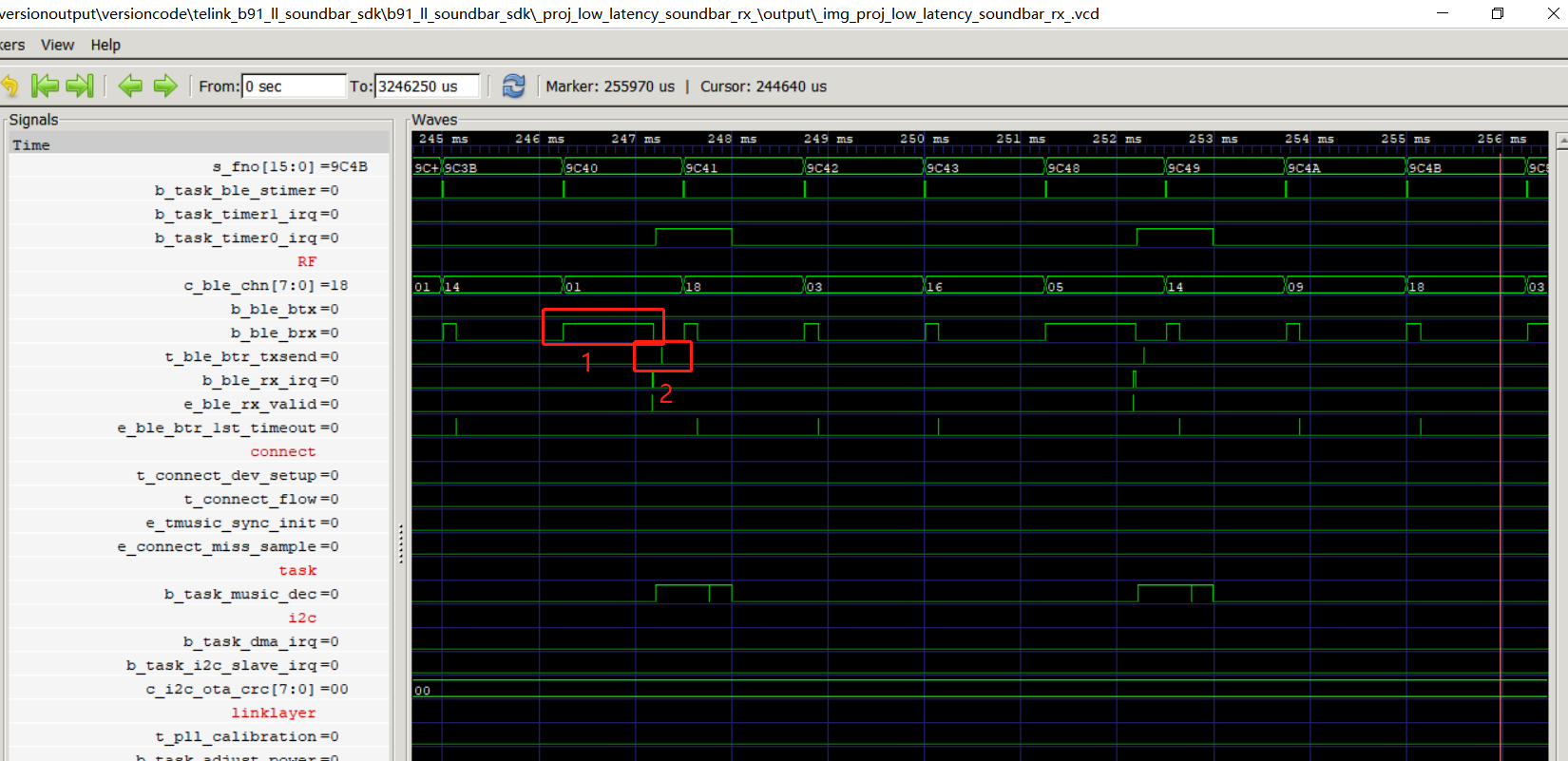
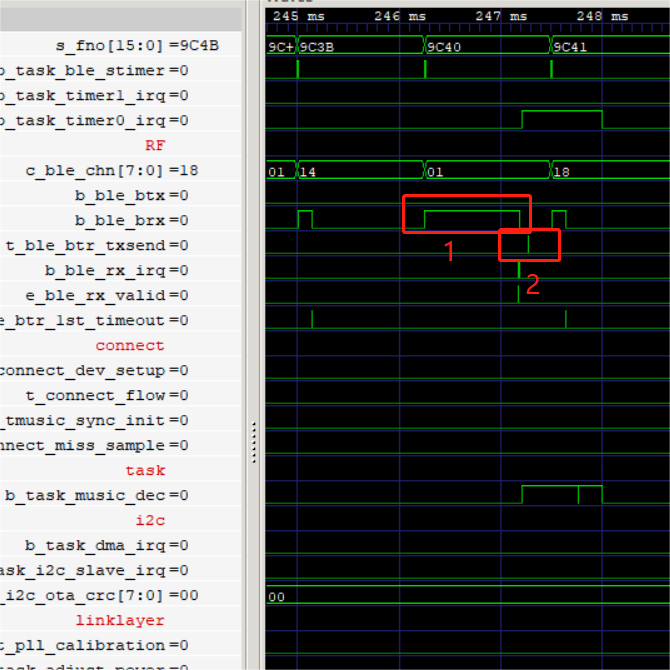
Red box 1: Listening to packet state.
Red box 2: Received packet is valid, reply ACK to TX.
4p1 Slave role:
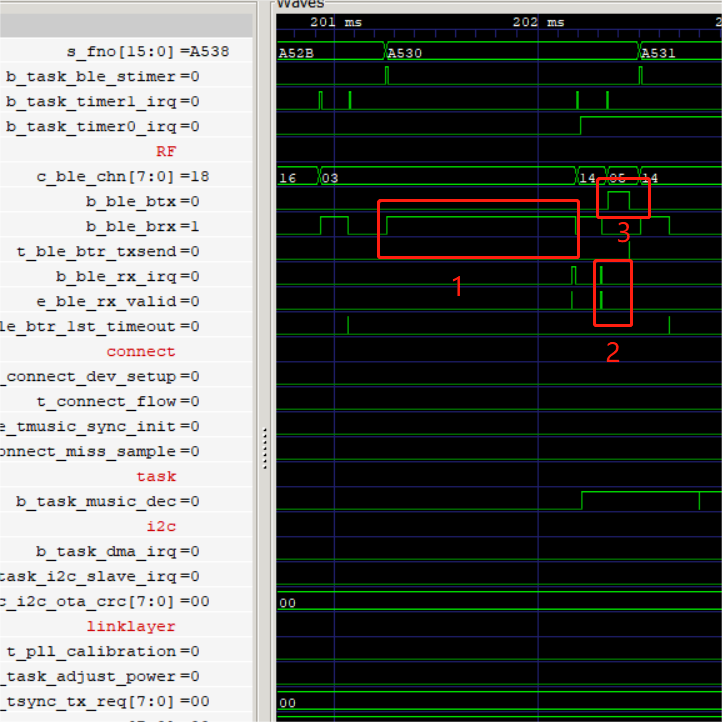
Red box 1: Listening to packet state.
Red box 2: ACK received from listener role reply.
Red box 3: Returns the state of itself and the listener role device to TX.
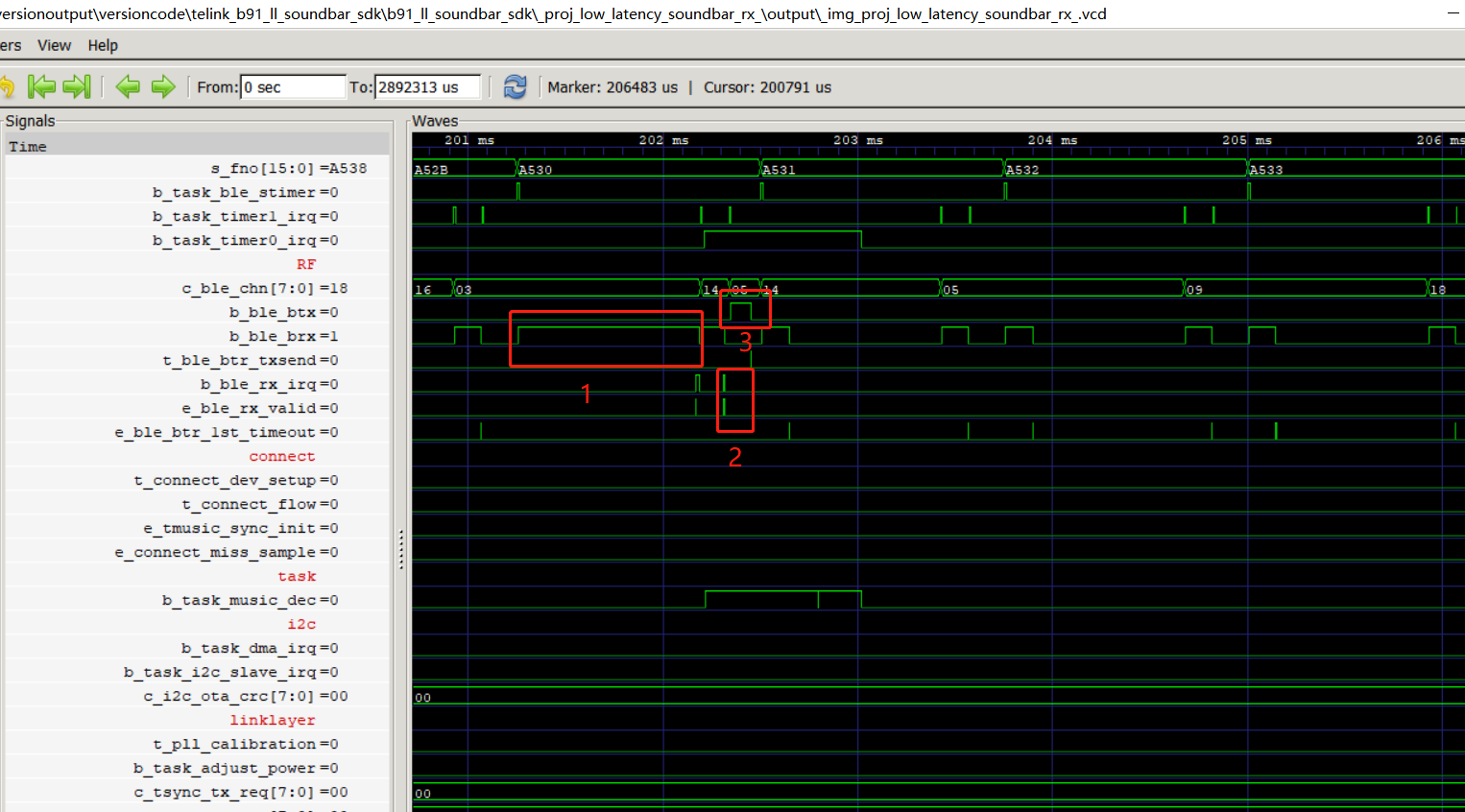
4p1 Listener role:
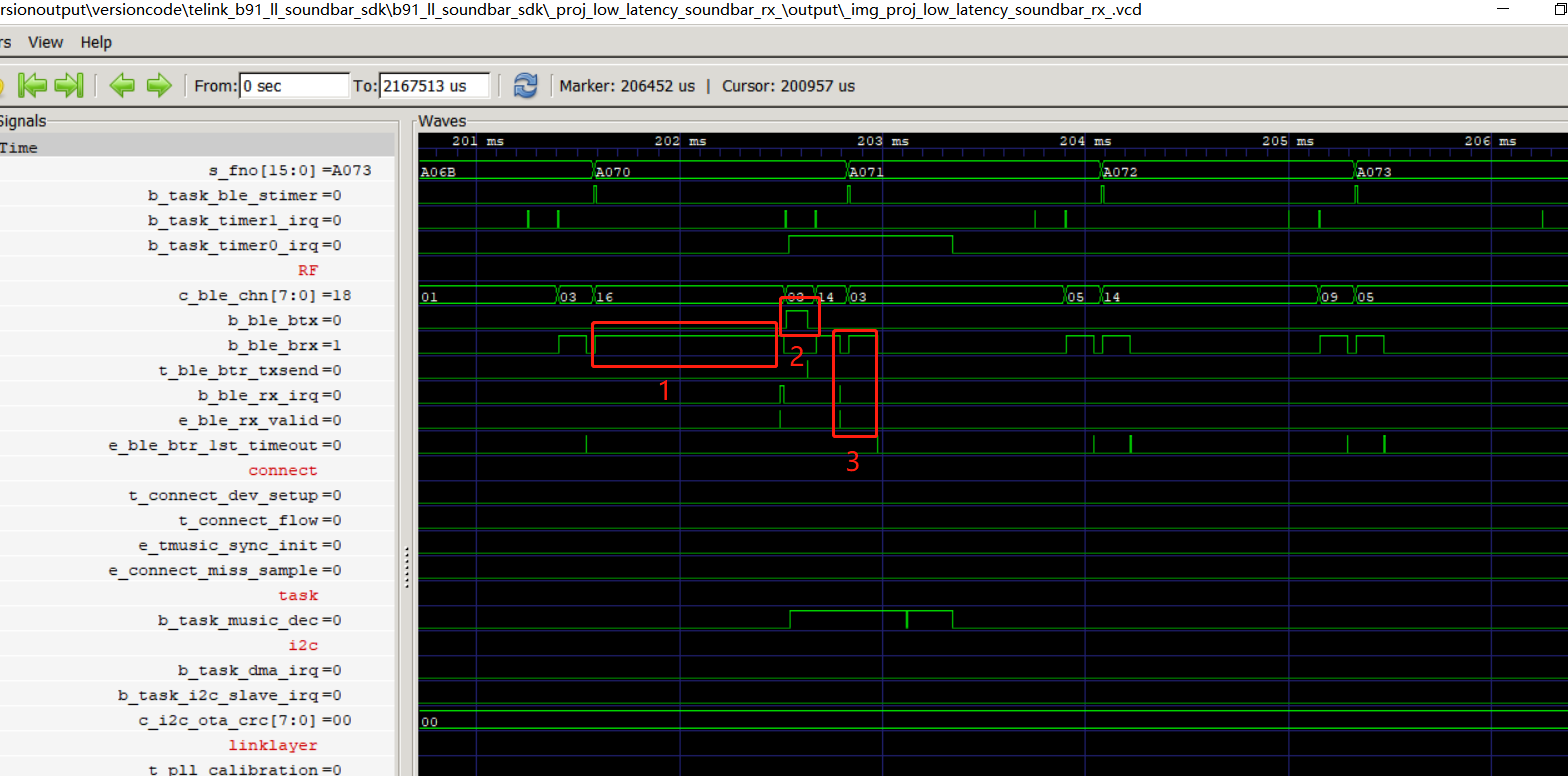
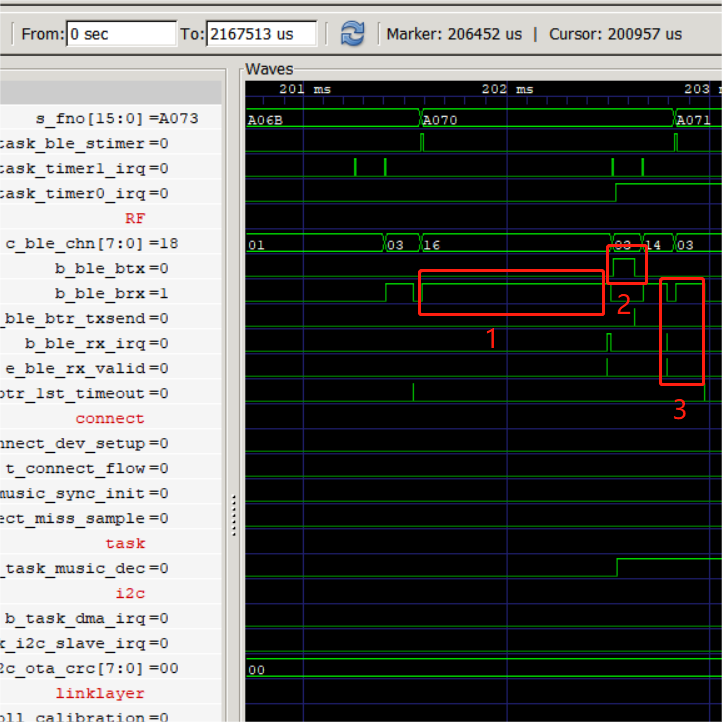
Red box 1: Listening to packet state.
Red box 2: Send the ACK to the slave role device.
Red box 3: Receive the ACK that the slave role sends to TX.
Debug
You can use the BDT tool to print USB information to debug and use VCD to view the signal.
Tool download path: https://www.telink-semi.com/development-tools
USB Print Function Description
(1) The following function void _usb_send_str_data__(), str is the string you want to print, ph is the data you want to print, and n is the byte length. If you only need to print string or data, you can write 0 for unwanted parameters.
void usb_send_str_data (char *str, u8 *ph, int n)
e.g. usb_send_str_data("led_set_clear_dev_info_state",&led_state,1); //led_state is char type.
(2) The following functions are based on variations of the void _usb_send_str_data__() function to realize more convenient call.
##define    usb_send_str(s) usb_send_str_data(s, 0, 0)
e.g. usb_send_str("led_set_clear_dev_info_state")

##define    usb_send_data(p,n) usb_send_str_data(0,p,n)
e.g. usb_send_data(&led_state,1)

##define my_dump_str_data(en,s,p,n)     if(en){usb_send_str_data(s,(u8*)(p),n);}
e.g. my_dump_str_data(1,"reconnect_check_data",&spec_cmd_rcv.ctr_id,8);

##define my_dump_str_u32s(en,s,d0,d1,d2,d3) //Print string and four 32-bit data.  if(en){usb_send_str_u32s(s,(u32)(d0),(u32)(d1),(u32)(d2),(u32)(d3));}
void usb_send_str_u32s (char *str, u32 d0, u32 d1, u32 d2, u32 d3)
{
    u32 d[4];
    d[0] = d0;
    d[1] = d1;
    d[2] = d2;
    d[3] = d3;
    usb_send_str_data (str, (u8*)d, 16);
}
e.g. my_dump_str_u32s (1, "device id", async.dev_id,device_slot, ap_last_slot, ap_frame_bits);
VCD Debug Signal Function Description
VCD Basic Knowledge
Value Change Dump (VCD), is an ASCII-based format for dumpfiles generated by EDA logic simulation tools. The standard, four-value VCD format was defined along with the Verilog hardware description language by the IEEE Standard 1364-1995 in 1996. An Extended VCD format defined six years later in the IEEE Standard 1364-2001 supports the logging of signal strength and directionality. The simple and yet compact structure of the VCD format has allowed its use to become ubiquitous and to spread into non-Verilog tools such as the VHDL simulator GHDL and various kernel tracers. A limitation of the format is that it is unable to record the values in memories.
The VCD file comprises the header section, variable definition, variable initialization, and value change. The header section includes timestamp, simulator version number, and timescale, which maps the time increments listed in the value change section to simulation time units. The variable definition section contains scope information as well as lists of signals instantiated in a given scope. The initialization section contains the initial values of all dump variables. The value change section contains a series of time-ordered value changes for the signals in a given simulation model.
You need to get VCD files, mainly to write value change. The following describes the VCD functions of this SDK.
VCD Debugging Configuration Method
(1) Open GPIO Definition
##define PA5_FUNC       AS_USB_DM
##define PA6_FUNC       AS_USB_DP
##define PA5_INPUT_ENABLE   1
##define PA6_INPUT_ENABLE   1
Before using, you need to write the above two macro definitions 1.
(2) Semaphore Description
//event: 0 for time stamp; 1 reserved; eid2 - eid31 (event type variable)
##define  SLEV_timestamp 0
##define  SLEV_reserved  1

// event with tick: 0 – 31 (event with tick variable)
##define  SLET_timestamp  0
##define  SLET_RX_SYNC    1

// 1-bit data: 0/1 for hardware signal: PA4/PB1; bid2 - bid31    (1bit data type variable)
##define  SL01_TX_EN  0
##define  SL01_RX_EN  1

// 8-bit data: cid0 - cid63 (8bit data type variable)
##define  SL08_lmp_rx_code  0
##define  SL08_lmp_esc4     1

// 16-bit data: sid0 - sid63 (16bit data type variable)
##define  SL16_bt_CLKN_HS  0
##define  SL16_bt_FCNT     1
Above are some variables of type: event, event with tick, 1 bit data, 8 bit data and 16 bit data, you can view all variables in ./common/usb_dbg/log_def_stack.h. Different variables can be combined with different functions to obtain different VCD file data. The following describes several different functions and their usage.
(3) Function Description
(a) Print event: this function will reverse the value of the variable twice and form a pulse. 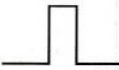 This function ID must be an event type variable. Its function will only output information about value changes, not output time information, and its value changes will follow the latest timestamp.
log_event(en,id)
e.g. log_event(1, SLET_timestamp)  //The value of SLEV_reserved will be reversed twice, 0->1, 1->0.
(b) Print event and time: this function will reverse the value of the variable twice and form a pulse. This function ID must be an event with tick type variable, and its function will output information about value change and time.
log_tick(en,id)
e.g. log_tick(1, SLET_timestamp)
(c) Print data: The following three functions are used to print 1/8/16 bit data, en is enable, id is the variable name (the semaphore in the previous chapter needs to use the variable name of 1/8/16 bit data type), and b is the changed value. It will write the value change of the variable and the current time to the VCD file.
log_task(en,id,b) //print 1bit data
e.g. log_task(1, SL01_TX_EN,1)   // Change the value of SLET_timestamp to 1 at the current time point
log_task(1, SL01_TX_EN,0)   // Change the value of SLET_timestamp to 0 at the current time point

log_b8(en,id,d)   //print 8bit data
e.g. log_ b8 (1, SL08_lmp_rx_code,1)
log_b16(en,id,d)  //print 16bit data
e.g. log_ b16 (1, SL16_bt_CLKN_HS,1)
Generate VCD Files to View The Timing
(1) Set Tool-related Configuration Path
Open the ini configuration file of the tool and set the path below vcdviewer as the absolute path of gtkwave.exe that the user actually stores.
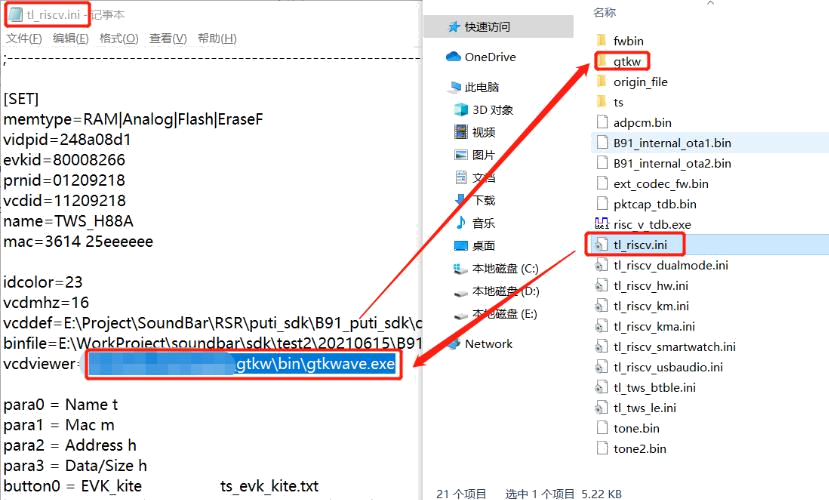
Configure the vcddef path, which can be modified in the ini file, or look up log_def_stack.h through the options in the tool itself, as shown in the following figure.
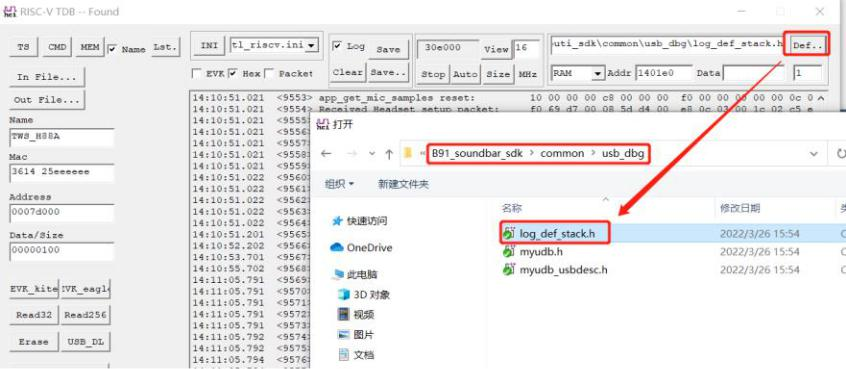
(2) Generate VCD Timing File
Click Start.
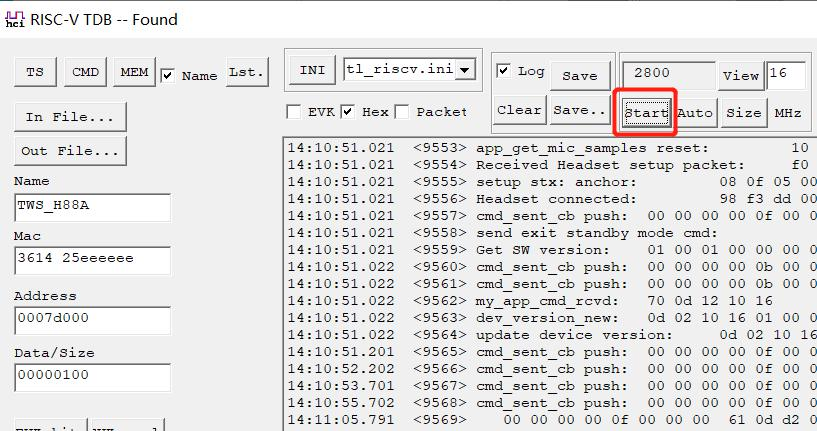
After obtaining, Click stop.
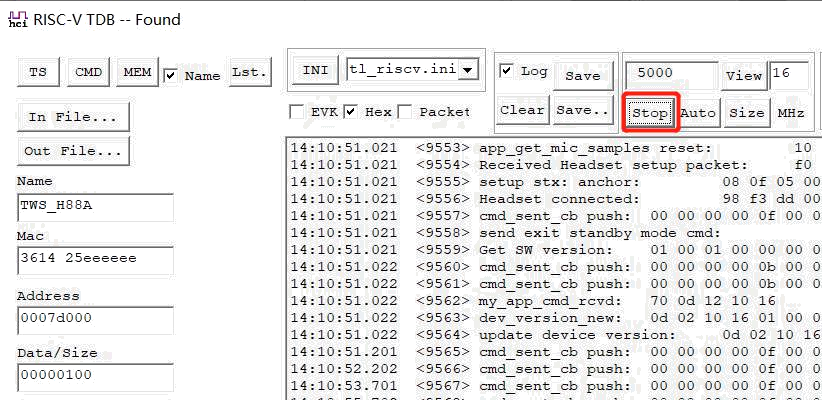
(3) Open VCD Timing File
Finally, select View to open the gtkwave.exe under the settings path, and open the vcd file simultaneously.
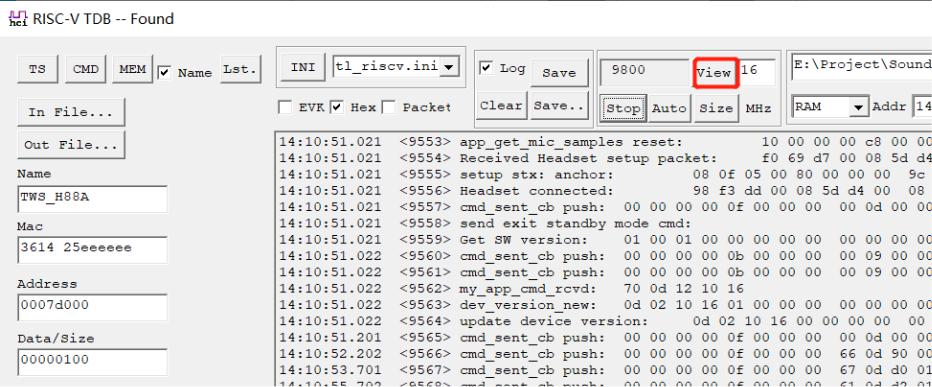
The entire gtkwave tool page is as follows:
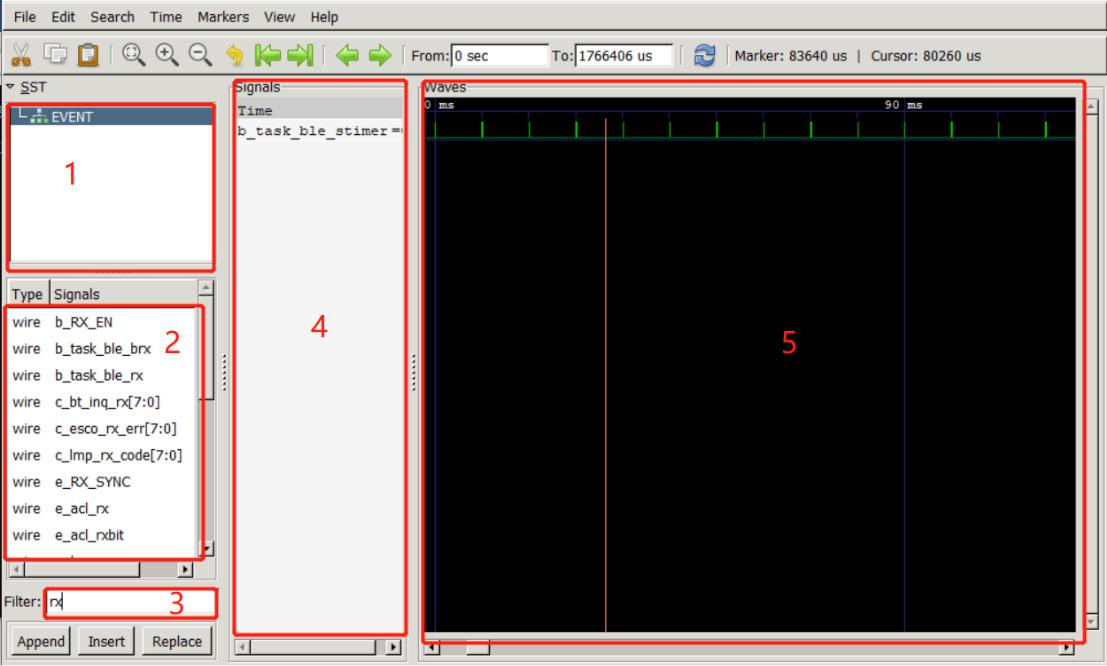
-
Window 1: Click EVENT;
-
Window 2: shows the acquired signal;
-
Window 3: Enter characters to easily find signals;
-
Window 4: The signal displayed (double-click the signal to be displayed in the second window).
-
Window 5: The display of the entire signal in time sequence
Version Number Function
tl_version.h Introduction
MAKE_VER(major, minor, revision): Used to configure the 24 bit version number, such as 0.0.0
MAKE_VER_32(year, week, day, revision): Used to configure the 32 bit firmware version number, such as 0.0.0.0
TL_VS_SDK_NAME(str): Used to refer to sdk, must be referenced, otherwise error is reported.
TL_VS_VER(name, value): Used to configure the version number for modules, optional, generally used to define the version number of algorithm module and codec module.
TL_VS_STRING(name, str): Used to configure strings, optional.
TL_VS_INT(name, value): Used to configure decimal variables, optional.
TL_VS_HEX(name, value): Used to configure hexadecimal variables, optional.
TL_VS_BYTE_ARRAY(name, ...): Used to configure array variables, separated by commas, optional.
Application
Add the following code to the main.c file in any project:
TL_VS_SDK_NAME("b91_ll_soundbar_sdk");

TL_VS_VER(4p_1_tx, MAKE_VER(1, 0, 0));

TL_VS_VER(bin, MAKE_VER_32(22, 47, 2, 1));

TL_VS_VER(driver, MAKE_VER(1, 2, 0));

TL_VS_VER(lc3_plus, MAKE_VER(1, 4, 2));

TL_VS_VER(lc3_a, MAKE_VER(1, 4, 2));

TL_VS_VER(plc, MAKE_VER(1, 2, 1));

TL_VS_VER(asrc, MAKE_VER(1, 0, 0));

TL_VS_STRING(Serial_Number, "cky24-q8qrh-x3kmr-c6bcy-t847y Soundbar2022");

TL_VS_INT(Rx_Num, 3);

TL_VS_HEX(Tx_Type, 15);

TL_VS_BYTE_ARRAY(rf, 1,2,3,4,5,6,7,8,9);
After compilation, version related information can be displayed in the compilation option box:
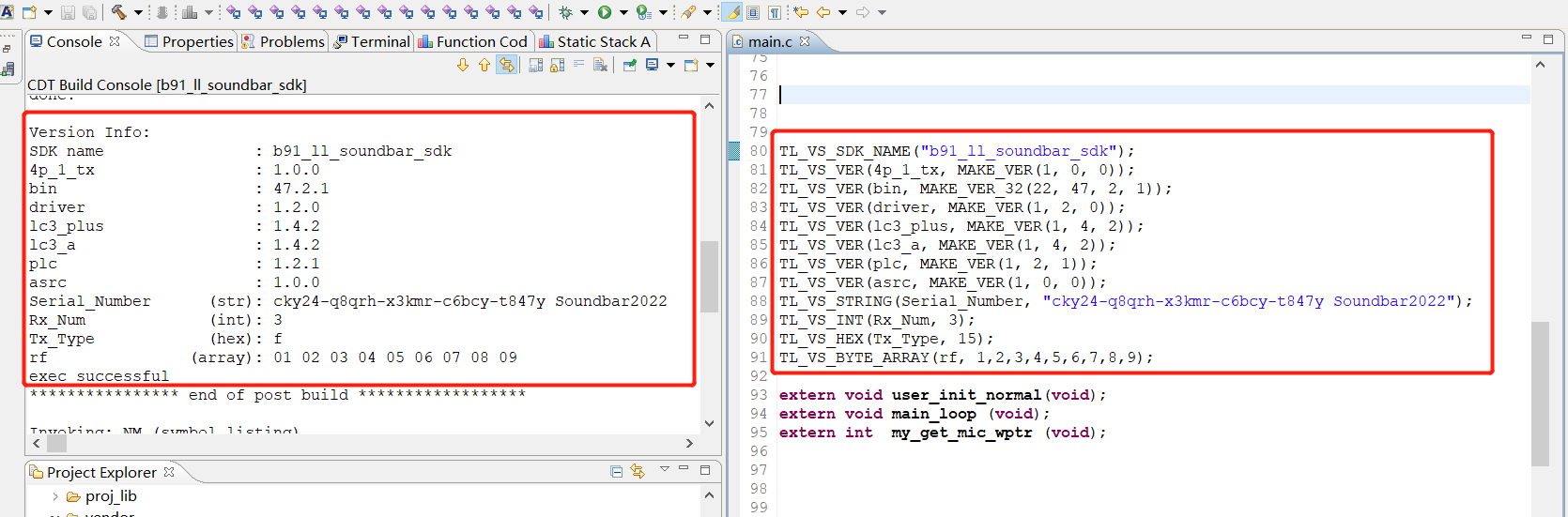
Example
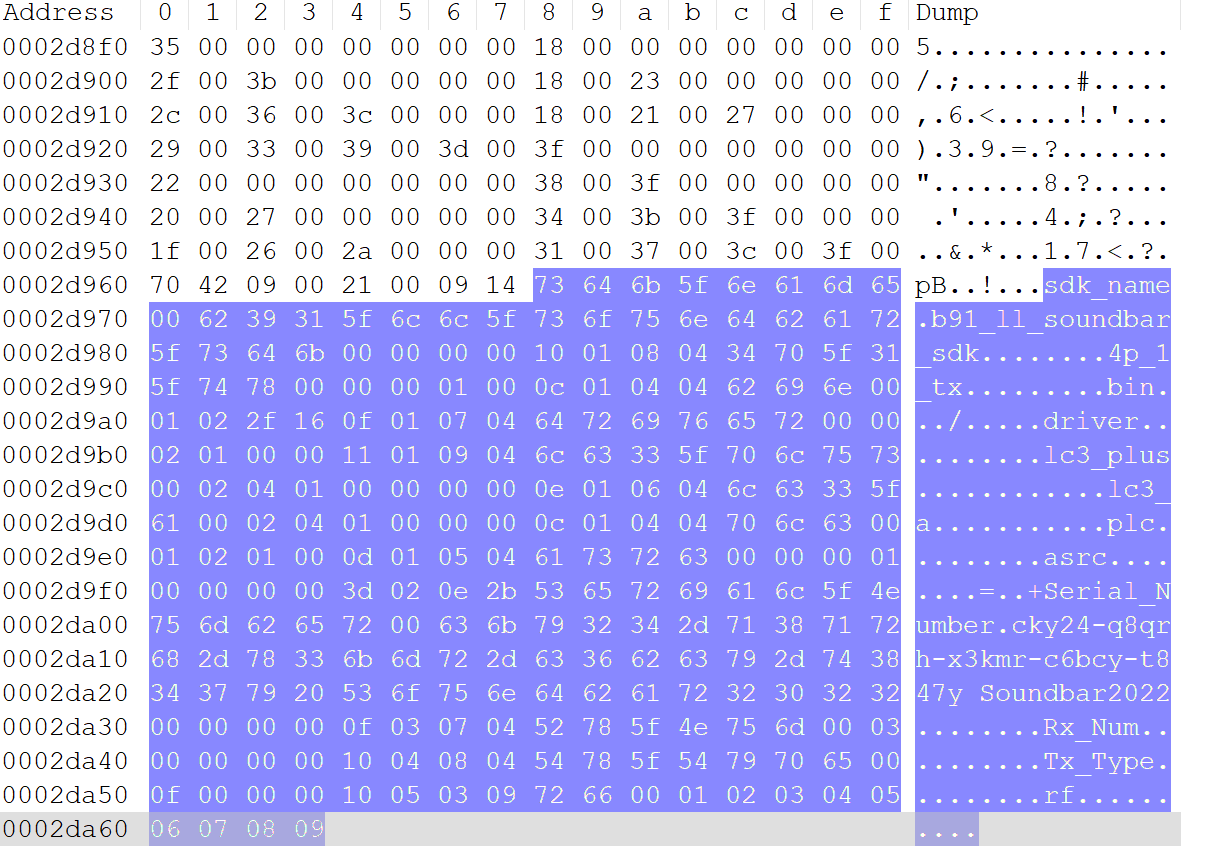
Open the generated bin file such as _img_proj_low_latency_soundbar_4p1_tx_.bin, the tail address of the hex view is shown below, and you will find that the version related information is stored in the end of the bin file.
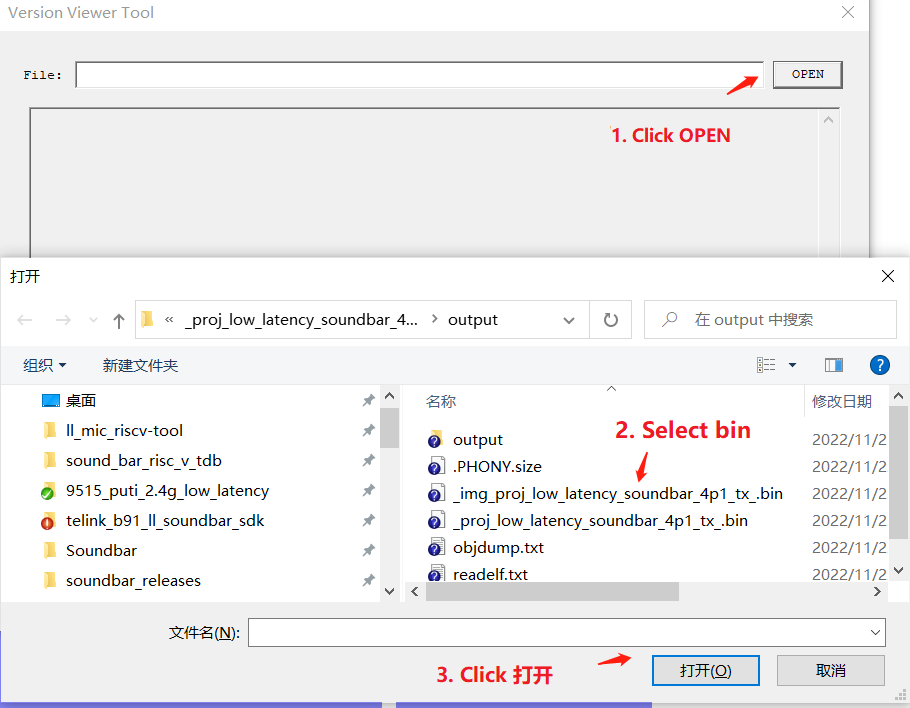
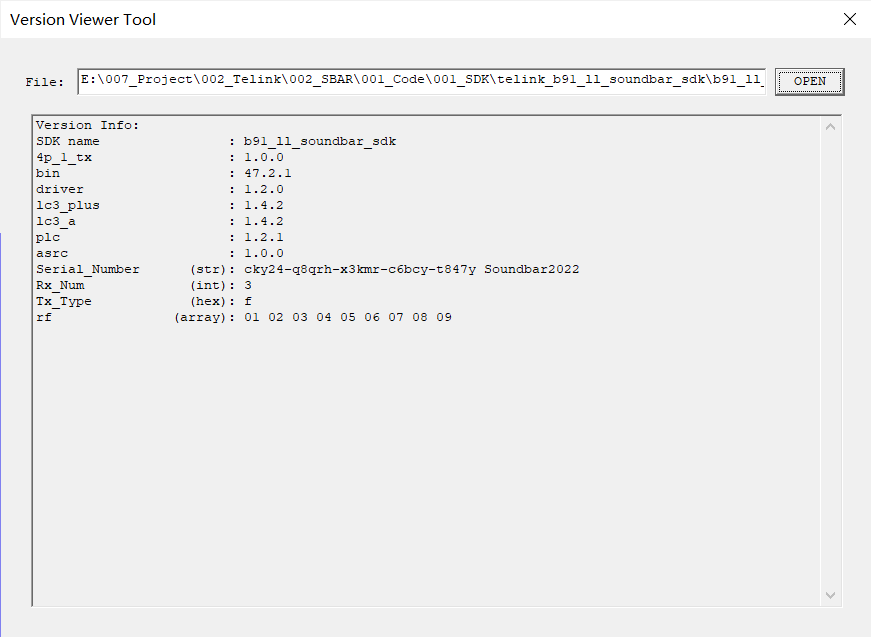
Use the version number host computer software VersionViewerTool.exe to open the bin file, as shown in the figure:
Tools
Combine_bin_tool
Introduction
This tool is a merge bin file tool. It packages the bin file used for ota upgrade, which is divided into UI version and command line version.
Command Line Version Description
The command line version actually reads the current directory name and identifies the file name, and then performs the OTA merge operation of the specified version.
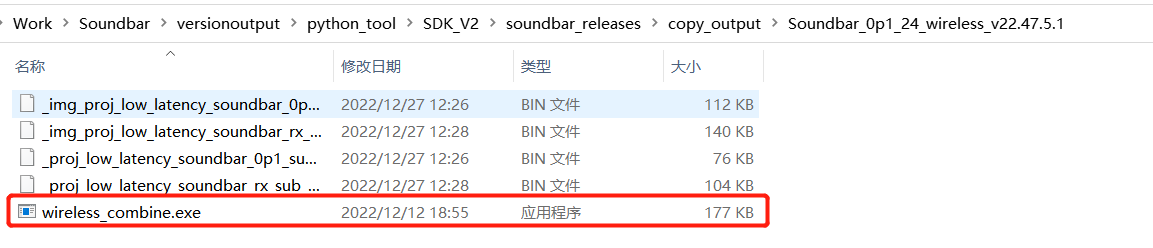
The user needs to create a directory according to the rules, and copy the required files and merge tool to this directory. Subsequent users only need to double-click the tool exe.
Directory rule:
Soundbar_[project_name]_wireless_v[version_number]
Such as:
Soundbar_0p1_24_wireless_v22.47.5.1
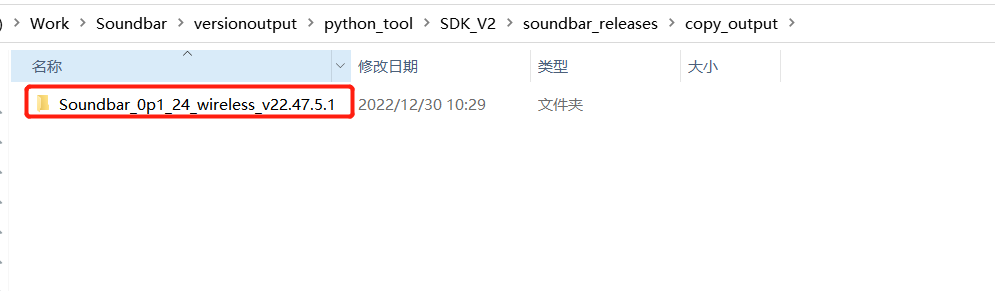
After the corresponding IDE compiles the specified project, the command line tool executes the copy script, and the copy script automatically creates the directory. (Copying scripts depends on python. It is recommended to install python environment above version 3.8)
The copy tool is shown below:
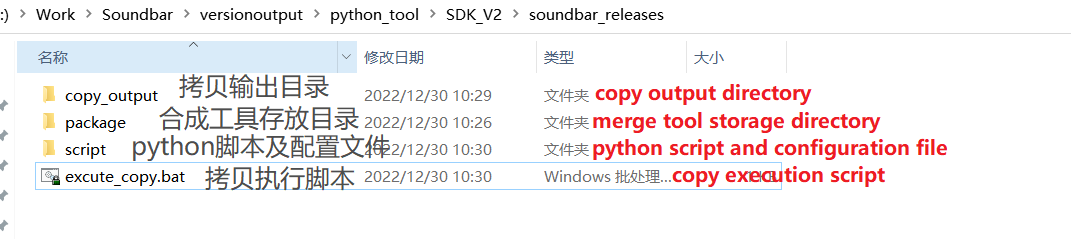
(1) Process Description
Step1: Compile the specified project:
Step2: Fill in the config file for the copy script:
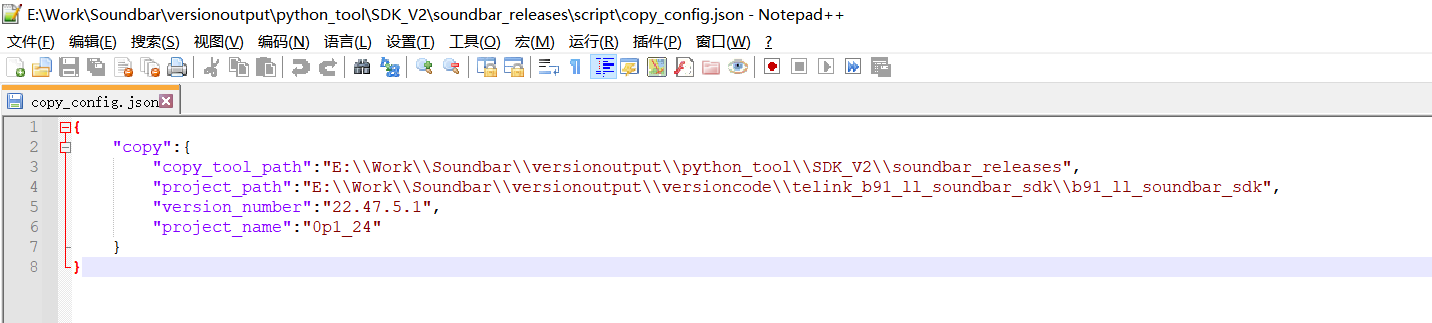
copy_tool_path: current merge copy tool root directory
project_path: Project path
version_number: compiled version number
project_name: compiled project, currently: 0p1, 0p1_24, 2p0, 2p0_24, 2p1, 2p1_24, 4p1 and 4p1_24.
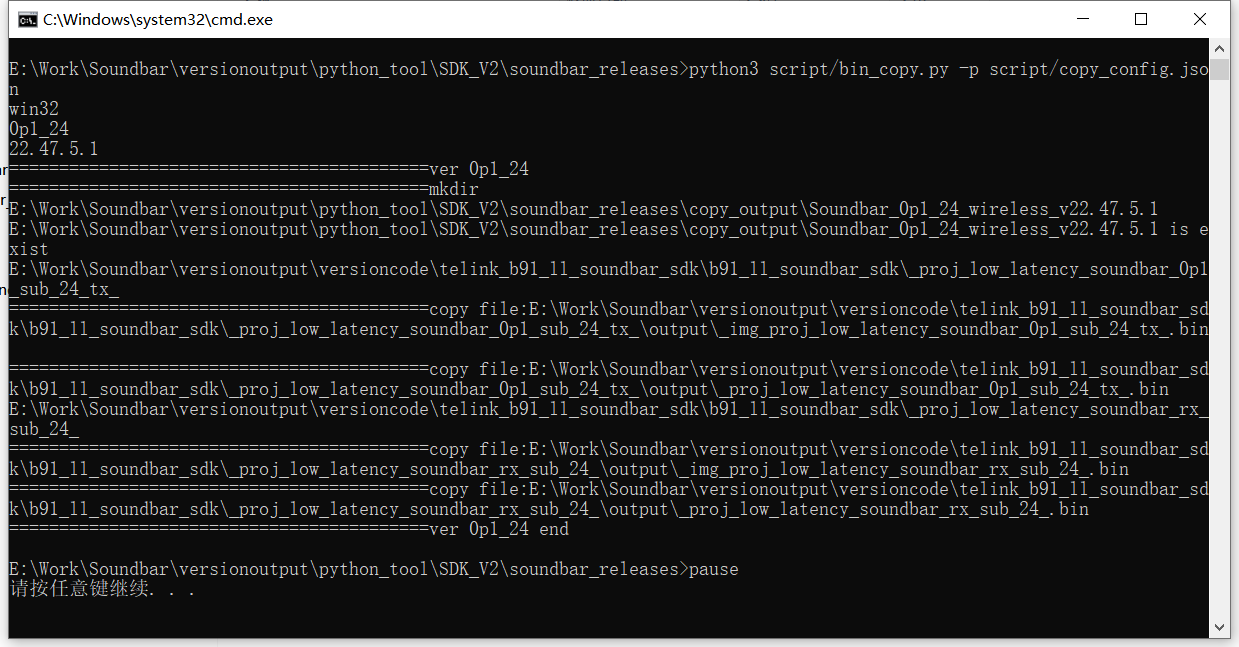
Step3: Execute copy batch file (Copy the bin file under the specified project path to the created folder):
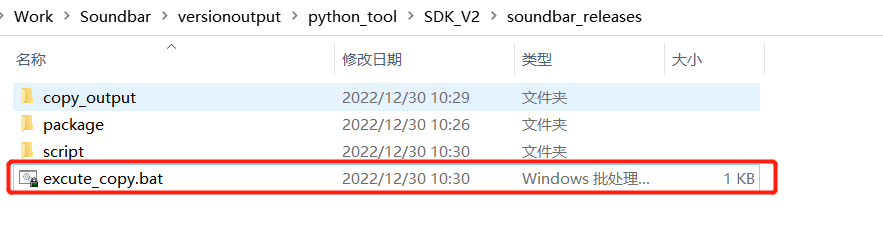
Copy succeeded:
Automatically created folder:
Step4: Execute combine_tool command line tool:
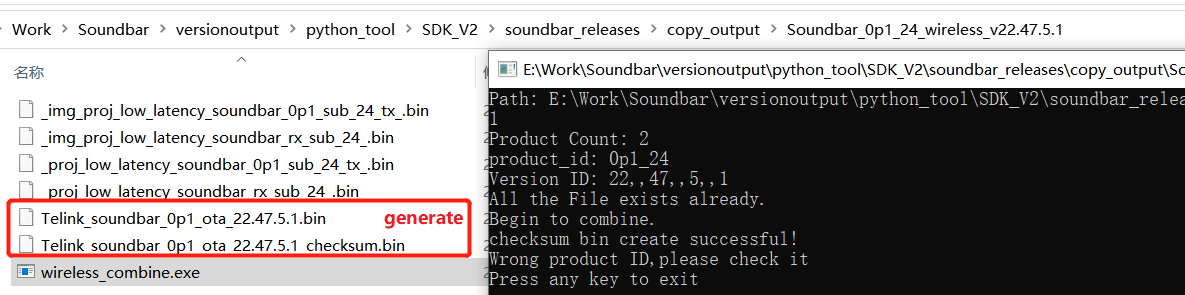
Get the merged file:
UI Version Description
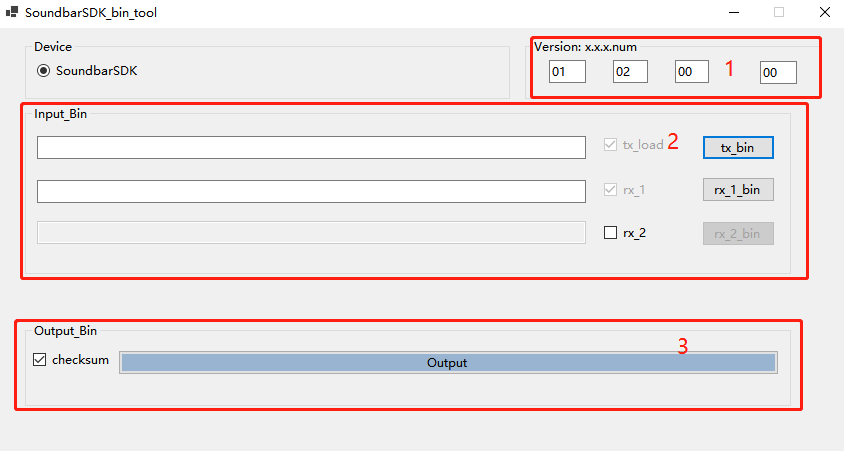
The whole UI is divided into three parts: the first part is to fill in the merged firmware version number, the second part is to import the bin file to be merged, and the third part is the button to merge the bin file and the checkbox to generate the bin file with checksum.
(1) Process Description
Step1: Fill in version number

Select to fill in or not to fill in as required, the default is 1.2.0.0. The first three boxes are the SDK version number (users generally do not need to fill in), and the last box represents the number of firmware iterations.
Step2: Import the bin file to be merged
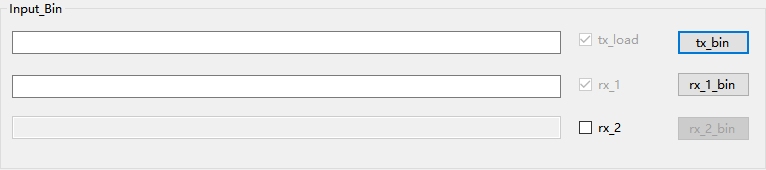
This part will be highlighted or grayed according to the check of rx_2, highlight means that it can be imported, and gray means that it cannot be selected. The user can select the button to import the corresponding bin file, where rx_1_bin is the sub firmware, rx_2_bin is the sod firmware.
Step3: Output bin file

Click the "Output" button, if the bin file is successfully merged, the interface will prompt success, users can find the generated bin file in its software directory. Check the "checksum" option, and the bin file with checksum added in the header will be generated, if the bin file is successfully generated, the interface will prompt success, users can find the generated bin file in its software directory. The generated file is as follows:

EMI Tool
Introduction to EMI testing tool: It is based on USB HID, and requires APP_MODE to be configured as APP_MODE_DEBUG_HID (the editor adopts this mode here and explain it in conjunction with log) or APP_MODE_AUDIO_AUTO, while the EMI_TEST_ENABLE macro is turned on to enable EMI test function.
Process Description
Step1: Open the tool
Open emi_test_hid_tool tool, and display "USB Connected" to indicate that the connection is successful.
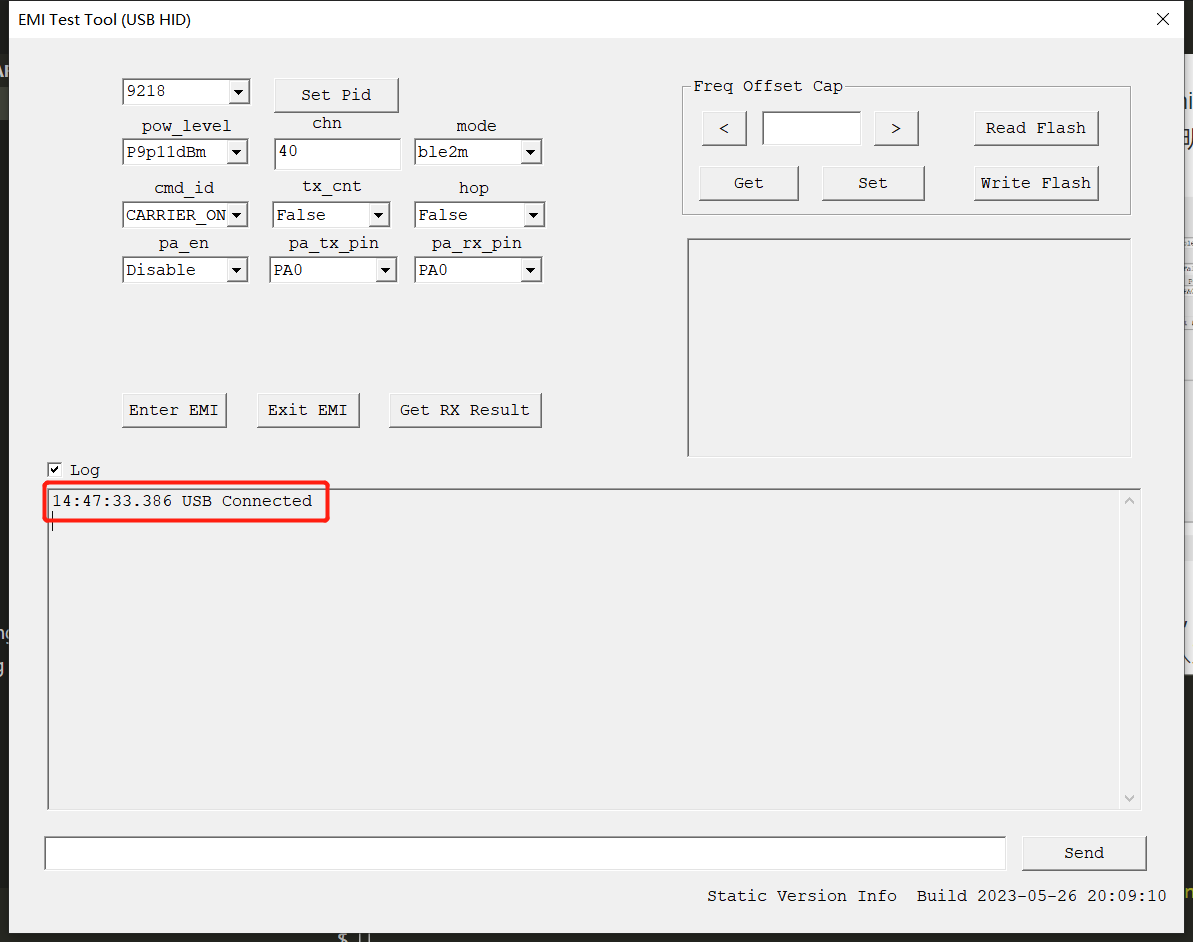
The default pid is 9218. If the pid of the device to be tested changes, you can enter the corresponding pid in the pid box and click "Set Pid".
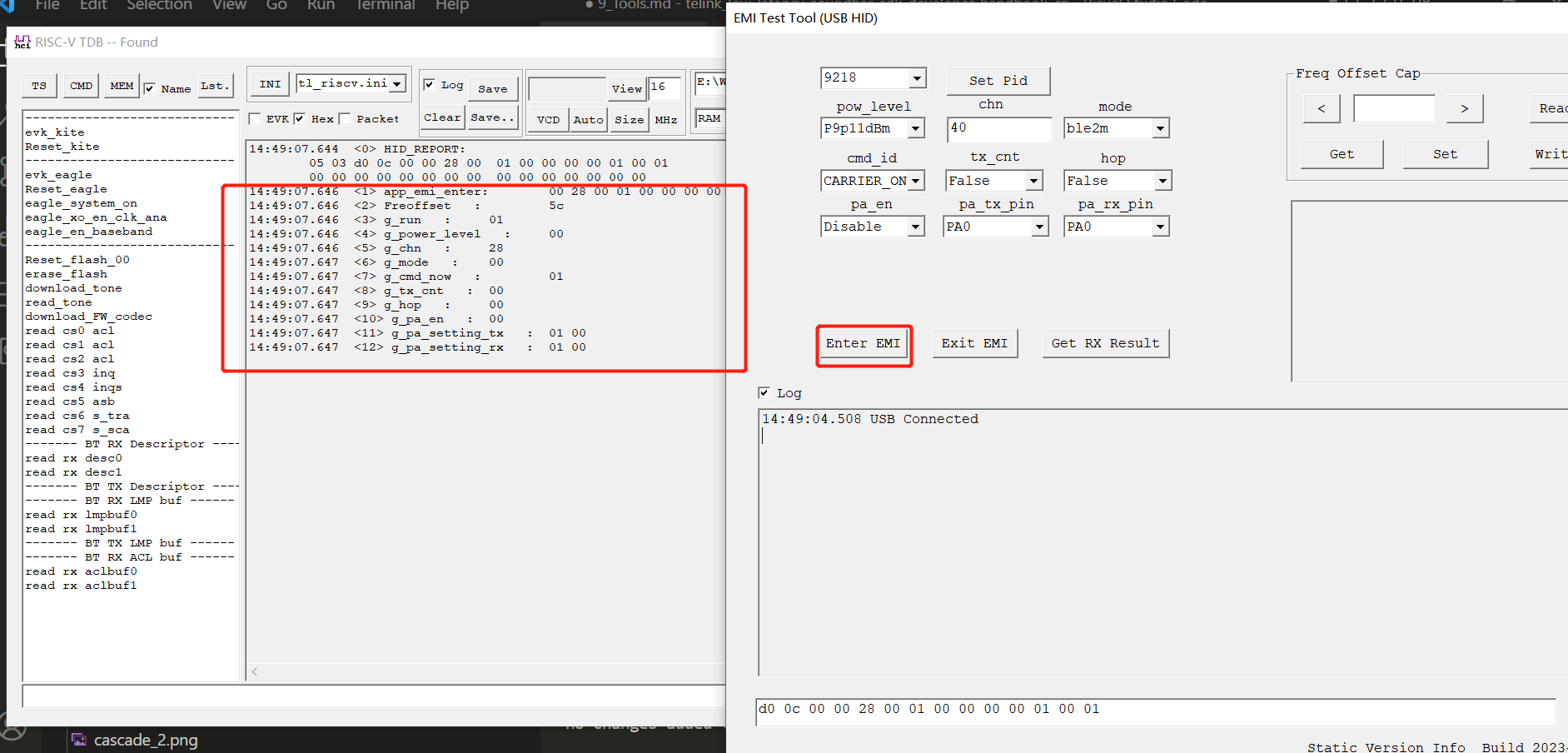
Step2: Enter EMI
Configure EMI parameters and click "Enter EMI". As shown in the figure, the RISC-V TDB tool will print the EMI test has entered and the corresponding configuration parameters.
Step3: Set/Get Freq Offset Cap
Set/Get Freq Offset Cap.
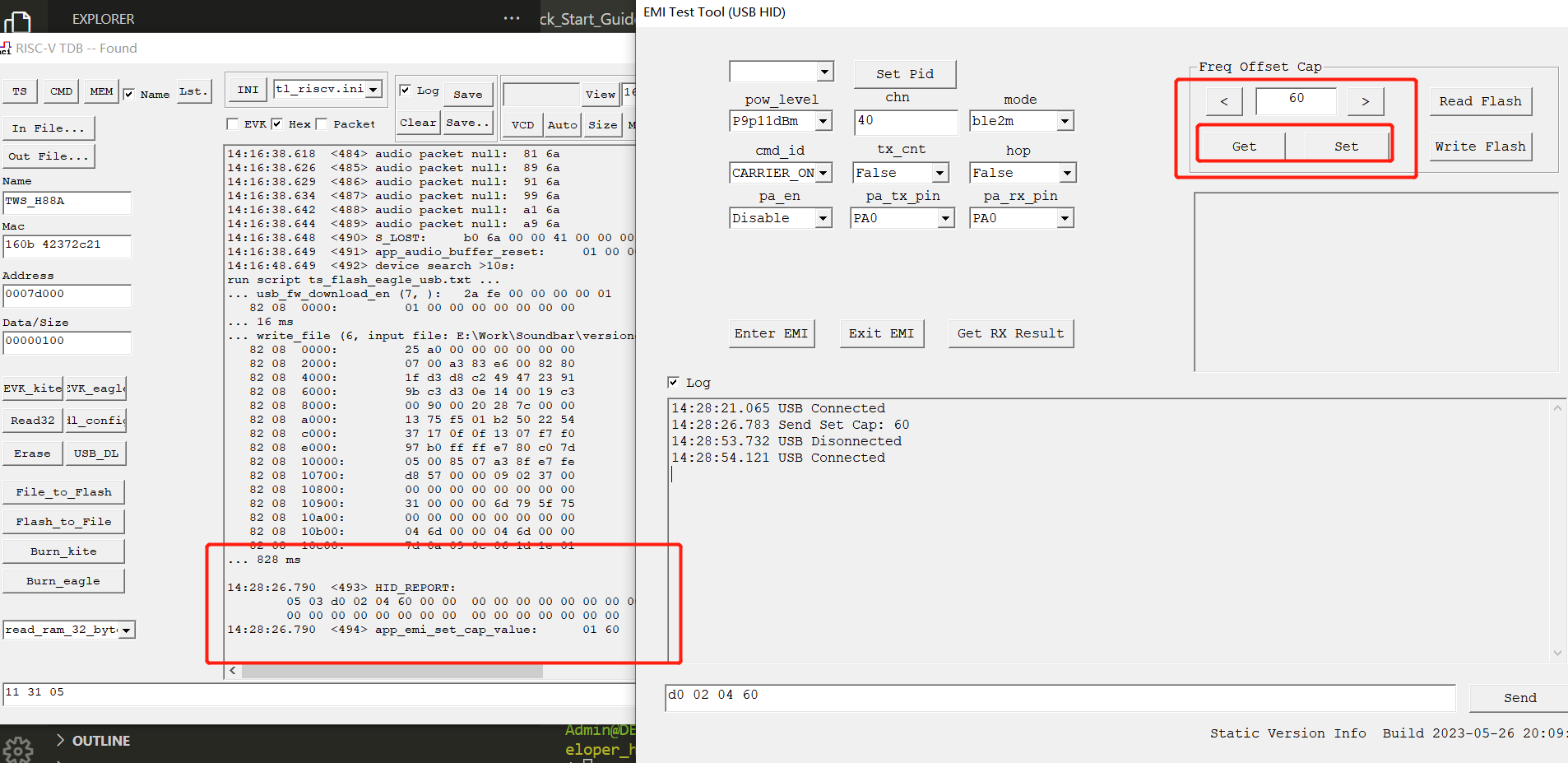
Step4: Read/Write FLASH Freq Offset Cap
Read/Write FLASH Freq Offset Cap.
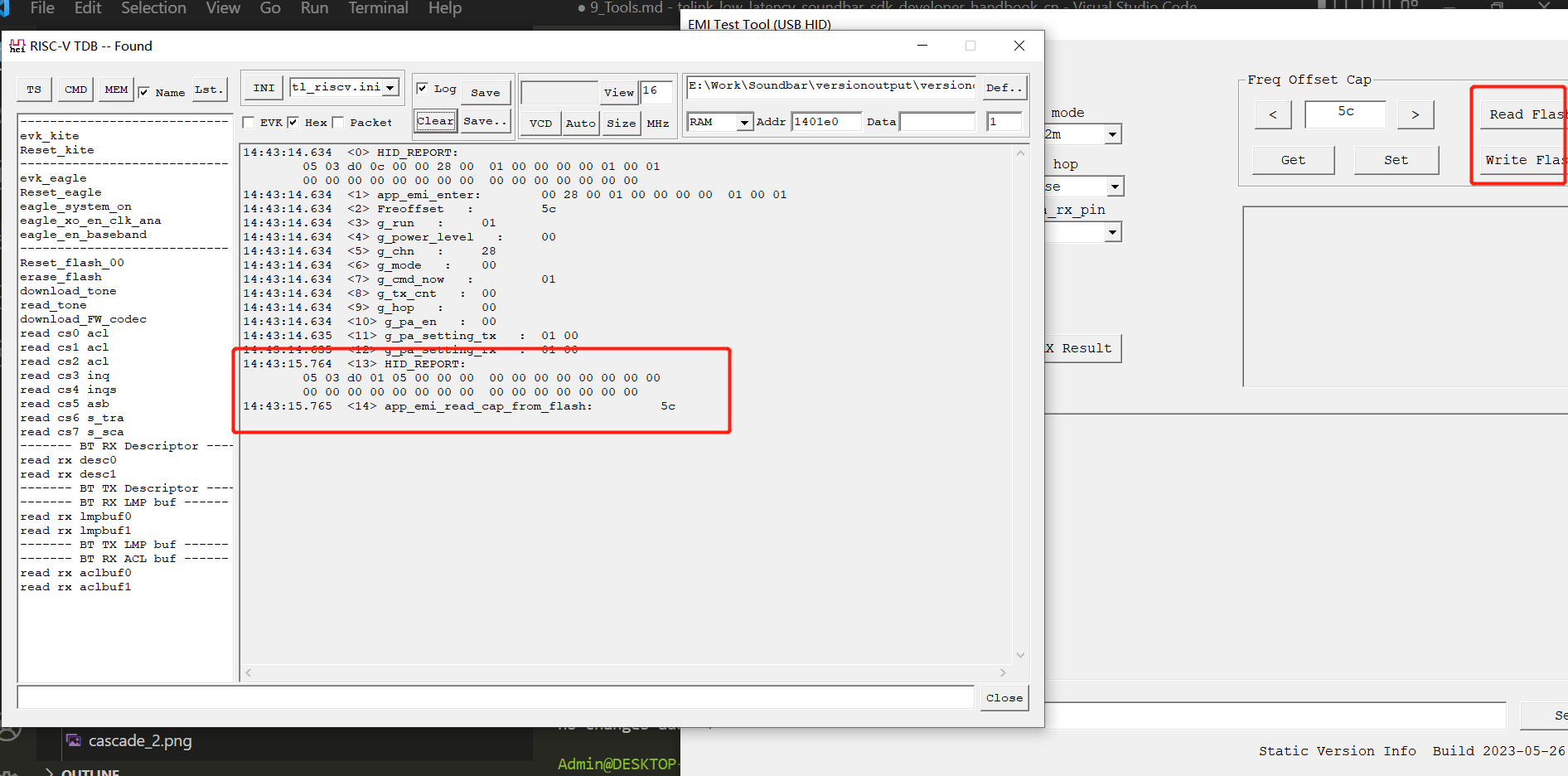
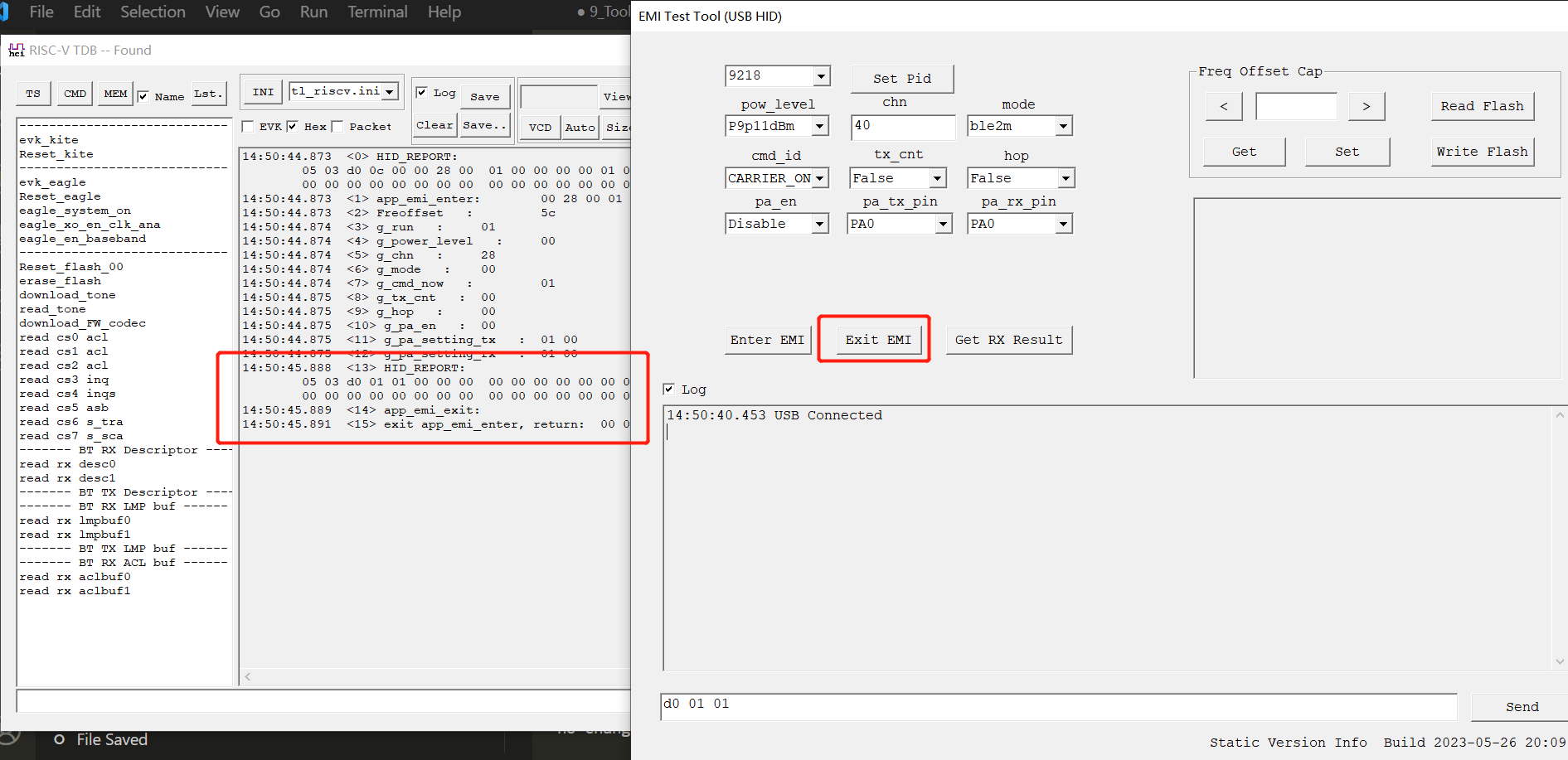
Step5: Exit EMI
Click "Exit EMI" to exit the EMI mode (Note: To modify the configuration, you need to click "Exit EMI" to exit EMI mode first, and then click "Enter EMI" to re-enter EMI, so as to realize the modification of the configuration).