Telink Mouse_Keyboard_Headset 3in1 SDK User Guide
Introduction
This document introduces how to use Telink's mouse, keyboard, and headset three-in-one SDK for firmware burning and Bluetooth pairing.
Environment Setup
Hardware Materials

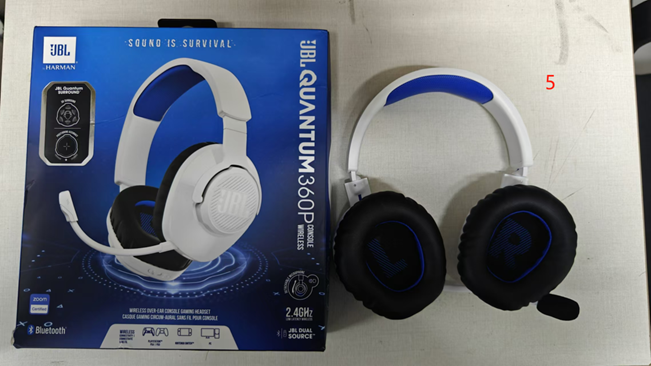
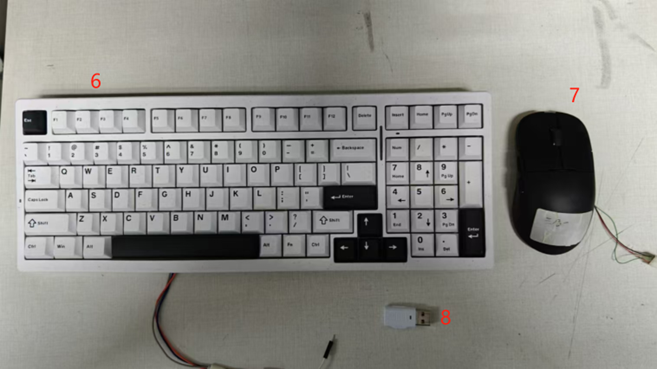
The hardware materials are listed as follows:
| No. | Name | Product S/N | Quantity |
|---|---|---|---|
| 1 | Telink Burner (EVK Burninging Tool) | TLSRGSOCBK56B | 1 |
| 2 | TLSR9518 Development Board | TLSR9518AEZH2108EP9044 | 1 |
| 3 | 2.4GHz Whip Antenna | / | 1 |
| 4 | USB A to Mini USB Data Cable | / | 2 |
| 5 | Q360 Headset | / | 1 |
| 6 | Keyboard with Built-in TLSR8278 Chip | / | 1 |
| 7 | Mouse with Built-in TLSR8278 Chip | / | 1 |
| 8 | Dongle from Q360 Headset Package | / | 1 |
Software Environment
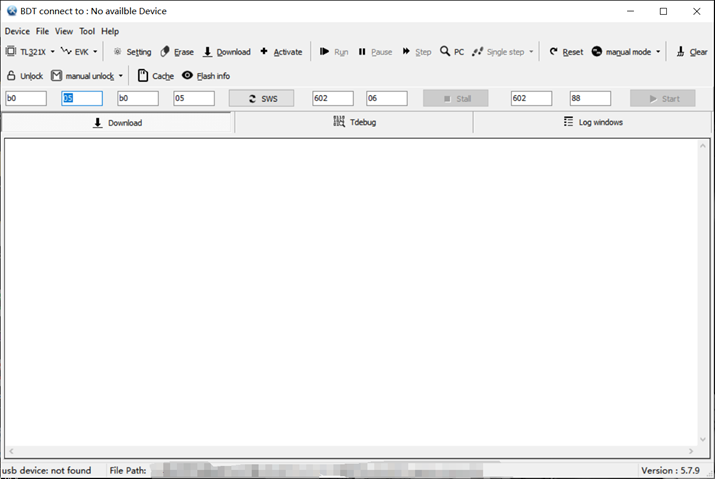
The software used in this document is Telink's burning tool, Telink BDT (Burning and Download Tool). The shortcut and window are shown below.
Firmware Burning
TLSR9518 Development Board Firmware Burning
(1) Connect the TLSR9518 development board to the EVK burning tool using a USB A to mini USB cable, as shown in the figure below:
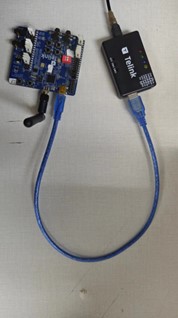
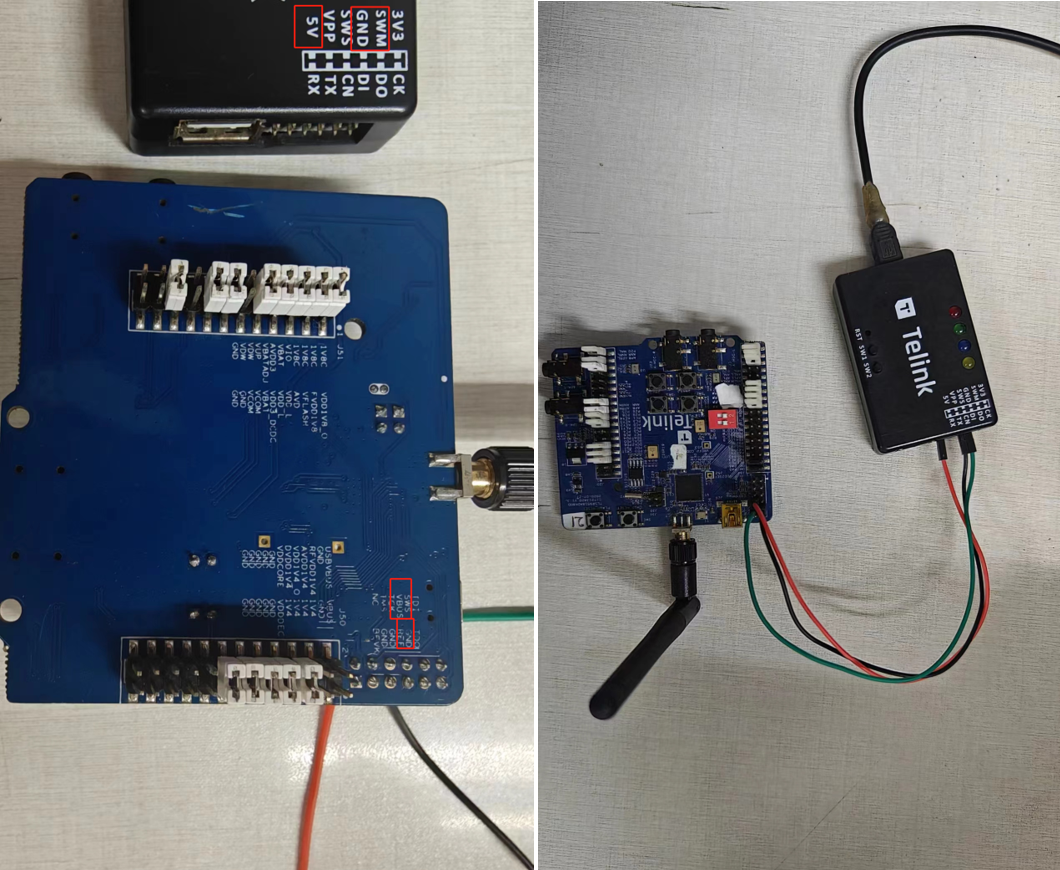
Alternatively, connect the TLSR9518 development board to the EVK burning tool using three Dupont wires. The wiring is as follows:
- EVK tool "5V" power supply -> TLSR9518 development board "VBUS" pin;
- EVK tool "SWM" -> TLSR9518 development board "SWS" pin;
- EVK tool "GND" -> TLSR9518 development board "GND" pin.
Connect the other end of the EVK tool to the PC.
(2) Double-click the Telink BDT shortcut to open the BDT burning tool.
(3) Configure the BDT tool settings before burning, as shown in the figure below.
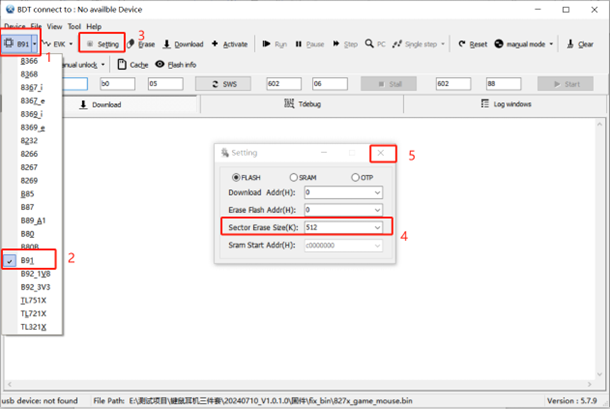
Click the dropdown menu next to the chip model and select the appropriate model. Since the TLSR9518 development board belongs to the B91 series, select B91. After selecting the model, click "Setting". Adjust the erase size from the default 512KB to 2048KB, then click the "X" button to close the settings window.
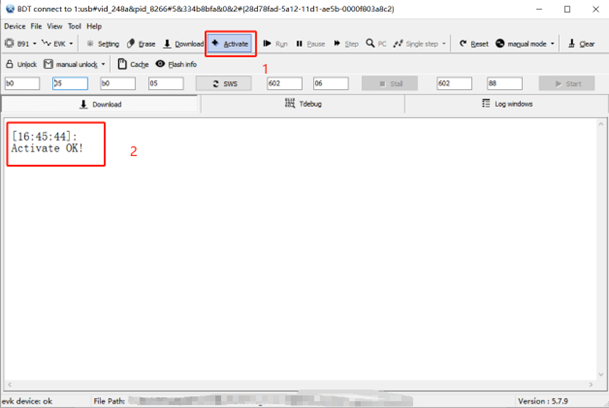
(4) Click the "Activate" button to establish a connection. Once connected successfully, the status window at the bottom will display a success message.
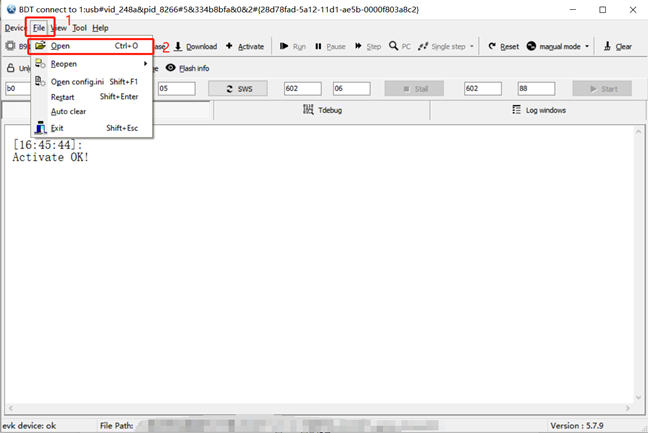
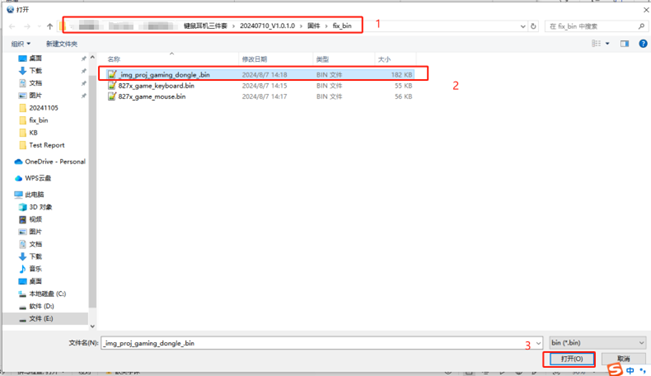
(5) Click the "File" option in the top-left menu bar and select "Open". In the pop-up window, locate the firmware file to be burned, select the file, and click the Open button.
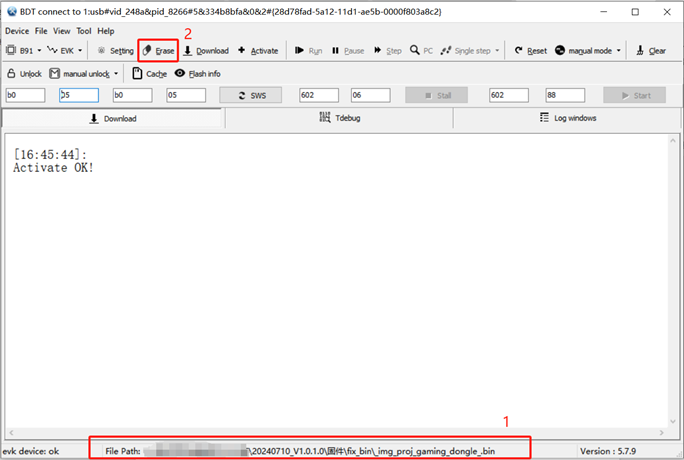
(6) After selecting the firmware, confirm the firmware path at the bottom of the BDT tool window. Click the "Erase" button to erase the TLSR9518 development board and wait for the erasure process to complete.
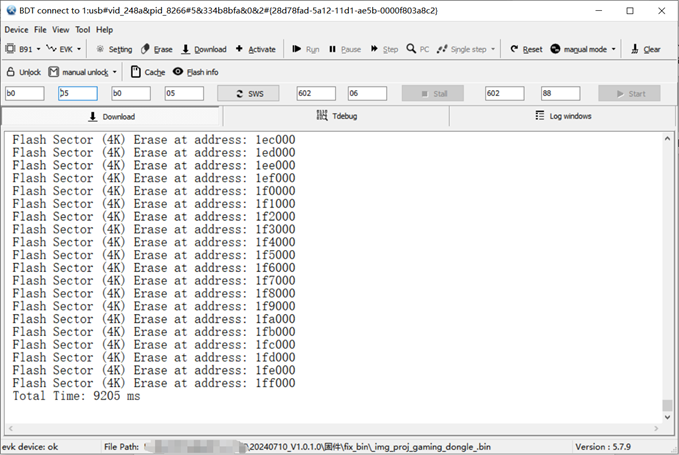
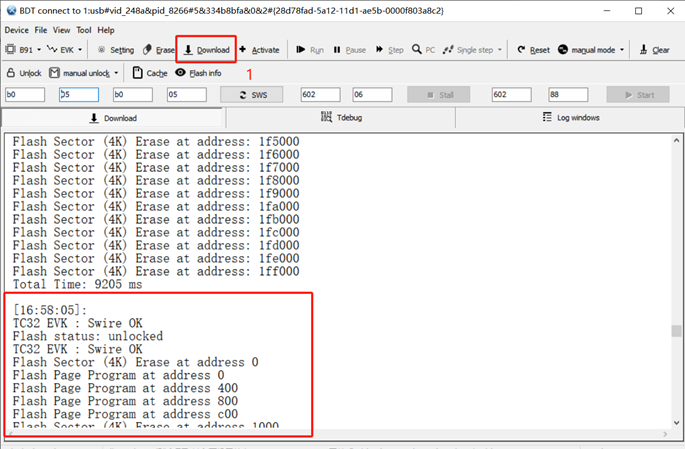
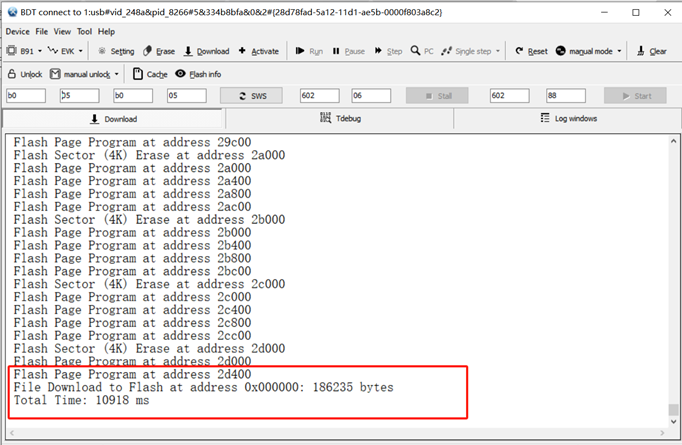
(7) Once erasure is complete, click the "Download" button to burn the firmware. Wait for the burning process to finish, then disconnect the TLSR9518 development board from the EVK burning tool.
Dongle Receiver Firmware Burning
(1) Connect the dongle to the USB interface of the EVK burning tool, and connect the other end of the EVK burning tool to the PC.
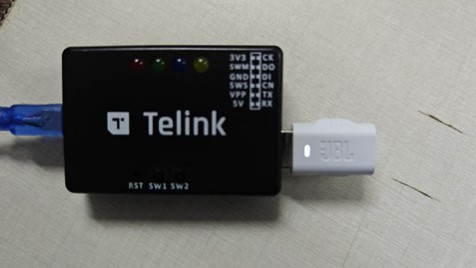
(2) The firmware burning process for the dongle is the same as the method for the TLSR9518 development board described above. The BDT tool settings on the host PC are also identical. Please refer to the TLSR9518 Development Board Firmware Burning section above and select the corresponding firmware for burning.
Headset Firmware Burning
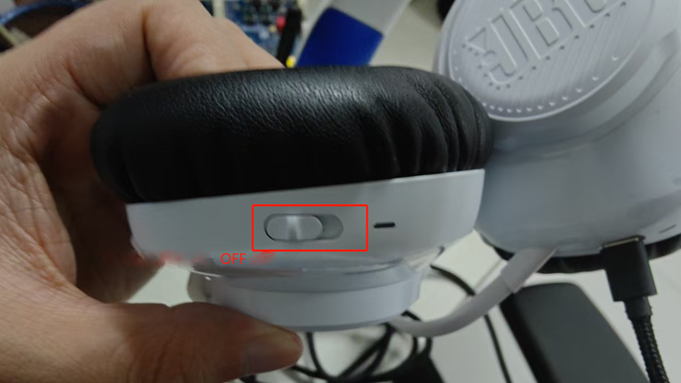
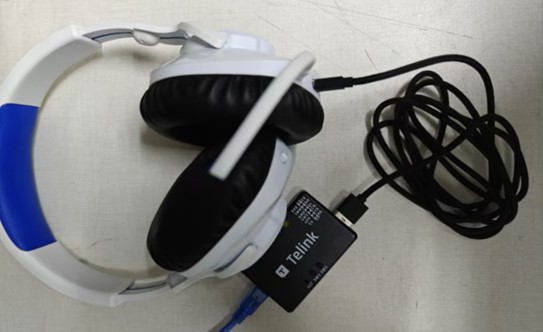
(1) Turn off the headset (slide the power switch to the farthest position), as shown in the figure below.
Then, prepare a USB Type-C cable. Connect the Type-C end to the headset's Type-C port, and connect the USB end to the EVK burning tool (as shown in the figure). Connect the other end of the EVK burning tool to the PC.
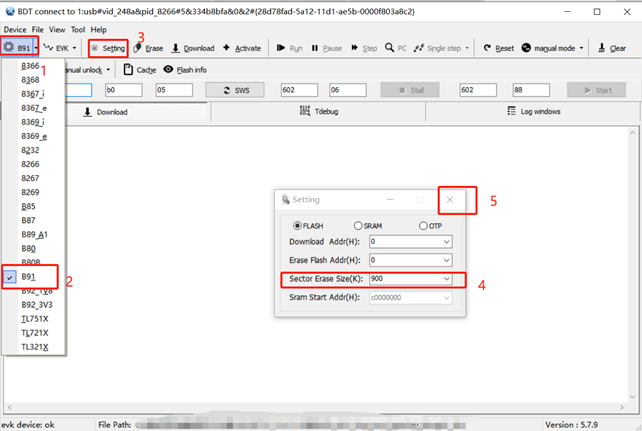
(2) Open the BDT tool on the host PC. Click the dropdown menu next to the chip model (marked as position 1 in the figure) and select the chip model. The Q360 headset belongs to the B91 series, so select B91. After selecting the model, click "Setting" to configure the erase size (Sector Erase Size(K):). Change the default value from 512K to 900K (marked as positions 3 and 4 in the figure), then click the "X" button to close the settings window.
(3) Click the "Activate" button to establish a connection. Then, click the "File" option in the top-left menu bar and select "Open". In the pop-up window, locate the firmware file to be burned, select the file, and click "Open". After selecting the firmware, confirm the firmware path at the bottom of the BDT tool window. Click the "Erase" button to erase the headset, wait for the erasure process to complete, and then click the "Download" button to burn the firmware. Once burning is complete, disconnect the headset (refer to the TLSR9518 Development Board Firmware burning process). Select the appropriate firmware for burning.
Keyboard Firmware Burning
(1) Connect the keyboard to the EVK burning tool:
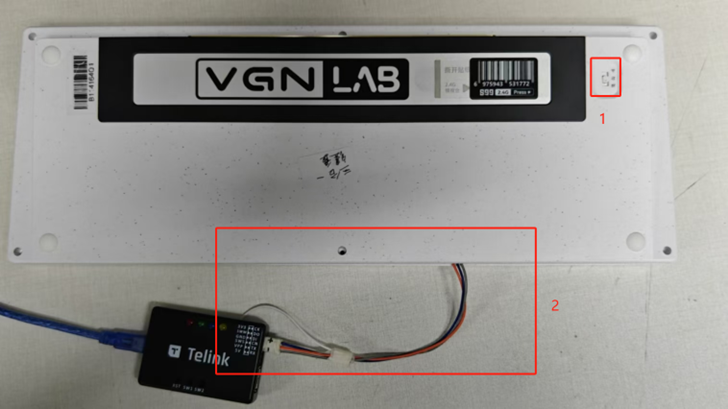
- Method 1: Use three wires (positive power, ground, and SWS burning wire) from the keyboard PCBA board to connect to the EVK tool’s 3V3, GND, and SWM ports (as shown in the figure). Ensure the keyboard power switch is set to OFF (middle position, marked as position 1 in the figure); otherwise, the BDT tool will not recognize the keyboard.
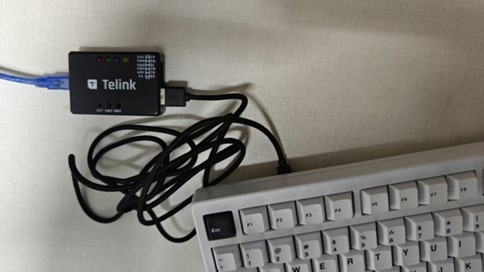
- Method 2: Use a USB Type-C cable. Connect the Type-C end to the keyboard’s Type-C port and the USB end to the EVK burning tool (as shown in the figure). Connect the other end of the EVK burning tool to the PC.
(2) Open the BDT tool on the host PC. Click the dropdown menu next to the chip model (marked as position 1 in the figure) and select the chip model. The keyboard chip is TLSR8278, so select B87. After selecting the model, click "Setting" to configure the erase size (Sector Erase Size(K):). The default value is 512K, and no changes are required. Click the "X" button to close the settings window.
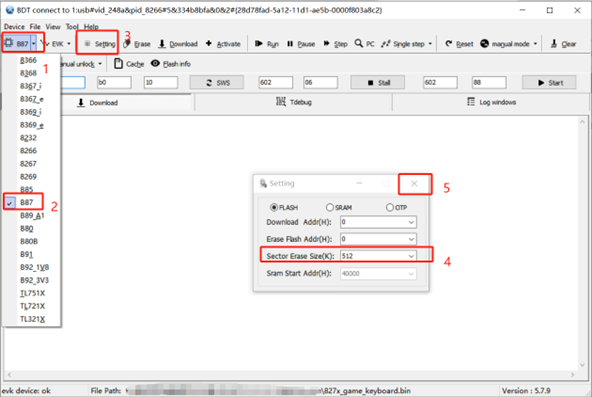
(3) Click the "Activate" button to establish a connection. Then, click the "File" option in the top-left menu bar and select Open. In the pop-up window, locate the firmware file to be burned, select the file, and click "Open". After selecting the firmware, confirm the firmware path at the bottom of the BDT tool window. Click the "Erase" button to erase the keyboard, wait for the erasure process to complete, and then click the "Download" button to burn the firmware. Once burning is complete, disconnect the keyboard (refer to the TLSR9518 Development Board Firmware Burning process). Configure the settings as needed and select the appropriate firmware for burning.
Mouse Firmware Burning
(1) Connect the mouse to the EVK burning tool:
- Method 1: Use three wires (positive power, ground, and SWS burning wire) from the mouse PCBA board to connect to the EVK tool’s 3V3, GND, and SWM ports (as shown in the figure).
- Method 2: Use a USB Type-C cable. Connect the Type-C end to the mouse’s Type-C port and the USB end to the EVK burning tool (as shown in the figure). Connect the other end of the EVK burning tool to the PC.
Note
- When using the BDT tool to activate, if the mouse power switch is set to ON, the mouse must be in a wake state. The chip cannot be detected while in deepsleep mode.
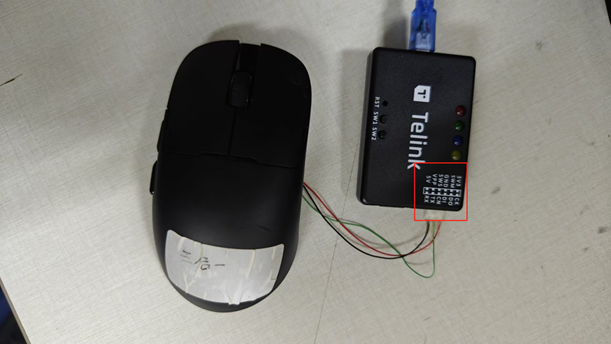
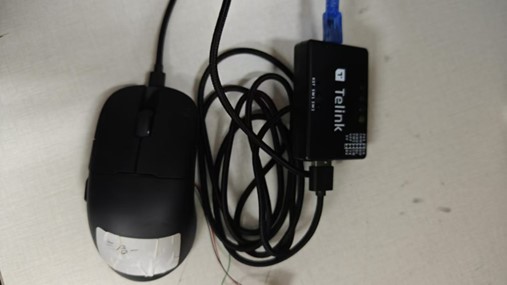
(2) Open the BDT tool on the host PC. Click the dropdown menu next to the chip model (marked as position 1 in the figure) and select the chip model. The mouse chip is TLSR8278, so select B87. After selecting the model, click "Setting" to configure the erase size (Sector Erase Size(K):). The default value is 512K, and no changes are required. Click the "X" button to close the settings window.
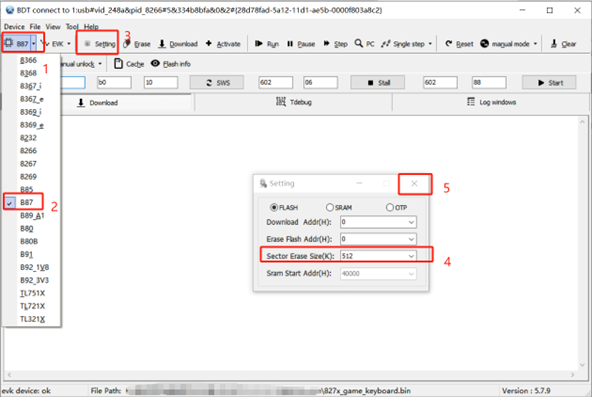
(3) Click the "Activate" button to establish a connection. Then, click the "File" option in the top-left menu bar and select Open. In the pop-up window, locate the firmware file to be burned, select the file, and click "Open". After selecting the firmware, confirm the firmware path at the bottom of the BDT tool window. Click the "Erase" button to erase the Mouse, wait for the erasure process to complete, and then click the "Download" button to burn the firmware. Once burning is complete, disconnect the Mouse (refer to the TLSR9518 Development Board Firmware Burning process). Configure the settings as needed and select the appropriate firmware for burning.
Pairing Connection
Headset Pairing
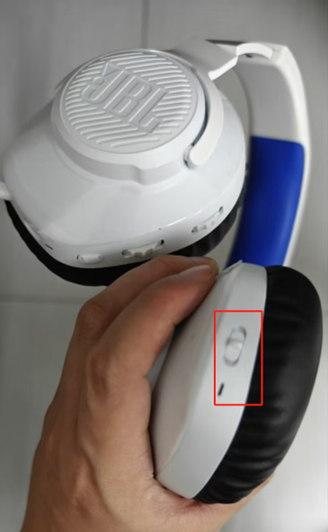
(1) After burning the firmware, power on the headset. Within 30 seconds of powering it on, plug the dongle into the USB port of the PC.
(2) Re-pairing the headset: At this stage, the headset cannot re-enter pairing mode. To pair it again or with a new device, you must reburn the firmware (erase the first 900 KB of flash memory and then burn the headset firmware). For details, refer to the earlier section TLSR9518 Development Board Firmware Burning.
Keyboard Pairing
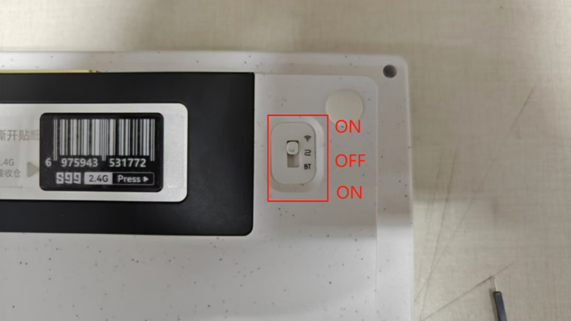
(1) After erasing and burning the keyboard firmware, power on the keyboard (at this stage, it is the same that the power switch is set to the top or bottom position, as shown in the image). Within 30 seconds of powering on, plug the dongle into the USB port of the PC.
(2) Re-pairing the keyboard: Press and hold the ESC + W keys for 3 seconds, then release them to enter pairing mode (there is no LED indicator at this stage). Once in pairing mode, within 30 seconds, unplug and re-plug the dongle. If pairing with a new dongle, simply plug the dongle into the PC USB port.
Mouse Pairing
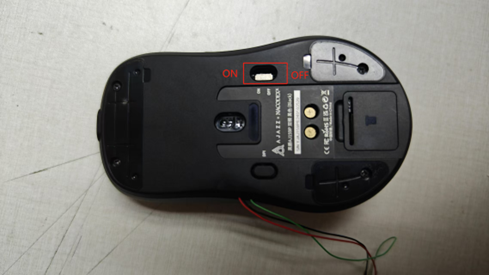
(1) After erasing and burning the mouse firmware, power on the mouse (as shown in the image). Within 30 seconds of powering on, plug the dongle into the USB port of the PC.
(2) Re-pairing the mouse: Press and hold the Left + Middle Mouse Buttons for 3 seconds, then release them to enter pairing mode (the LED will flash rapidly). Once in pairing mode, within 30 seconds, unplug and re-plug the dongle. If pairing with a new dongle, simply plug the dongle into the PC USB port.
Other Instructions
Mouse
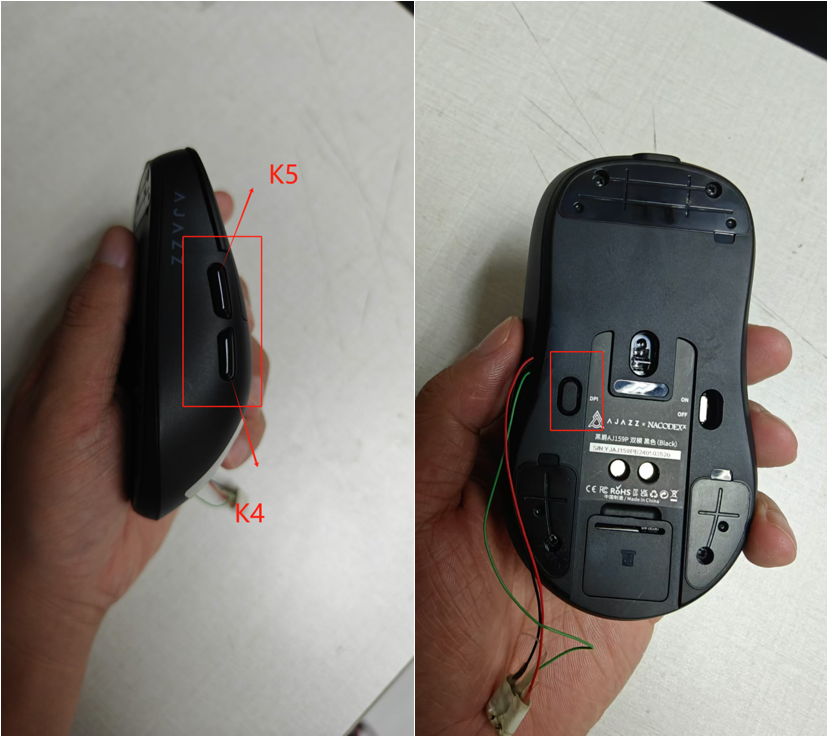
(1) K4 Key: Auto line drawing function. Click once to start automatic line drawing, and click again to stop it.
(2) K5 Key: Controls the report rate. Click to switch the four report rate levels (133-266-800-1000).
(3) DPI Key: Click to switch the DPI setting.